Using Magewell USB Capture with Microsoft Teams: Complete Setup Guide
Basic Setup
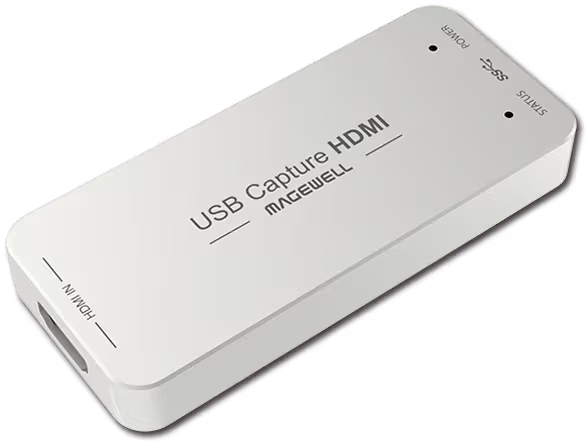
Connect your Magewell USB Capture device and HDMI source. Open Microsoft Teams, go to Settings → Devices, and under Camera select the Magewell device. It appears as a standard webcam. Your HDMI source now provides your Teams video feed.
Why Use a Capture Card for Teams?
A capture card connected to a professional camera, DSLR, or mirrorless camera delivers substantially better image quality than a standard webcam. Capture cards are also used in conference rooms to capture a PTZ camera (often with HDMI output) into Teams for hybrid meetings.
Enterprise IT Deployment
Magewell USB Capture devices are UVC-compliant, meaning they require no drivers and no administrative rights to install. Standard Windows camera enumeration picks them up automatically. This makes them straightforward to deploy across corporate environments where IT policies prevent driver installation.
Conference Room Scenarios
A typical conference room setup: PTZ camera with HDMI output → USB Capture HDMI Gen 2 → room PC running Teams. If the room camera has SDI output, the USB Capture SDI Gen 2 handles it identically.
Common Issues
Teams shows a black screen: The HDMI source is outputting HDCP-protected content. Cameras, computers, and AV sources are fine. Streaming devices and set-top boxes may be HDCP-protected.
Image appears mirrored: Teams mirrors the camera preview by default. This does not affect what other participants see. Go to Settings → Devices and toggle Mirror my video to disable.