Using NDI® with Magewell Pro Convert Devices and vMix Software
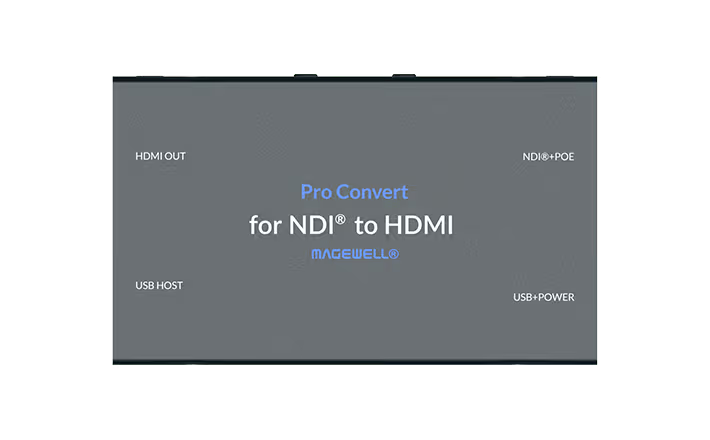
The NDI ® (Network Device Interface) standard is one of the most popular technologies used in IP-based media workflows. NDI enables the transport of real-time, low-latency video on existing IP networks, creating IP-based production environments with flexible access to video, audio and data.
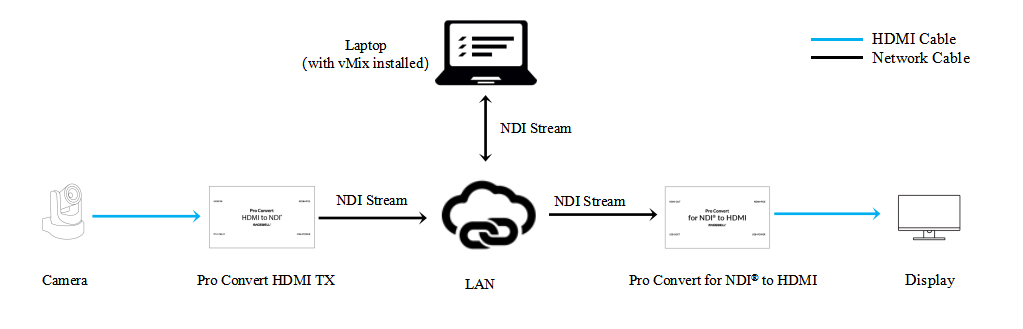
The extensive NDI ecosystem includes both software (such as vMix, OBS, and Magewell Bridge for NDI ® ) and hardware devices that help users bridge NDI networks with existing, traditional video infrastructure. This blog explains how to use Magewell Pro Convert devices in conjunction with vMix in two ways – with a Pro Convert encoder as a source for vMix, and with a Pro Convert decoder receiving and displaying an NDI stream produced by vMix.
- One Magewell Pro Convert encoder ( Pro Convert HDMI TX is used in this example)
- One Magewell Pro Convert decoder ( Pro Convert for NDI ® to HDMI is used in this example)
- One PTZ camera (as a source for the Pro Convert encoder)
- One laptop with vMix installed, one display, and several HDMI cables and network cables.
Workflow Overview
Our content flow is outlined in the device connection diagram below.
Solution 1: Magewell encoder sending NDI streams to vMix
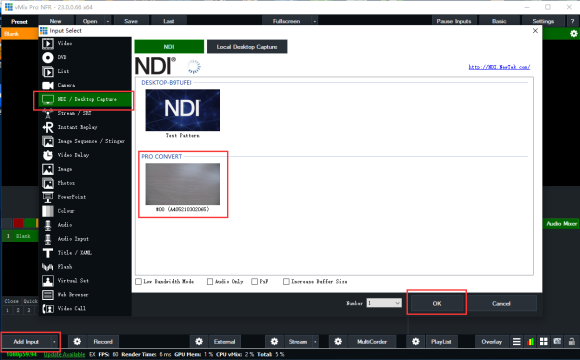
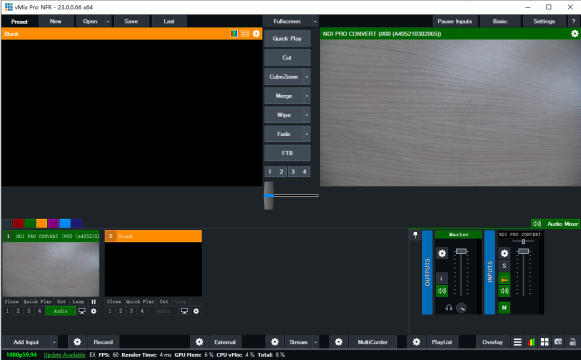
In the vMix software, click "Add Input" in the lower left corner. Select "NDI/Desktop Capture" in the left menu on the pop-up "Input Select" settings page. All NDI streams currently available on the network will be displayed. Select the NDI stream being sent by the Magewell encoder, and click "OK". The NDI stream can now be used as a source or added to a playlist.
Solution 2: Magewell decoder receiving NDI streams from vMix
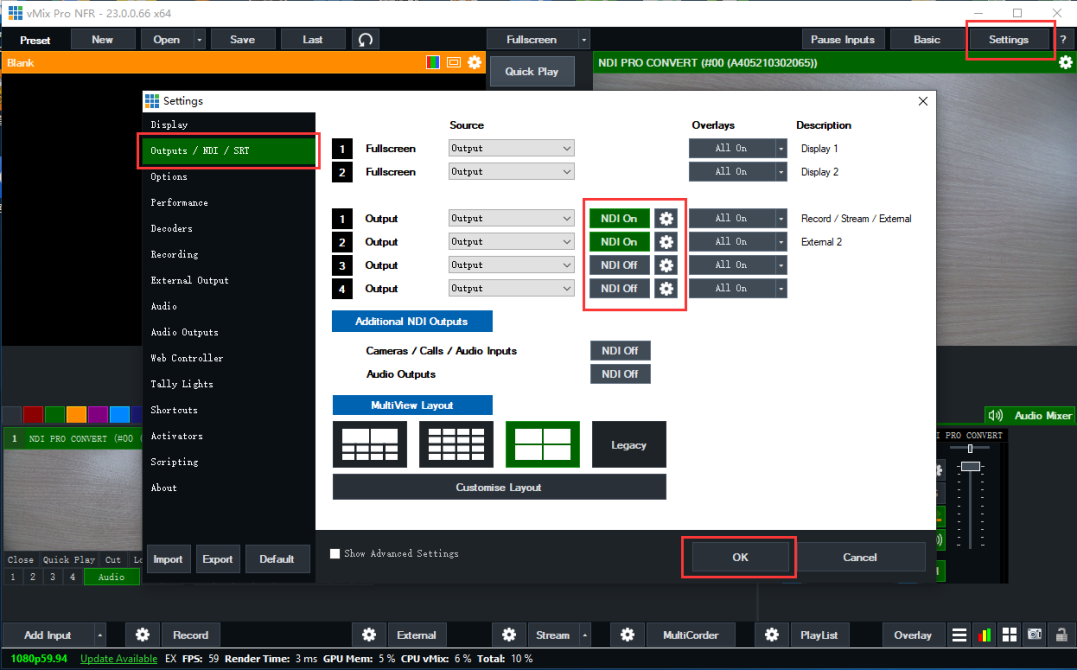
1. In the vMix software, click "Settings" in the upper right corner, then select "Outputs/NDI/SRT" in the left menu on the pop-up "Settings" page. You will see controls for four vMix output channels. To the right of each output, you can toggle "NDI On" or "NDI Off" for the corresponding output channel as shown in the figure below. You can also use the drop-down list to select exactly what will be output on that channel – for example, the combined program mix, preview, or a direct pass-through of one of the input sources.
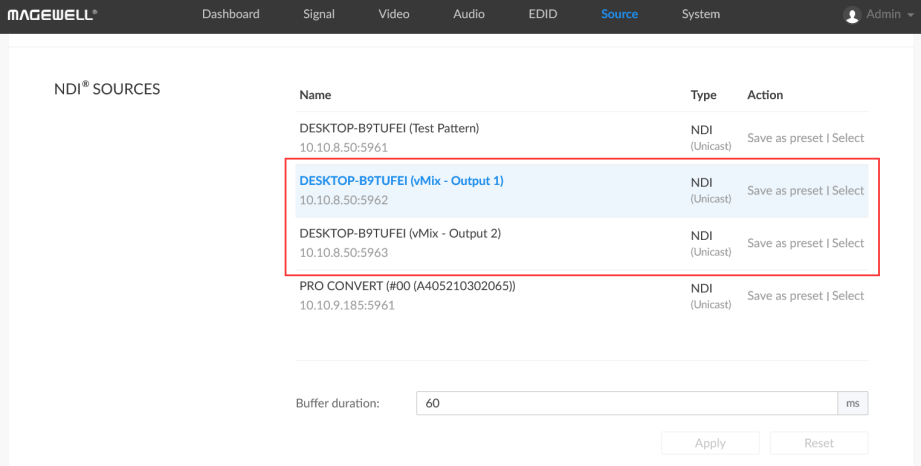
2. Log into the Web GUI of the Pro Convert decoder and click the "Source" tab. In the "NDI ® SOURCES" section, all NDI streams currently available on the network will be displayed. Select the NDI stream sent by vMix, and the decoded NDI stream will be displayed on the monitor connected to the decoder.
ForeFront Imaging is the authorised UK distributor for Magewell. We stock the full range and can help you spec the right solution.
Browse Products Talk to Us