Remote Production Using Magewell Ultra Encode and Pro Convert Devices with vMix Software and SRT Streaming
In a previous blog post, we talked about a remote production workflow that uses Magewell Ultra Encode and Pro Convert devices with OBS Studio software and leverages the SRT protocol . In this article, we'll discuss how to implement a similar workflow using vMix software.
Devices Used in this Example:
- One Magewell Ultra Encode encoder ( Ultra Encode HDMI is used in this example)
- One Magewell Pro Convert decoder ( Pro Convert H.26x to HDMI is used in this example)
- One PTZ camera (as a video source for the encoder)
- One laptop with vMix installed, one display, and several HDMI cables and network cables.
Workflow Overview
Our content flow is outlined in the device connection diagram below.
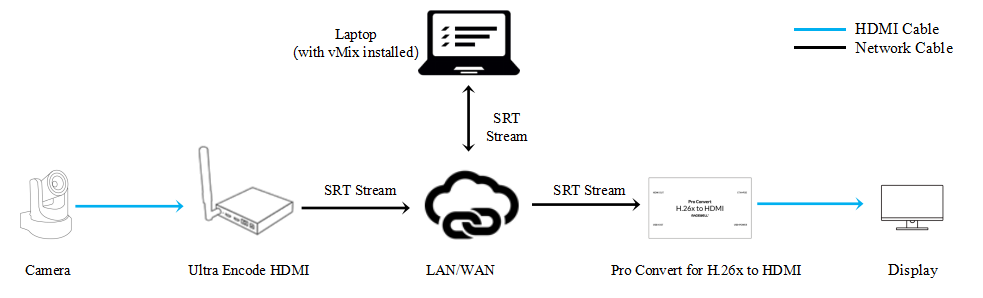
In SRT workflows, one endpoint identifies itself as a Caller (which initiates the SRT streaming session), and the other as a Listener (which waits for a request from the Caller). Since vMix can act as both the SRT Caller and the SRT Listener, we will explain both possibilities in each of our example workflow segments. The main practical difference will be whether SRT streaming is initiated by the encoder/decoder, or by the vMix software.
Part 1: Magewell encoder sending SRT streams to vMix
Solution 1: Encoder as Listener, vMix as Caller
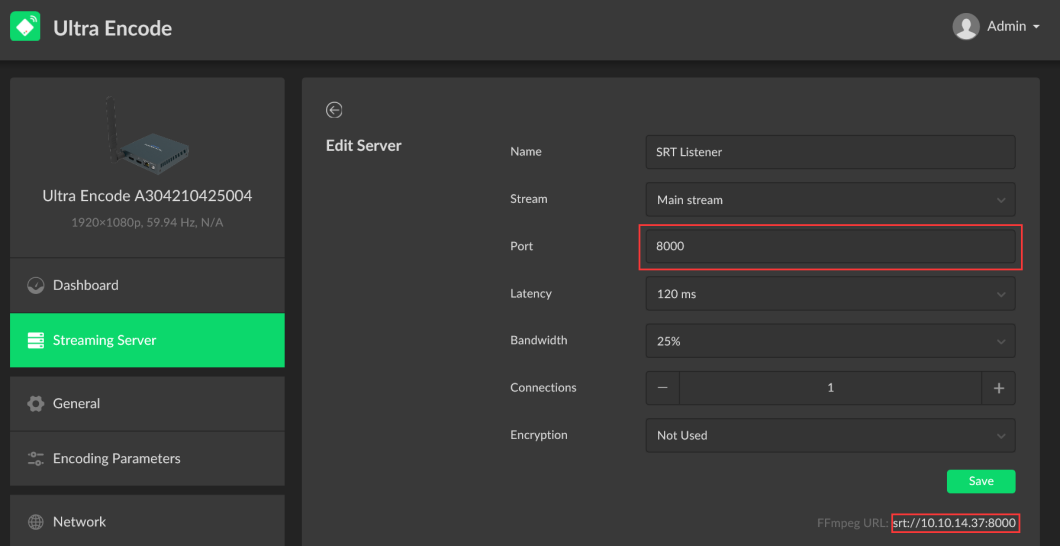
1. Log into the Web GUI of the Ultra Encode device, click "Streaming Server" in the menu on the left, then click "Add Server". Select "SRT Listener".
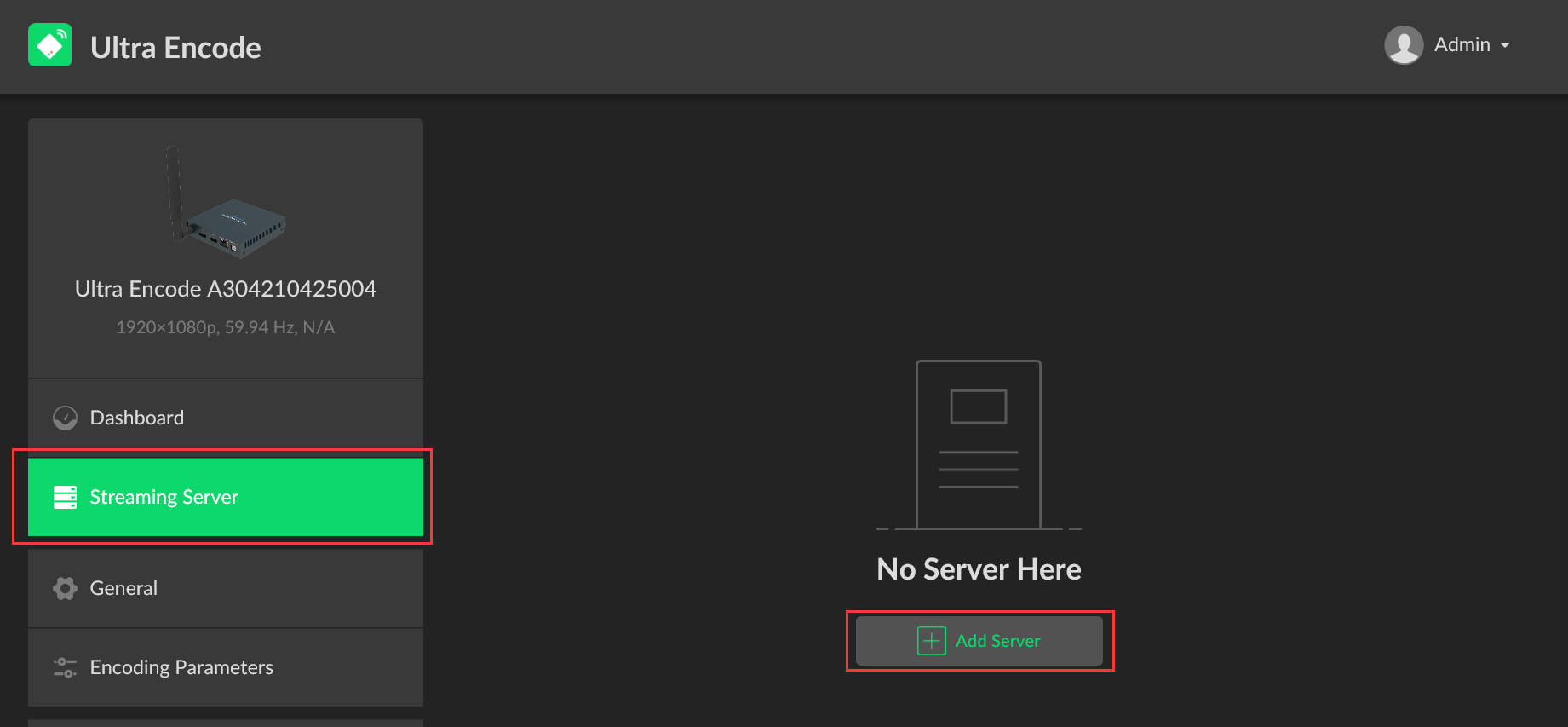
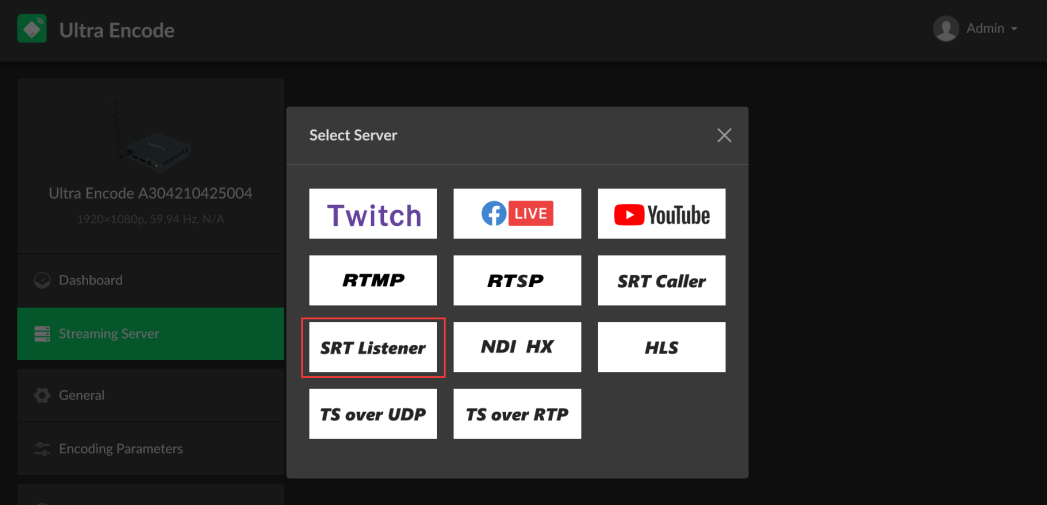
2. Fill in the port number in the pop-up page (8000 in our example) and click "Save". The SRT decoding address will pop up in the lower right corner of the page (srt://10.10.14.37:8000 in our example). The encoder will begin streaming once a connection is initiated by an SRT Caller.
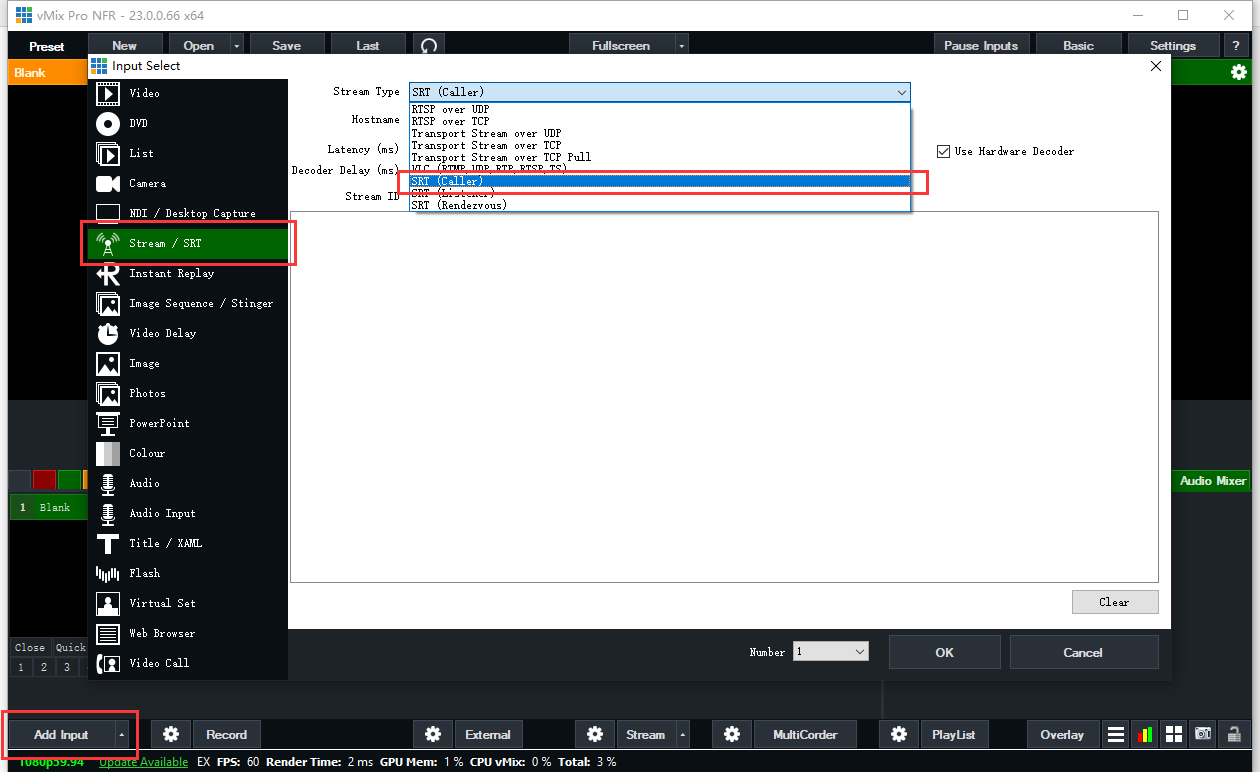
3. In the vMix software, click "Add Input" in the lower left corner. Select "Stream/SRT" in the left menu on the pop-up "Input Select" settings page, and select “SRT (Caller)” in the "Stream Type" drop-down menu list.
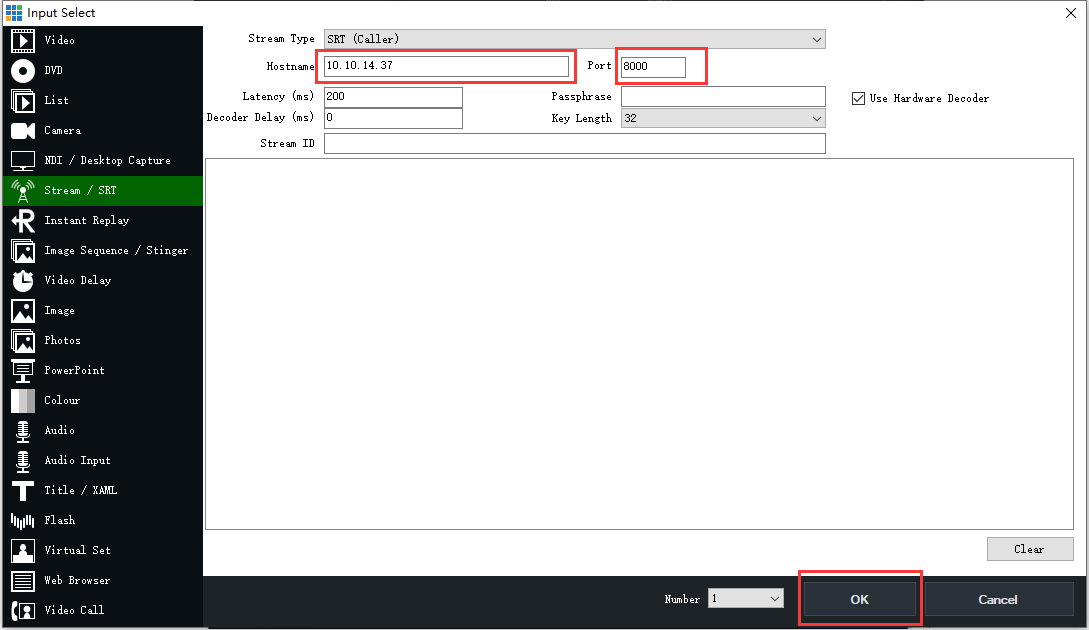
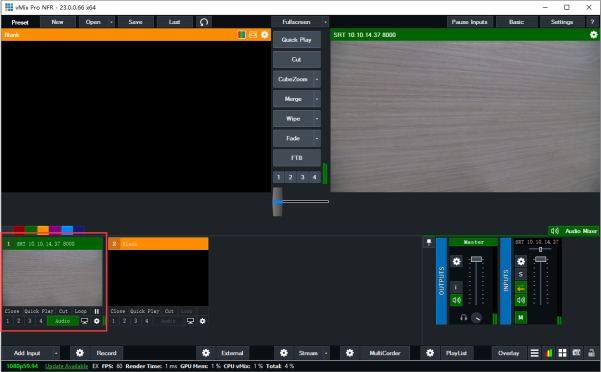
4. Fill in the IP address of the Magewell encoder in the "Hostname" field (10.10.14.37 in our example) and the port number (8000 in our example) in the "Port" field. Click "OK" to initiate the SRT session and begin decoding the SRT stream sent from the encoder.
Solution 2: Encoder as Caller, vMix as Listener
1. In the vMix software, click "Add Input" in the lower left corner. Select "Stream/SRT" in the left menu on the pop-up "Input Select" settings page, and select “SRT (Listener)” in the "Stream Type" drop-down menu list.
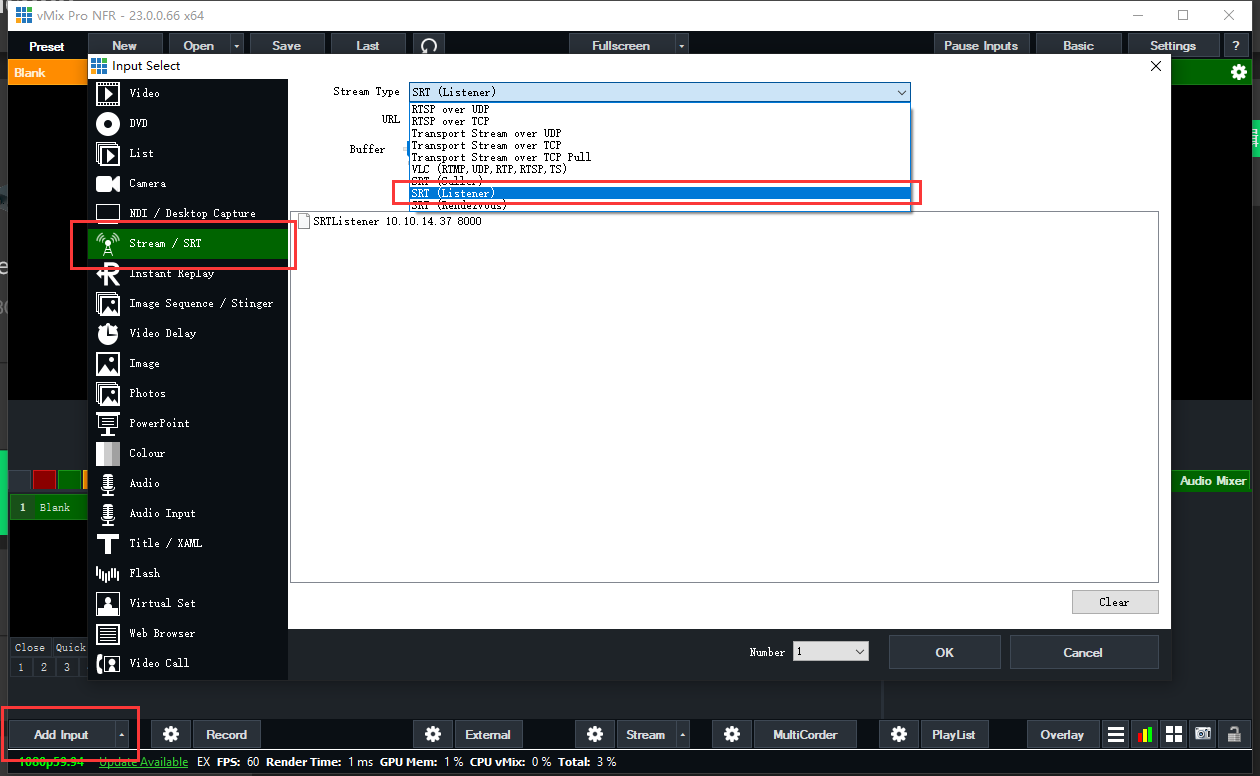
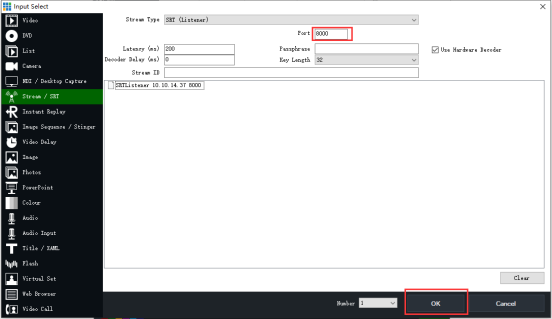
2. Fill in the port number in the "Port" field (8000 in our example). Click "OK" to begin waiting for the Ultra Encode unit to initiate an SRT streaming session.
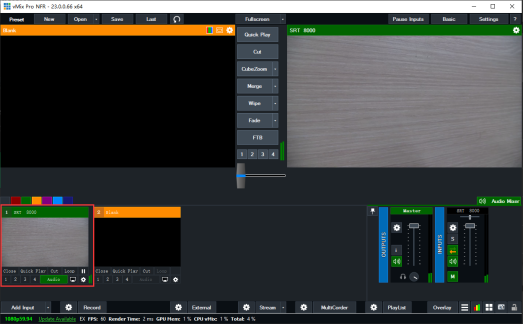
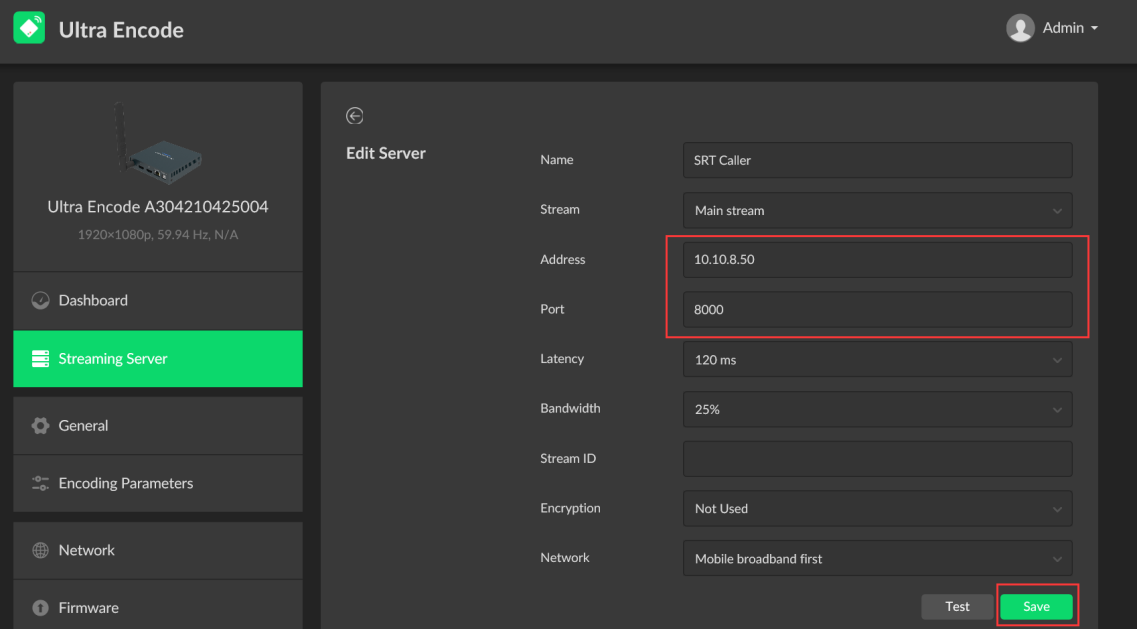
3. Log into the Web GUI of the Ultra Encode device, click "Streaming Server" in the menu on the left, then click "Add Server". Select "SRT Caller".
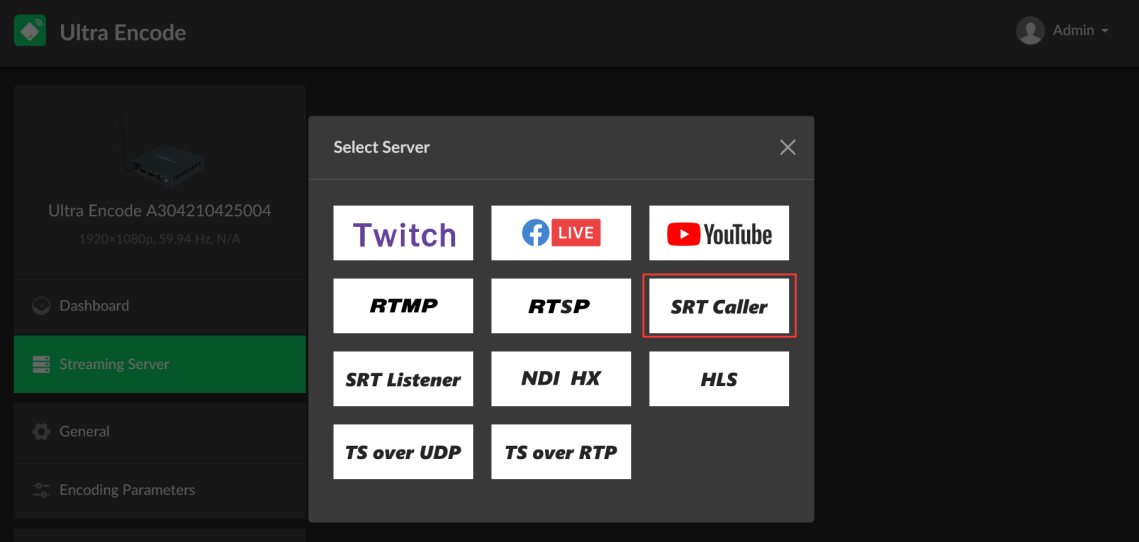
4. In the Address field, enter the IP address of the laptop with vMix installed (10.10.8.50 in our example). Enter the Port number (8000 in our example), and click "Save". The encoder will initiate a connection with the SRT Listener (decoder) and begin streaming.
Part 2: Magewell decoder receiving SRT streams from vMix
Solution 1: vMix as Listener, Decoder as Caller
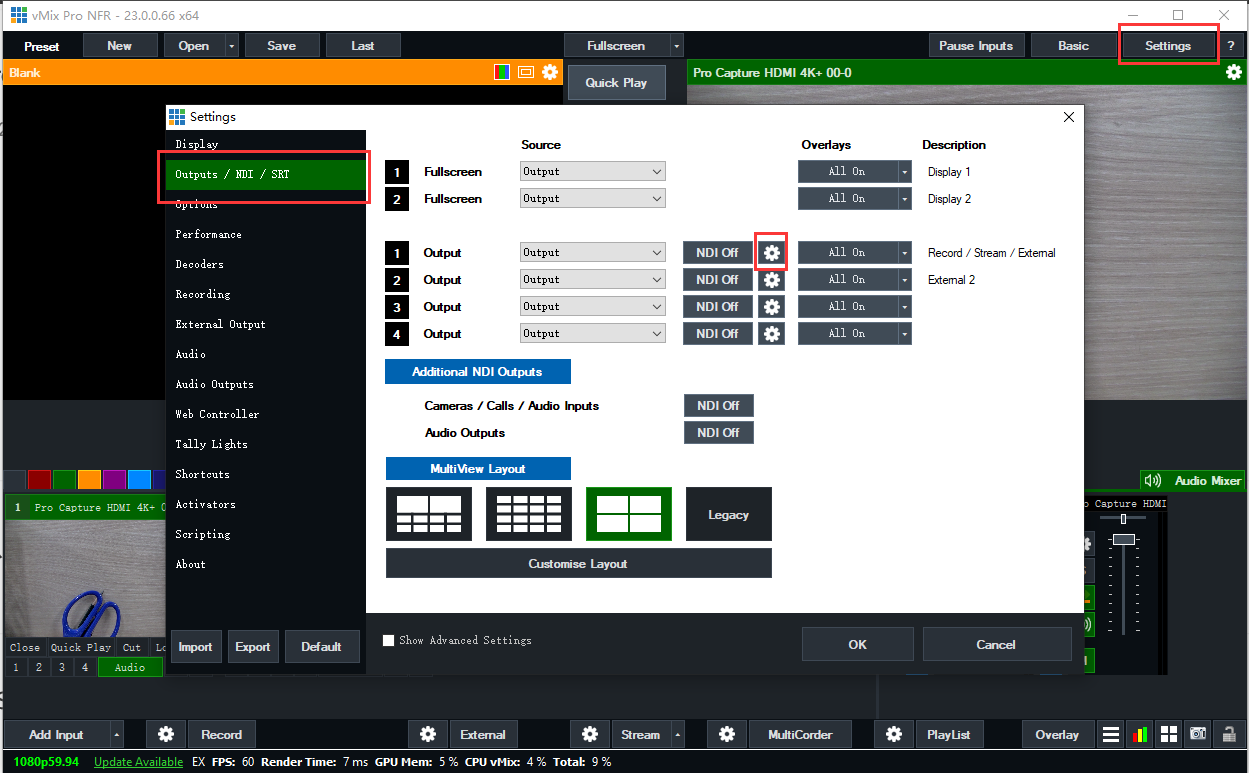
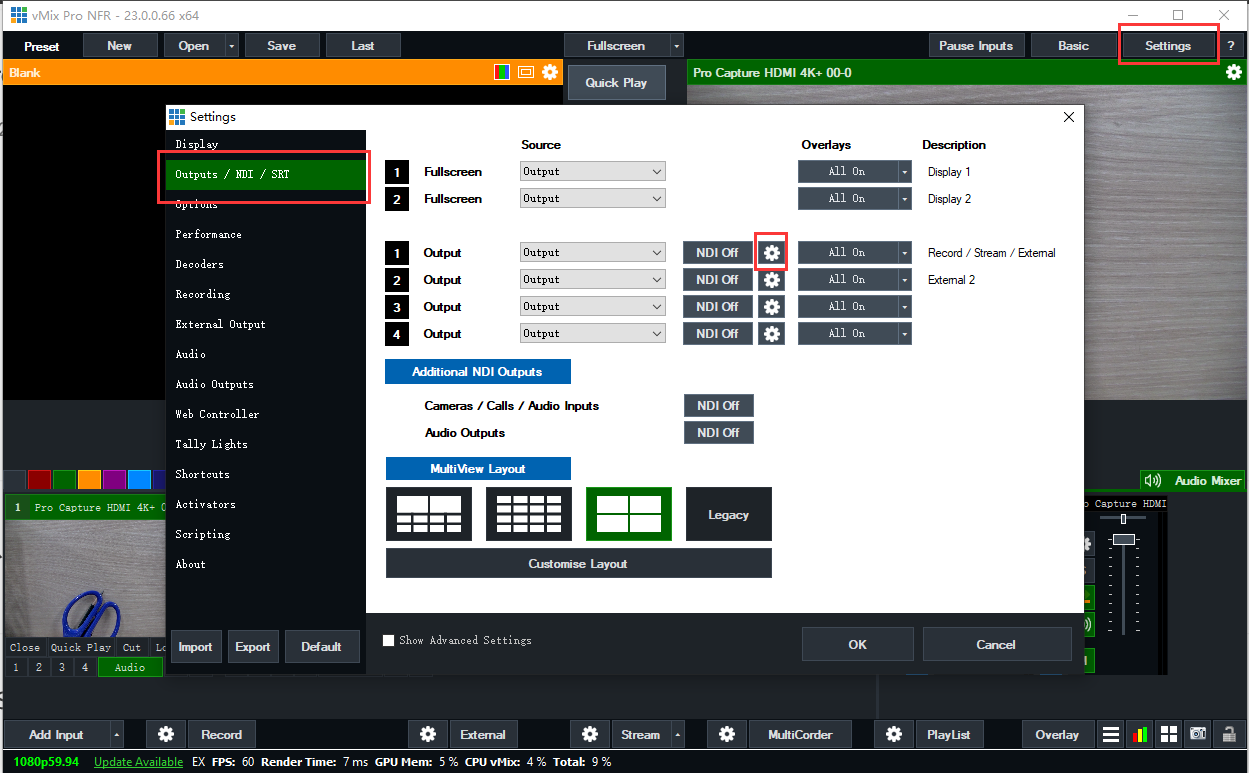
1. In the vMix software, click "Settings" in the upper right corner of the interface, then select "Outputs/NDI/SRT" in the left menu on the pop-up “Settings” page. You will see controls for four vMix output channels. Click the gear icon to the right of the first output channel.
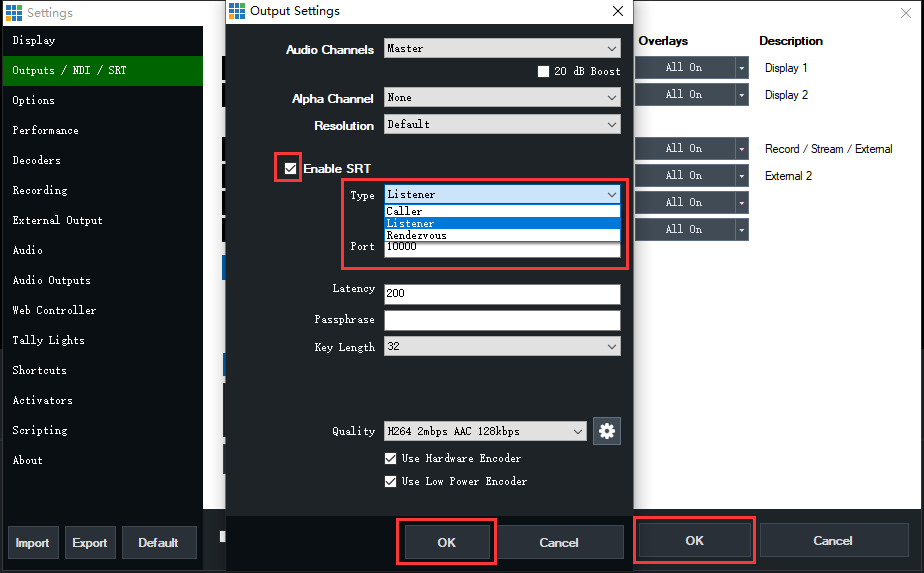
2. In the pop-up page, check "Enable SRT", select "Listener" in the "Type" drop-down menu, and fill in the port number in the "Port" field (10000 in our example). Click "OK" on this panel, then "OK" on the resulting window.
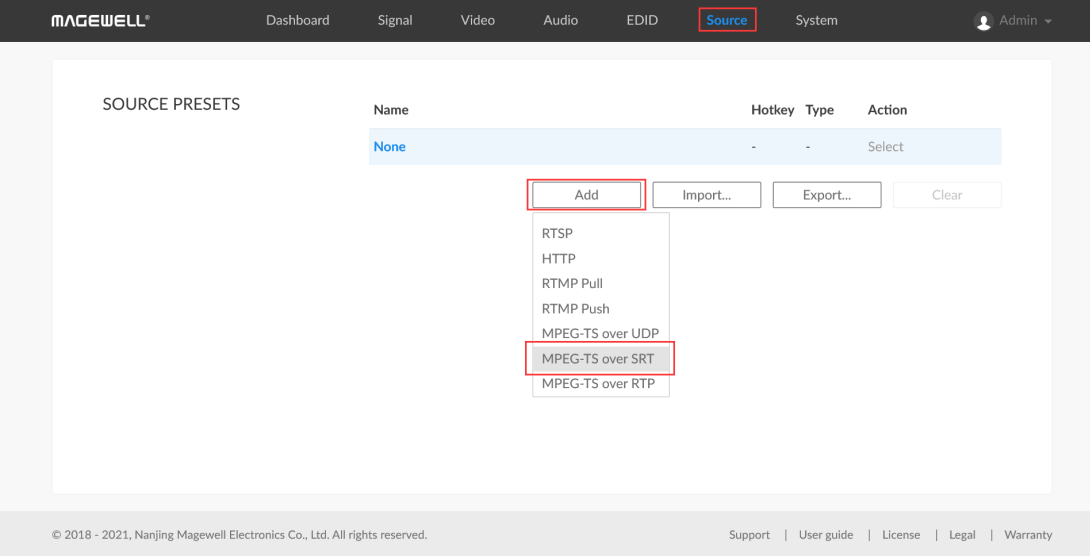
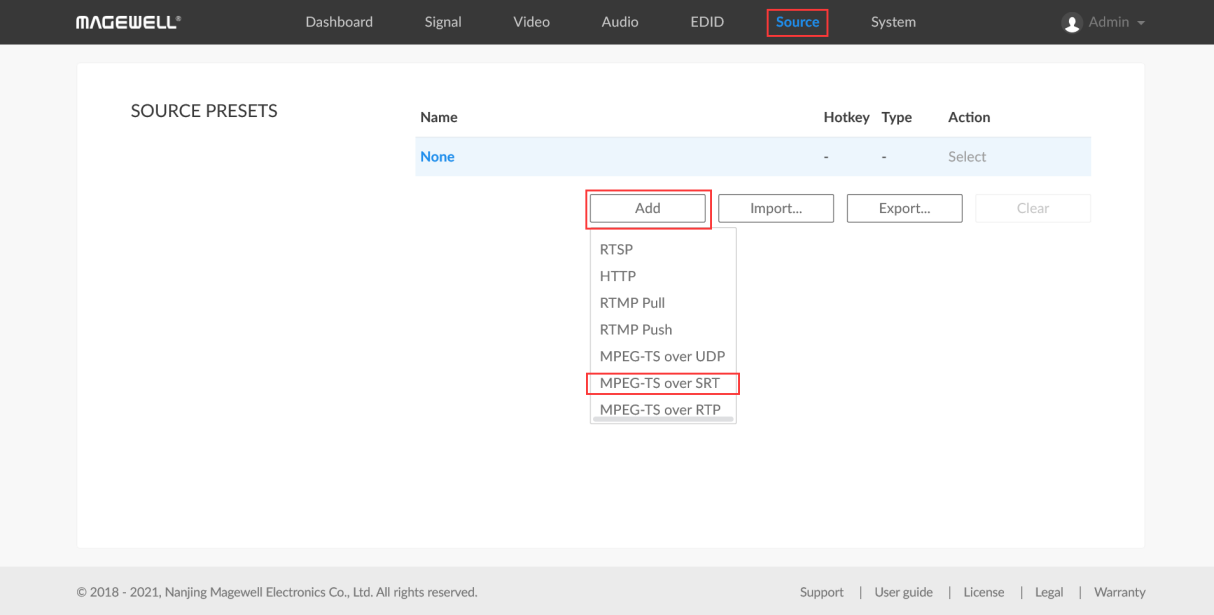
3. Log into the Web GUI of the Pro Convert decoder and click the "Source" tab. In the "SOURCE PRESETS" section, click "Add" and select "MPEG-TS over SRT".
4. In the pop-up page, select "Caller" for the Mode. In the Address field, fill in the IP address of the computer where vMix is installed (10.10.8.50 in our example). Enter the Port number (10000 in our example), and click “OK”.
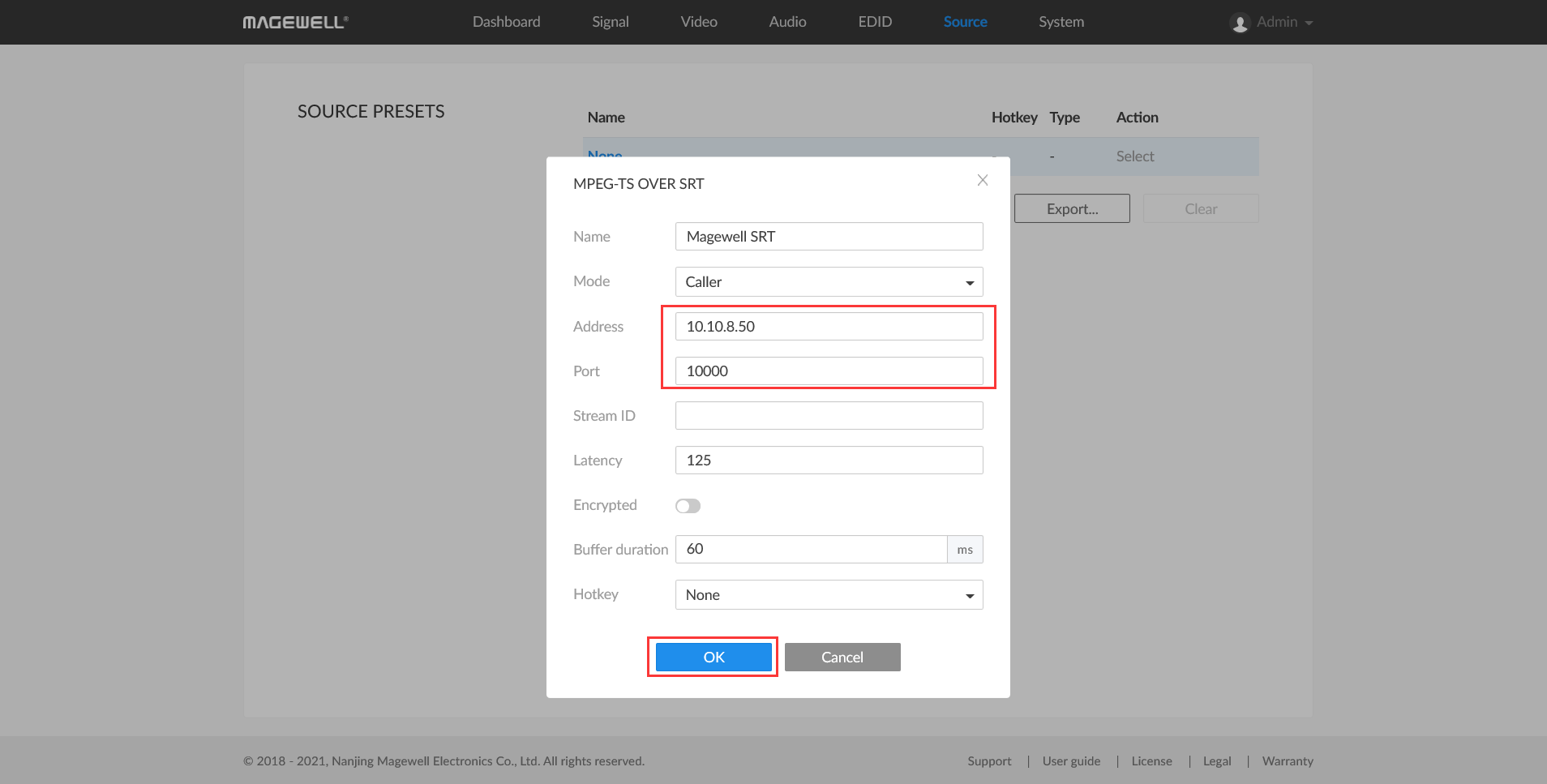
5. The settings you just added will now be displayed in the “SOURCE PRESETS” list. Click "Select" next to the new SRT stream, and the decoder will initiate the SRT session and begin decoding SRT streams from vMix.
Solution 2: vMix as Caller, Decoder as Listener
1. Log into the Web GUI of the Pro Convert decoder. Enter the "Source" tab. In the "SOURCE PRESETS" section, click "Add" and select "MPEG-TS over SRT".
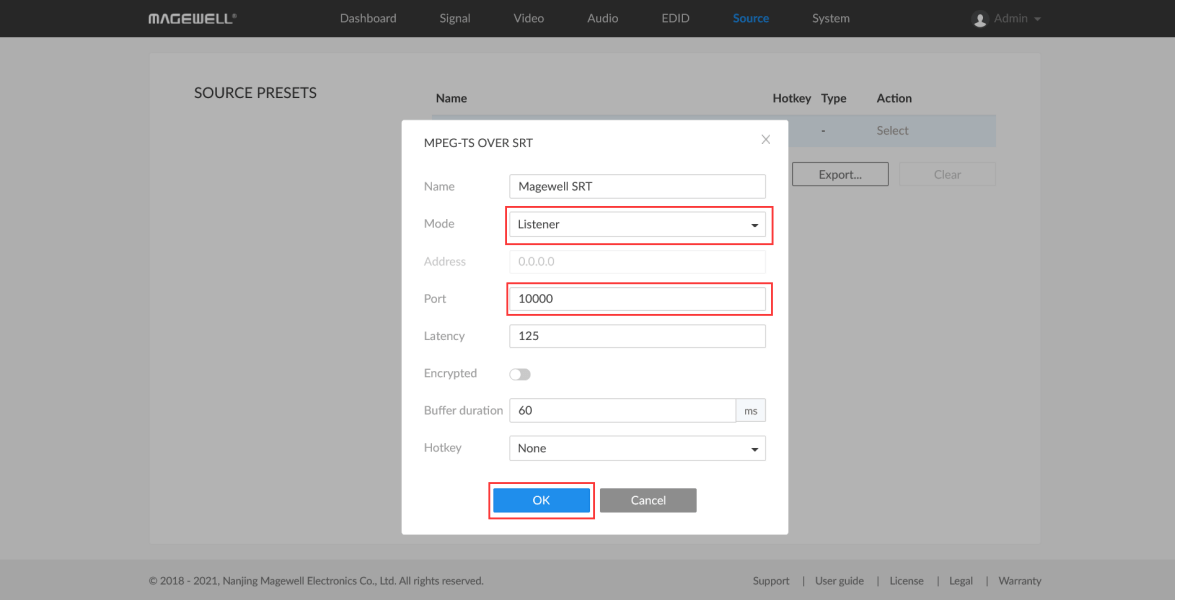
2. In the pop-up page, select "Listener" for the mode. Fill in the port number (10000 in this example), and click "OK".
3. The settings you just added will now be displayed in the SOURCE PRESETS” list. Click "Select", and the decoder will begin waiting for vMix to initiate an SRT streaming session.
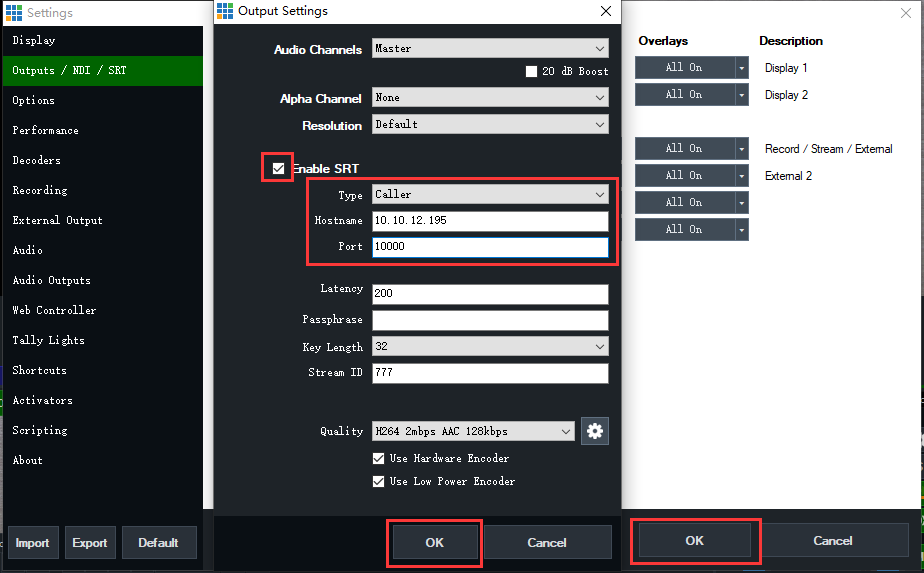
4. In the vMix software, click "Settings" in the upper right corner of the interface, then select "Outputs/NDI/SRT" in the left menu on the pop-up “Settings” page. You will see controls for four vMix output channels. Click the gear icon to the right of the first output channel.
5. In the pop-up page, check "Enable SRT", select "Caller" in the "Type" drop-down menu, fill in the IP address of the decoder in the "Hostname" field (10.10.12.195 in our example), and fill in the port number in the "Port" field (10000 in our example). Click "OK" on this panel, then "OK" on the resulting window.
ForeFront Imaging is the authorised UK distributor for Magewell. We stock the full range and can help you spec the right solution.
Browse Products Talk to Us