Using the Built-in RTMP Server in Magewell Pro Convert Decoders for Point-to-Point Streaming
RTMP (Real-Time Messaging Protocol) is an efficient way to stream video, audio, and data over the Internet between encoders, servers, and decoders. RTMP continues to be one of the most popular protocols for live streaming delivery.
RTMP is not typically used in a point-to-point configuration directly between a source encoder and a viewer; instead, streams are delivered to viewers through a server or third-party service. Most commonly, RTMP is used in conjunction with a distribution service (such as a CDN) or social media network (such as YouTube Live and Facebook Live). In these workflows, the originating encoder delivers the live stream to an RTMP server run by the third-party service provider, and viewers then access the stream through the third-party service using either a software-based player or hardware decoder.
Rather than using a third-party service, streamers can also use their own RTMP server to distribute their streams to viewers or decoders. However, this typically requires the user to build and configure his or her own RTMP server. Deploying such a server with Nginx, Wowza, or other popular tools requires users to have some programming, maintenance and/or streaming knowledge, which can sometimes be difficult for non-professional users.
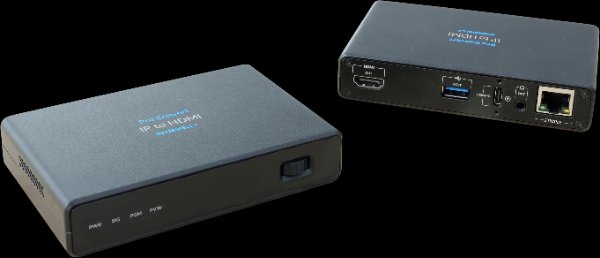
Magewell Pro Convert decoders offer built-in functionality equivalent to an RTMP server, providing an easy alternative for point-to-point RTMP streaming applications directly between an encoder and decoder. This article explains how to configure this feature.
- Hardware or software encoder to create the RTMP stream (Magewell Ultra Stream , Ultra Encode or Capture Express are used in these examples)
- One Magewell Pro Convert decoder ( Pro Convert H.26x to HDMI is used in these examples)
- One PTZ camera (as a video source)
- One laptop, one capture device (if using software-based encoding; USB Capture HDMI Gen 2 is used in this example), several HDMI cables, network cables and USB 3.0 cables.
Configuring the decoder
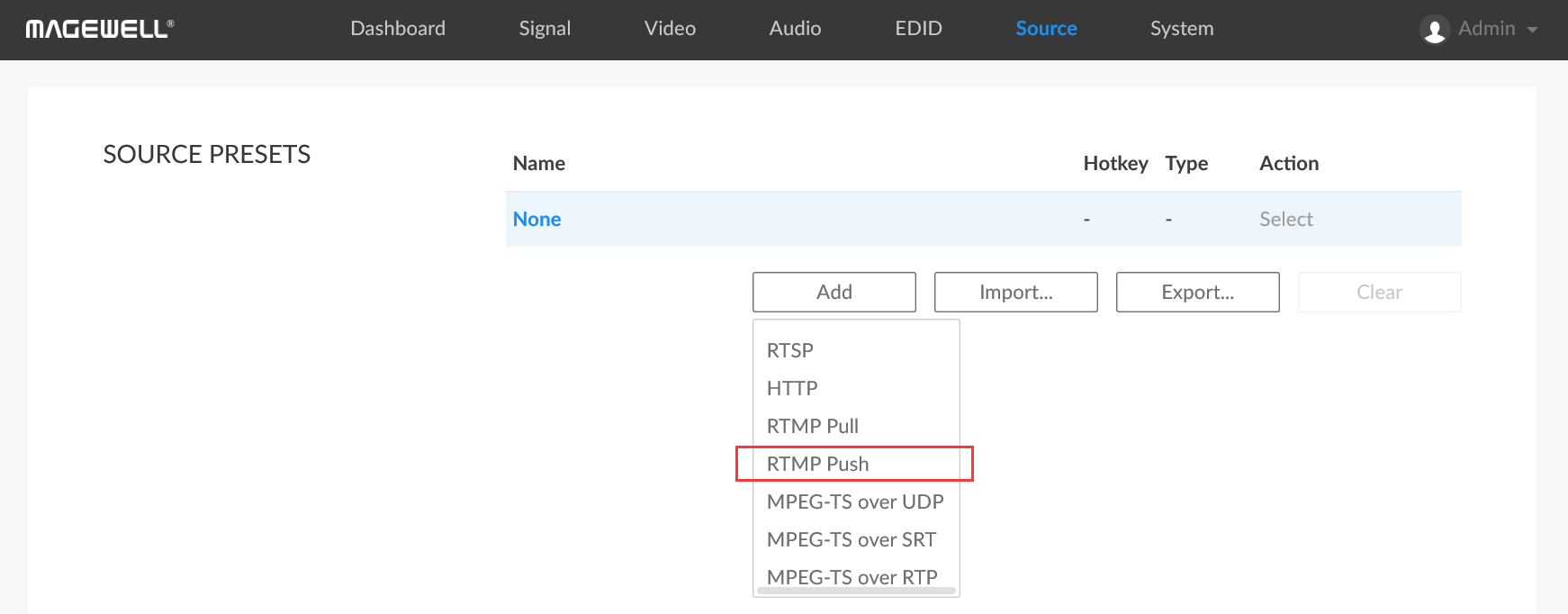
1. Log into the Web GUI of the Pro Convert decoder and click the "Source" tab. In the "SOURCE PRESETS" section, click "Add" and select "RTMP Push".
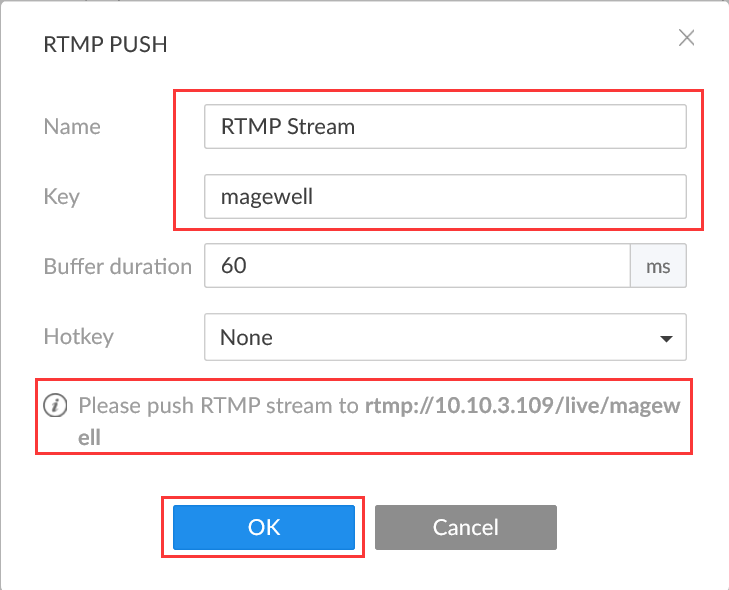
2. Fill in the Name and Key in the pop-up page. In this example, the Name is "RTMP Stream" and the Key is "Magewell". The resulting action is previewed at the bottom of the panel, in the format "Please push RTMP stream to rtmp://10.10.3.109/live/magewell" where 10.10.3.109 is the decoder's own already-configured IP address. [Note that if you are transmitting the RTMP stream over the Internet, the decoder must use a public IP address and port mapping]. Click "OK" to confirm the settings.
Configuring the encoder (with hardware-based encoding)
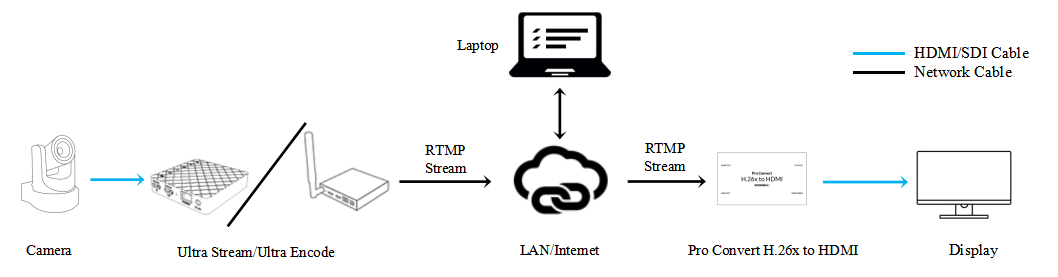
If you prefer to use a hardware encoder to create and send the RTMP streams, you can use Magewell's Ultra Stream or Ultra Encode encoder with a Pro Convert decoder. The content flow of our example workflow is outlined in the device connection diagram below. Note that the laptop is used only for configuring and managing the streams; all encoding and decoding are performed by the Ultra Stream, Ultra Encode and Pro Convert devices.
1. Log into the Web GUI of the encoder. Click "Streaming Server" in the menu on the left, then click "Add Server" and select "RTMP".
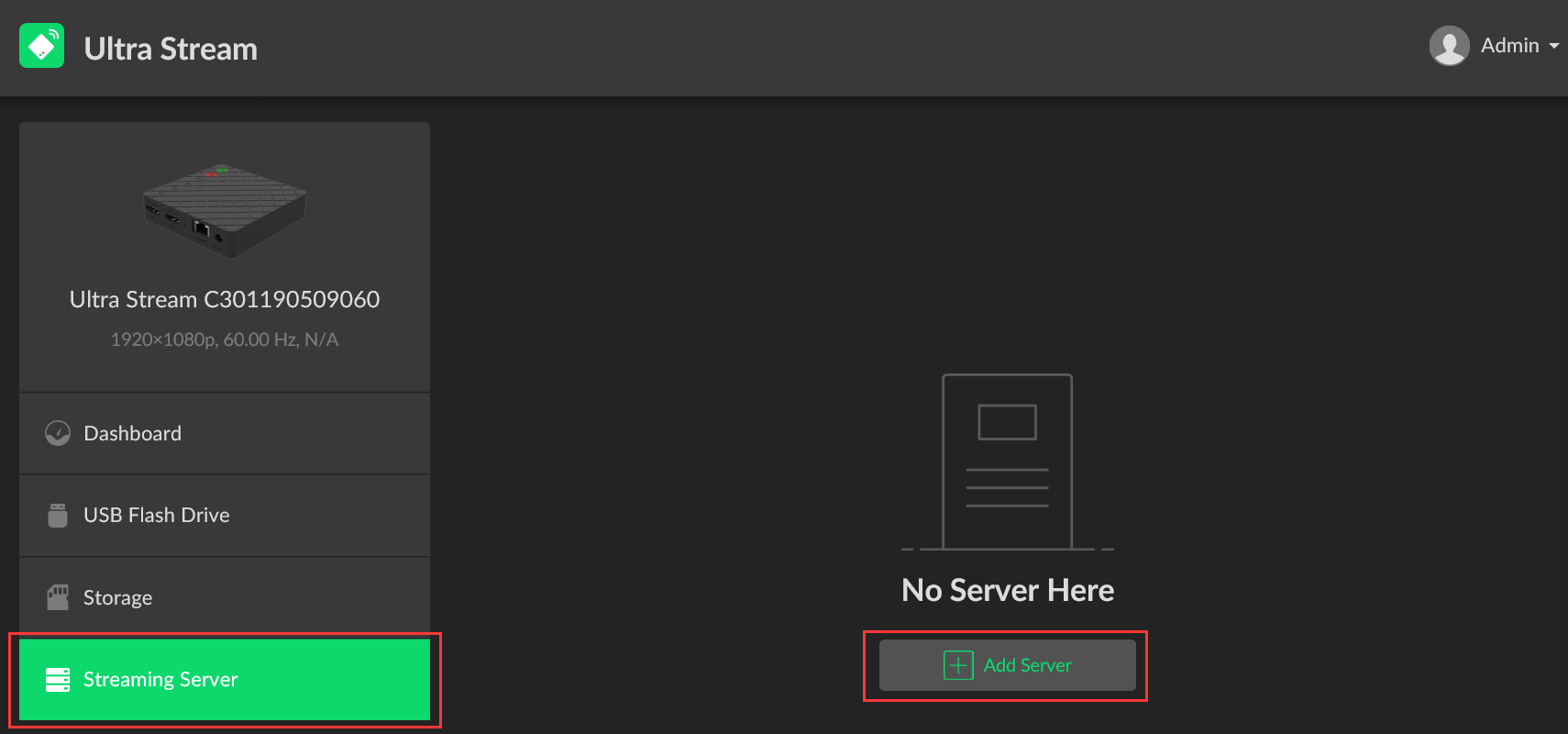
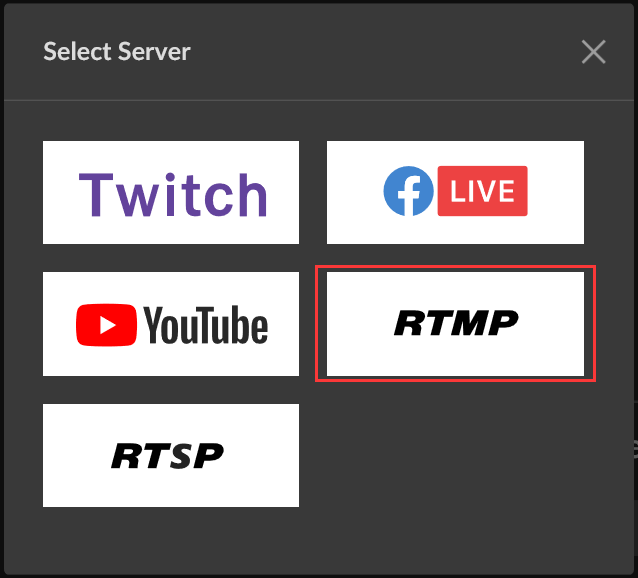
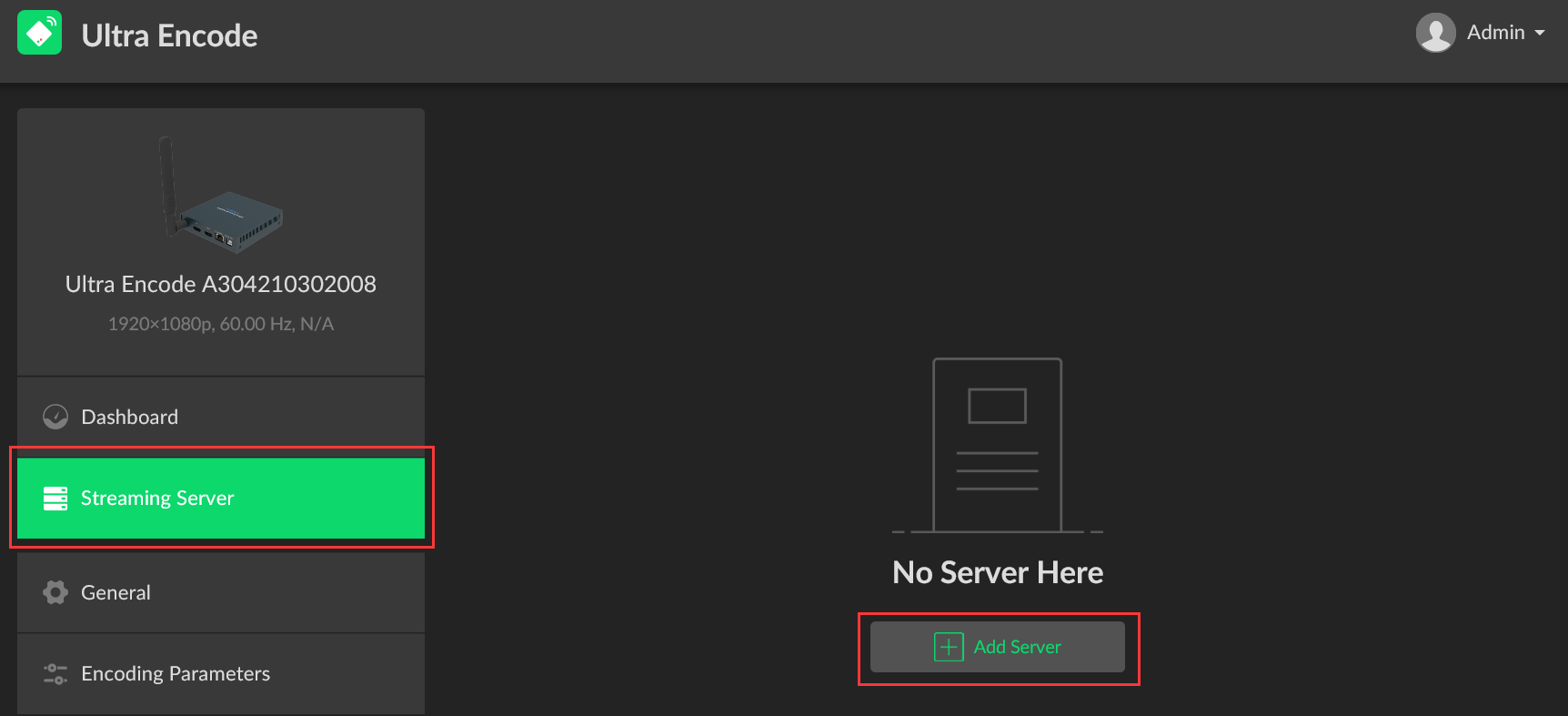
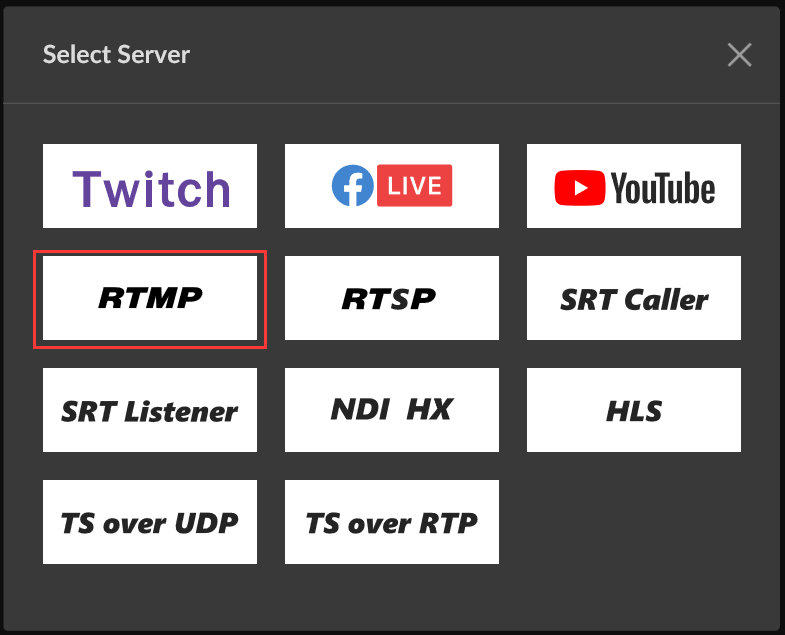
2. Fill in the RTMP "URL" in the pop-up page in the format rtmp://<decoder IP address>/live (10.10.3.109/live in our example) and enter the "Stream Key" ("magewell" in our example). Click "Save".
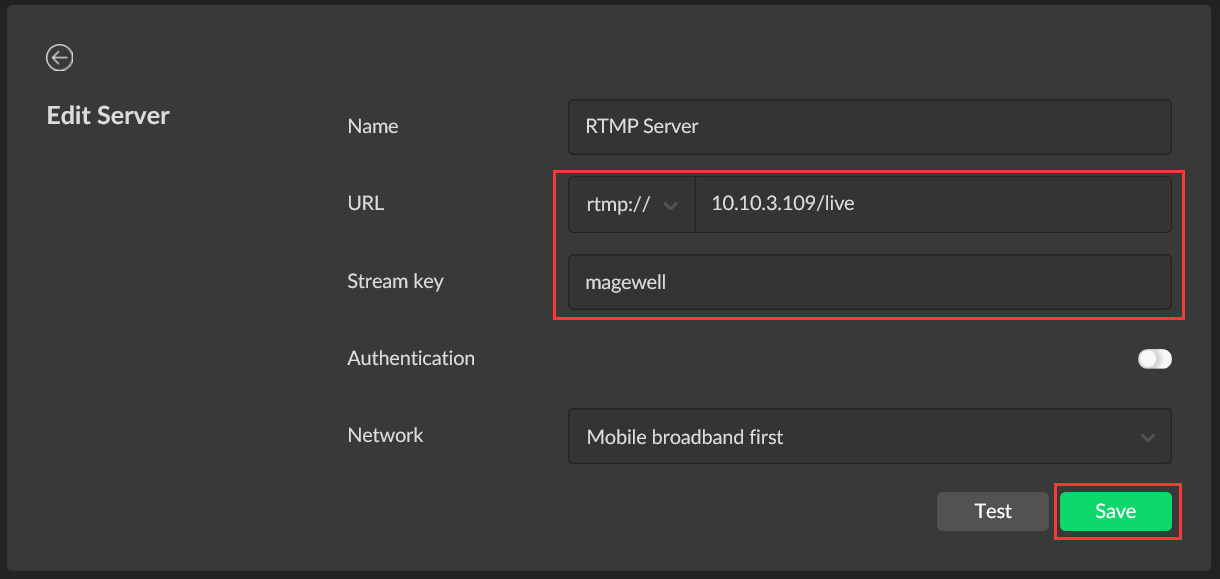
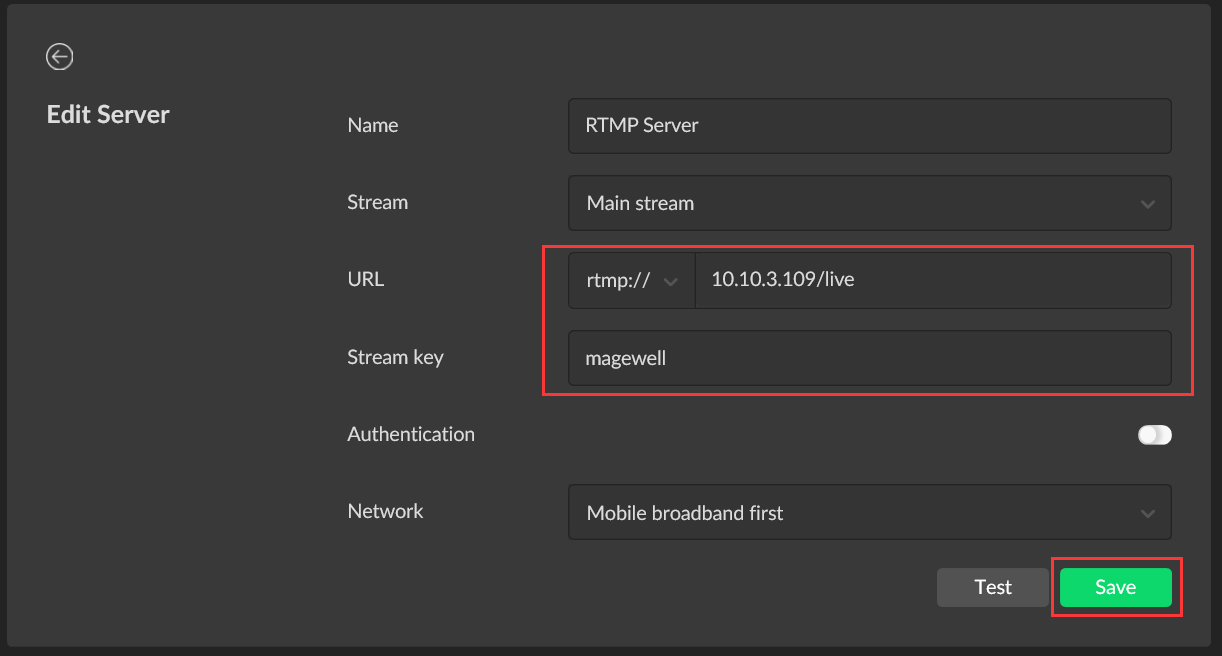
3. If you are using an Ultra Stream encoder, return to the "Dashboard" tab, and click "LIVE" to start streaming. With Ultra Encode, you can begin streaming without returning to the dashboard tab. RTMP streams can now be transmitted directly to the decoder without a separate intermediate server.
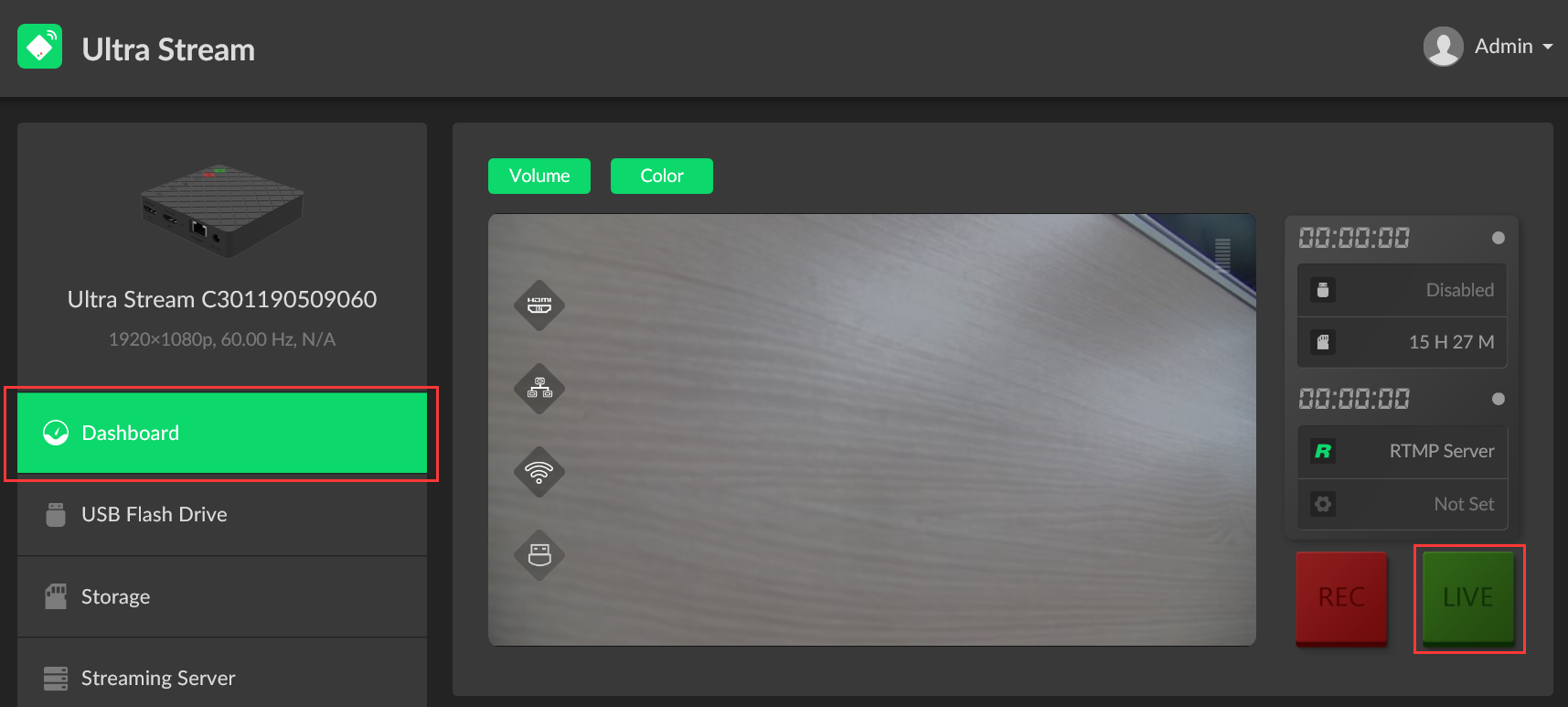
Configuring the encoder (with software-based encoding)
Rather than a hardware encoder, you can also use encoding software to create and send the RTMP streams. In this example workflow, we use the Magewell Capture Express software, a Magewell USB Capture external capture device (to bring the source signals into the software for encoding), and a Pro Convert decoder. The content flow of our example workflow is outlined in the device connection diagram below.
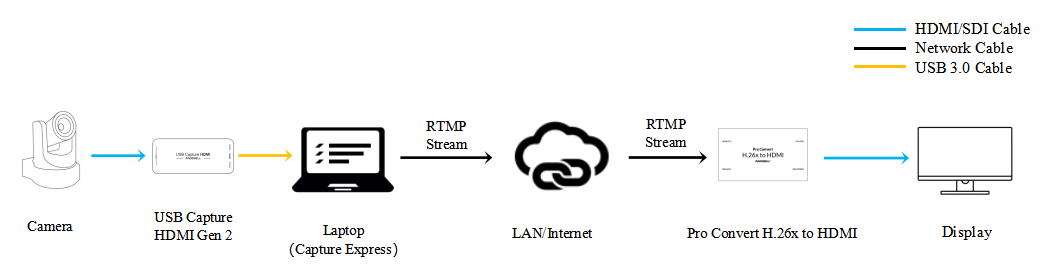
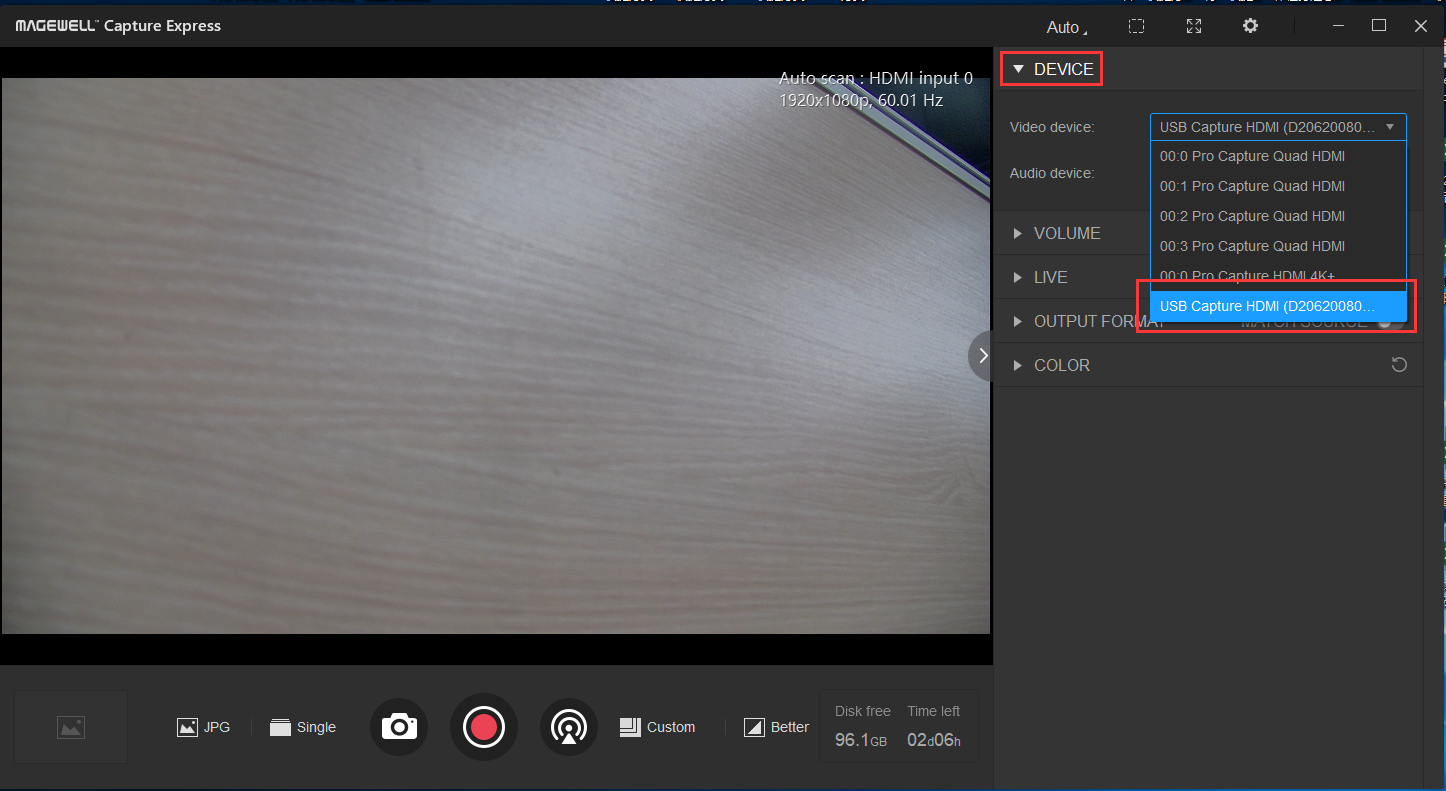
1. Open the Capture Express software and go to the "DEVICE" tab. Under the "Video device" field, select the appropriate video capture device (USB Capture HDMI Gen 2 in our example). You will see a preview of the video source.
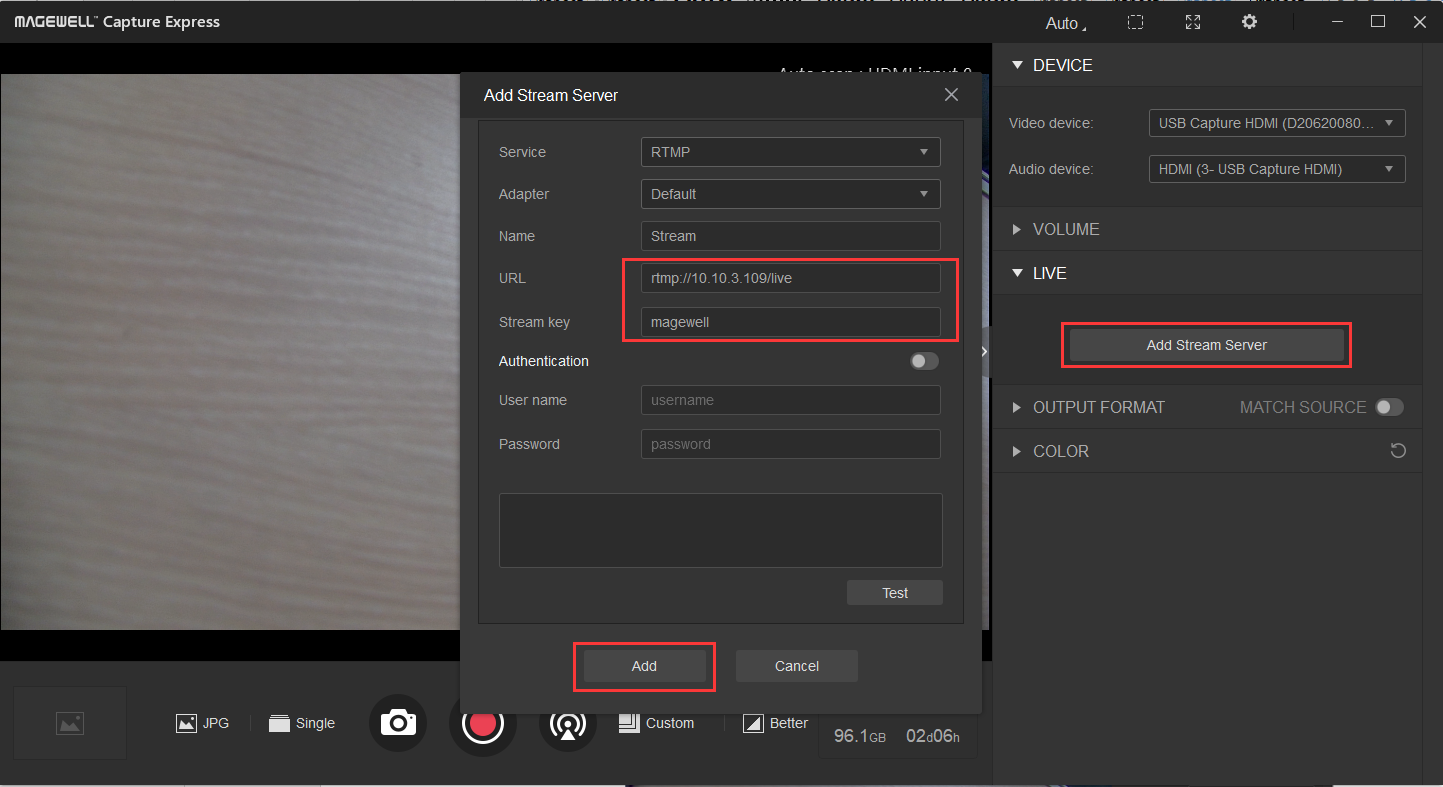
2. Go to "LIVE" tab, then click "Add Stream Server." Fill in the URL (10.10.3.109/live in our example) and Stream Key ("magewell" in our example) as shown in the following figure, and click "Add".
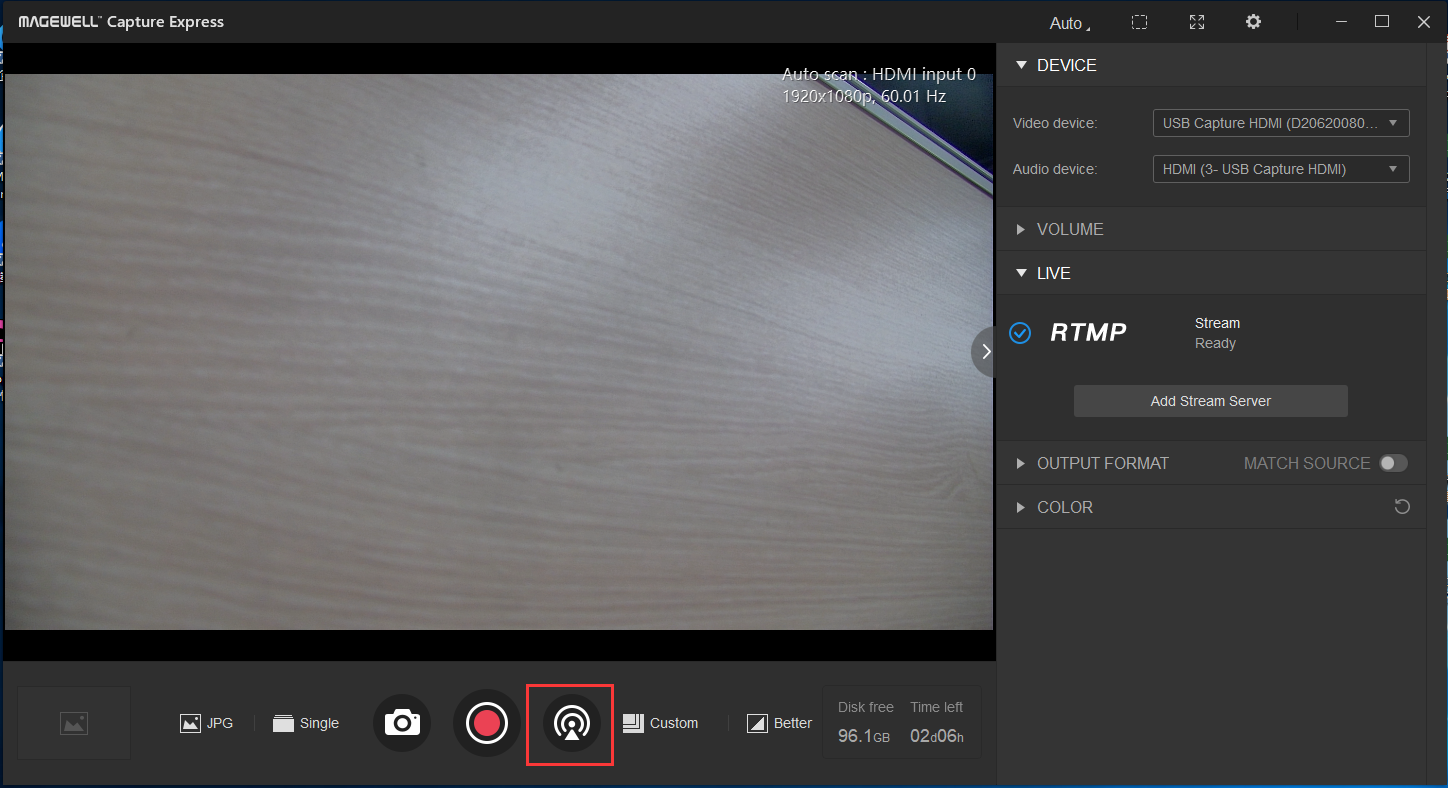
3. Return to the main page and click the streaming icon. RTMP streams can now be transmitted directly to the decoder without a separate intermediate server.
ForeFront Imaging is the authorised UK distributor for Magewell. We stock the full range and can help you spec the right solution.
Browse Products Talk to Us