How to Use the SmartEDID Function of Magewell Capture Devices to Optimize Loop-Through Display Compatibility
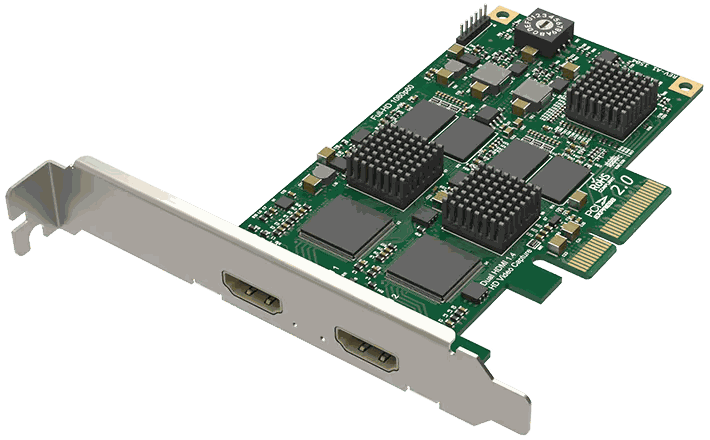
Source signal loop-through is an important feature for many live streaming workflows, enabling video capture on a computer while simultaneously routing the source to additional equipment or displays. For example, when streaming gaming sessions, the signal from the game console or gaming PC is first captured through a video ingest device, and also looped through to a gaming monitor. This ensures high-quality video capture while maintaining a smooth gameplay experience.
However, when the video is looped through to a monitor, users may find that its resolution, frame rate or color space do not match those of the video source. This is caused by an EDID (Extended Display Identification Data) mismatch between the devices, particularly when the monitor has different maximum input capabilities than the capture device – for example, a 4K-capable capture device connected to a monitor that supports only 1080p.
Magewell capture devices support a function called “SmartEDID.” Depending on the specific input capabilities of the capture device and those of the product connected to the loop-through interface, the Magewell unit will intelligently send appropriate EDID information to the source equipment to ensure that both the capture device and the loop-through device receive a compatible signal.
This blog post explains how to use the SmartEDID function of Magewell capture devices on Windows systems, using game streaming as an example.
- Video Source: One Sony PlayStation 4 Pro game console with support for up to 4Kp60 output.
- Capture Device: One Magewell USB Capture HDMI 4K Plus external capture dongle or one Pro Capture HDMI 4K Plus LT internal capture card (both with support for up to 4Kp60 input).
- Loop-through Device: One monitor with support for up to 1080p60 signals.
- Other Devices: One streaming computer, two HDMI cables and one USB 3.0 cable.
Steps to enable and disable the SmartEIDD function:
1. Connect the devices for video capture and loop-through as shown in the diagram below:
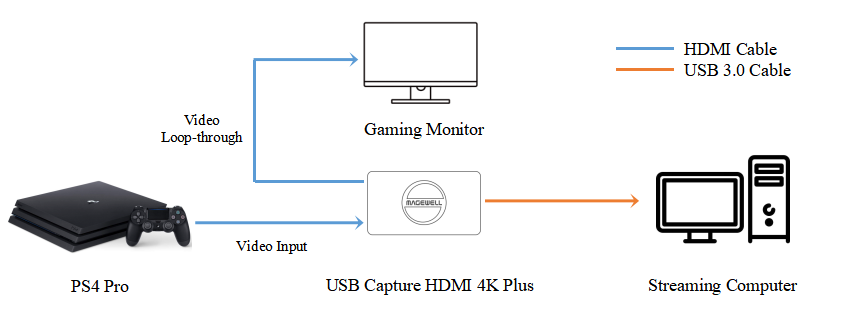
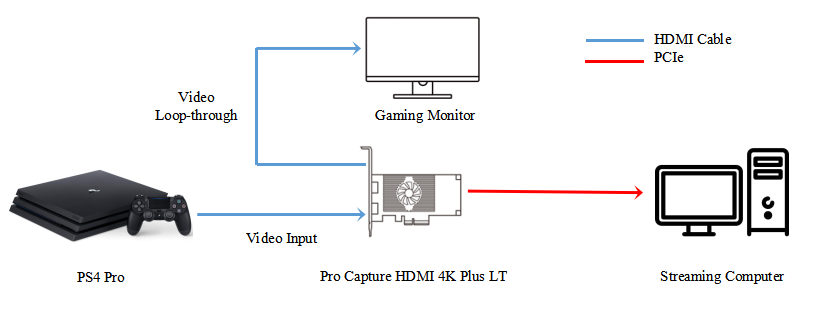
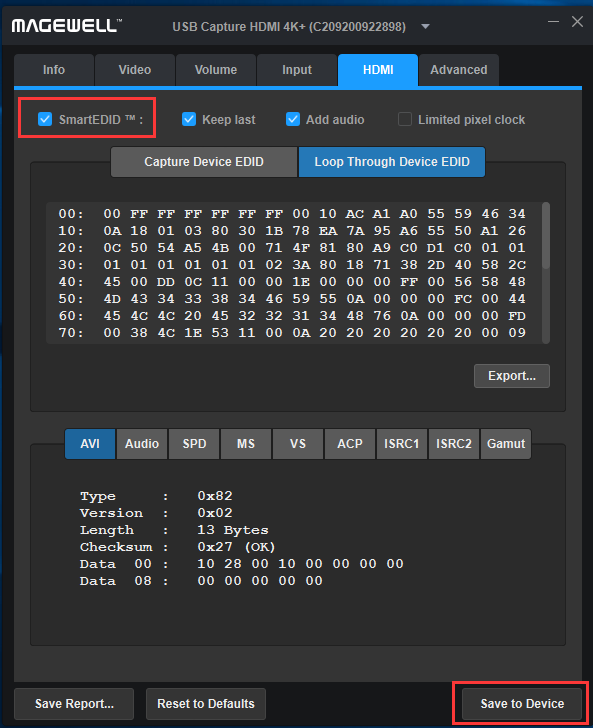
2. For Magewell USB Capture devices, open the Magewell USB Capture Utility V3 software. In the "HDMI" tab, check "SmartEDID" to enable this function, then click“Save to Device." The capture device will send the EDID of the device with the lowest input capability – in this case, the monitor – to the video source. Using this EDID information, the PS4 Pro will output a 1080p60 video signal, enabling both the capture device and the monitor to work properly.
If "SmartEDID" is unchecked, then the SmartEDID function is disabled. The capture device will directly send its own EDID to the video source. In this case, the game console will output a 4Kp60 video signal. The Magewell device can capture the 4Kp60 signal, maximizing capture quality, but the monitor will not be able to display the picture.
3. For Magewell Pro Capture PCI Express capture cards running in Windows systems, the SmartEDID function can be enabled via the Windows Registry. Run "regedit" to open the Registry Editor. Navigate to the "Computer\HKEY_LOCAL_MACHINE\SYSTEM\CurrentControlSet\Services\ProCapture”folder. Within it, navigate to the desired capture card (if you have multiple card models in the system, there may be multiple listed), and within it, select the folder for the board number and channel number of your card (it will be listed as "Board X, Channel X").
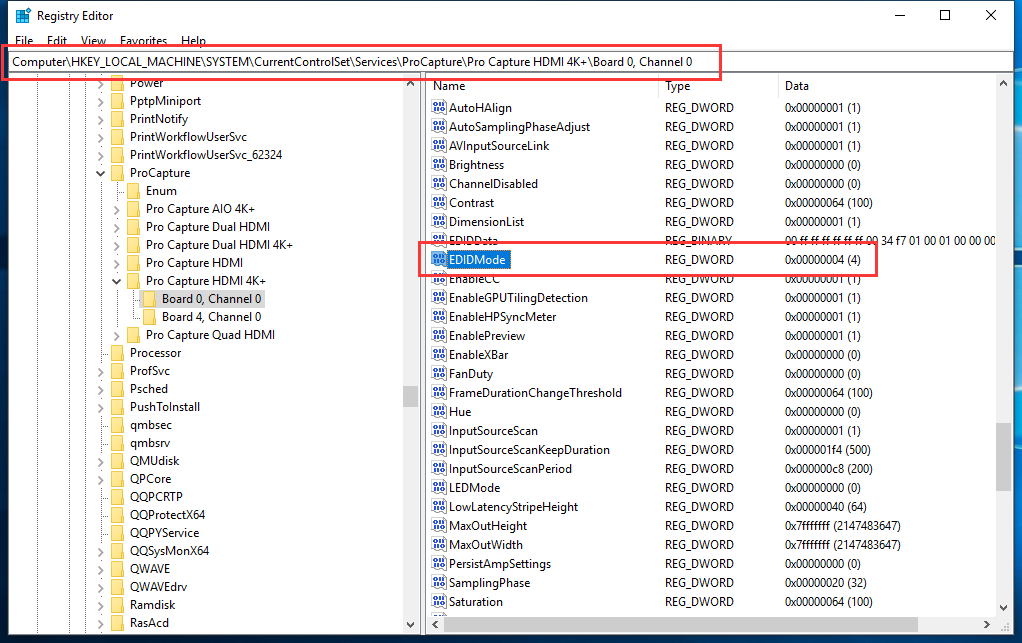
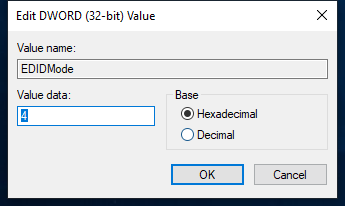
Double-click the "EDIDMode" item, select "Hexadecimal," and enter 1 or 4 in "Value data". 1 means to disable SmartEDID, and 4 to enable SmartEDID.
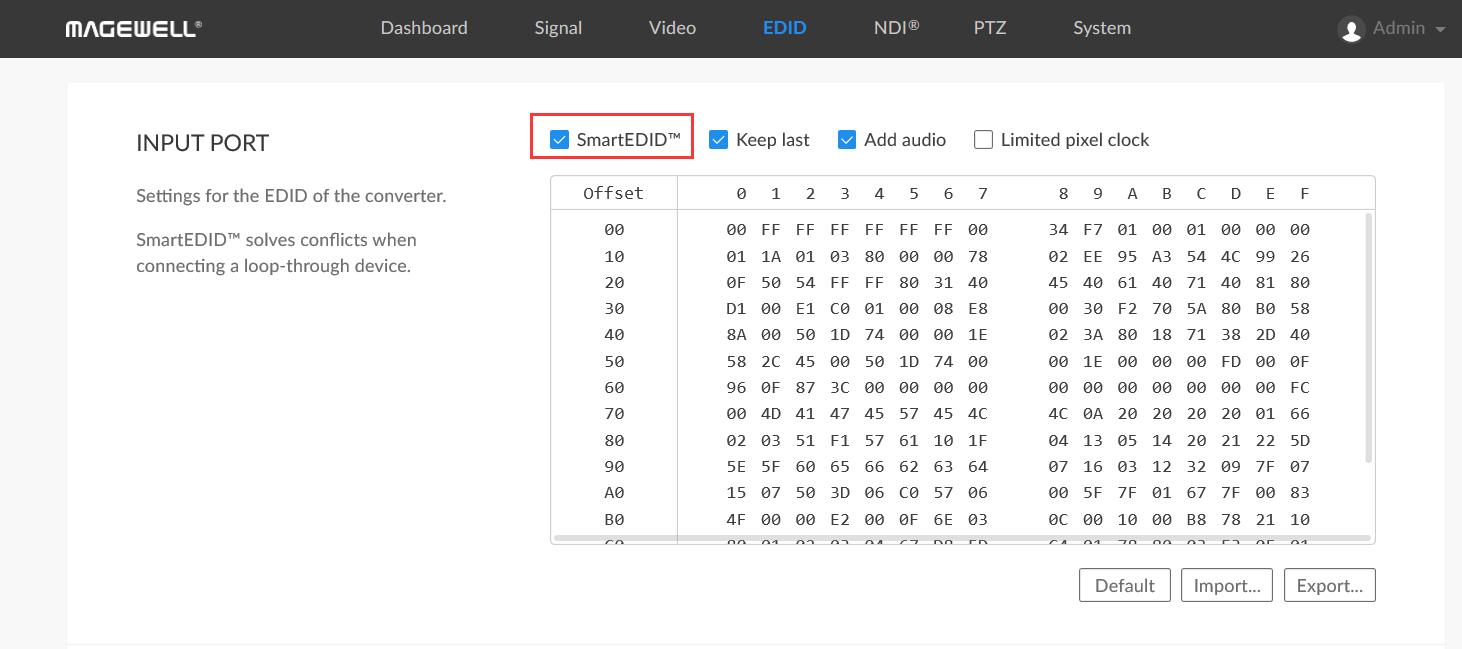
In addition to Magewell capture devices, Magewell Pro Convert HDMI Plus and Pro Convert HDMI 4K Plus NDI® encoders also support SmartEDID. Log into the encoder's Web GUI and click the "EDID" tab. In the "Input Port" column, check or uncheck "SmartEDID" to enable or disable this function.
If you encounter any difficulties with SmartEDID or need instructions on enabling/disabling it on Linux or macOS systems, please contact Magewell technical support at support@magewell.net.
ForeFront Imaging is the authorised UK distributor for Magewell. We stock the full range and can help you spec the right solution.
Browse Products Talk to Us