Authorised UK Magewell Distributor
🎓 Education  |  📡 Broadcast  |  🏥 Healthcare  |  ⛪ Houses of Worship  |  🏛️ Government
In Stock  ·  Same-day despatch  ·  UK-based support
ResourcesSoftwareBlog & ArticlesCase StudiesKnowledge BaseLiterature✍️ Submit a Case Study
← Back to Knowledge Base
🚀 Getting Started

How to Install USB Capture on Windows 11
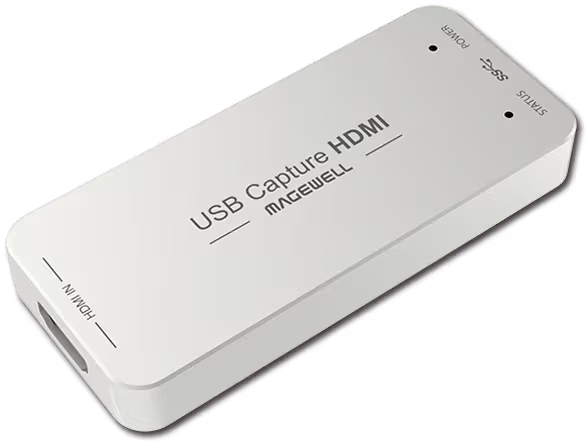
Magewell How to Install USB Capture on Windows 11 — hdmi gen2

Driver-Free UVC Operation

The good news: Magewell USB Capture devices are UVC-compliant and require no driver installation on Windows 11. Plug in the device and it is immediately recognised as a standard webcam. No administrator rights, no software download, no reboots required.

If your device appears in Device Manager under Cameras or Imaging Devices with no error, it is working correctly. No further action is needed.

Optional Magewell Driver (For Advanced Features)

Magewell also offers an optional driver package that enables additional features not available in UVC mode: custom EDID management, hardware colour adjustment, and access to the MWCapture SDK. Download from magewell.com/downloads, run the installer as administrator, and restart when prompted.

Troubleshooting

Device shows error in Device Manager: Try a different USB 3.0 port. USB 3.0 ports are typically marked in blue or labelled SS (SuperSpeed).

Device not appearing in OBS: Close and reopen OBS after plugging in the device. OBS enumerates capture devices on startup.

Windows 11 compatibility: All current Magewell USB Capture devices are compatible with Windows 11. Check magewell.com/downloads for the latest driver version if you experience issues after a Windows update.

Still need help?
Our UK-based technical team are available Monday to Friday 9am–5pm.
Contact Support+44 (0)116 277 5730

Related Guides

Stay Updated

New products and Magewell updates

No marketing noise. Just new product launches, firmware updates, and the occasional guide.

No spam. Unsubscribe any time. Your email is never shared.

Frequently Asked Questions

Windows 10 and 11 will often install a basic UVC driver automatically. For full functionality including the Magewell Control Center, download and install the official driver from Magewell's website.

In most cases yes — a restart is recommended after installing the Magewell Pro Capture or USB Capture driver to ensure the driver loads correctly on first use.

Try a different USB or PCIe slot, check Device Manager for driver errors, and ensure you installed the correct driver for your specific model. Contact ForeFront Imaging if the issue persists — we provide free pre- and post-sales technical support.

Download the latest Magewell drivers from forefrontimaging.com/software.php. Always download the driver matching your exact product family (USB Capture, Pro Capture, Eco Capture) and install with administrator privileges, then restart Windows.

Yes. On Windows, the MWCapture driver is needed for full functionality including resolution control, EDID, firmware updates, and the Capture Utility. The device also works as a basic UVC device without the driver, but the Magewell driver is needed for advanced features.

Ensure the card is fully seated in the PCIe slot and that Windows was fully restarted. Check Device Manager for yellow warning icons. If the issue persists, uninstall the driver via the Magewell uninstaller, reboot, then reinstall. For USB devices, try a different USB 3.0 port.

Magewell capture devices support Windows 10 (64-bit) and Windows 11 (64-bit). 32-bit Windows is not supported for PCIe cards. Always use the latest driver version from the ForeFront Imaging software page.