Authorised UK Magewell Distributor
🎓 Education  |  📡 Broadcast  |  🏥 Healthcare  |  ⛪ Houses of Worship  |  🏛️ Government
In Stock  ·  Same-day despatch  ·  UK-based support
ResourcesSoftwareBlog & ArticlesCase StudiesKnowledge BaseLiterature✍️ Submit a Case Study
← Back to Knowledge Base
📄 Pro Capture FAQs

Custom EDID Configuration for Pro Capture Cards
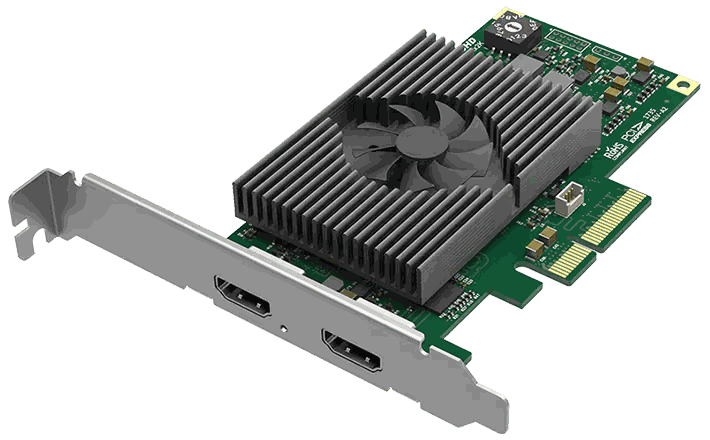
Magewell Custom EDID Configuration for Pro Capture Cards

Why EDID Matters

EDID is the data block that a display reports to its source. A capture card pretending to be a display also presents an EDID, and the values in that EDID determine what resolution and refresh rate the source will output. Wrong EDID, wrong signal — a 4K60 source might fall back to 1080p30 if the EDID says only 1080p30 is supported.

Default EDID

Magewell capture cards ship with a default EDID that advertises a broad range of supported modes including 4K60 for 4K-capable cards. This works for most sources without intervention.

When to Customise

Custom EDID is useful when: a source is downscaling unnecessarily; you want to force a specific resolution; a source has buggy mode-switching behaviour and reverting to a single supported mode stabilises it; or a copy-protected source is refusing to output to anything but specific known displays.

Configuration Tools

The Magewell driver control panel on Windows includes an EDID editor — load the current EDID, modify supported modes, save back to the card. The USB Capture Utility V3 provides the same functionality for USB Capture devices. EDID is saved on the card itself and persists across reboots and host PC changes.

EDID Bin Files

You can export and re-import EDID binary files for repeatable deployment across multiple cards. Export from a known-good unit, import to others. Useful for site-wide rollouts.

Still need help?
Our UK-based technical team are available Monday to Friday 9am–5pm.
Contact Support+44 (0)116 277 5730

Related Guides

Stay Updated

New products and Magewell updates

No marketing noise. Just new product launches, firmware updates, and the occasional guide.

No spam. Unsubscribe any time. Your email is never shared.

Frequently Asked Questions

Download and install Magewell Control Center (free from Magewell's website). Open the application, select your Pro Capture card, navigate to EDID settings, and choose from the presets or load a custom EDID file. The source device will re-read the EDID on reconnection.

The source reads the EDID from the Pro Capture card and selects a resolution from what's advertised. If it picks an unexpected resolution, set a custom EDID that only advertises your desired resolution. This forces the source to output exactly what you need.

Yes. Once you've set a custom EDID in Magewell Control Center, it persists in the card's memory. The setting survives restarts and driver reinstalls, so you only need to configure it once.

Set the EDID to match the resolution you want your source to output. For 1080p60 capture, use the 1080p60 preset. For 4K30, use the 4K30 preset. A specific EDID forces the source to output exactly what you need. EDID is set via the Magewell Capture Utility.

Yes. The Magewell Capture Utility allows loading a custom EDID file (in .bin format) for precise control over advertised capabilities. Useful for unusual sources that do not respond correctly to standard EDID presets.

The source is reading the EDID and choosing 1080i as a preferred mode. Change the EDID in the Magewell Capture Utility to a profile that only advertises 1080p60 — this forces the source to output progressive video.

Yes on certain models. The Pro Capture HDMI 4K Plus and higher-end SDI models support 10-bit (4:2:2 and 4:4:4) capture. The EDID must advertise 10-bit support. Check the spec sheet for your specific model.