Capture · Record · Stream · Encode · DecodeCapture · Record · Stream · Encode · Decode
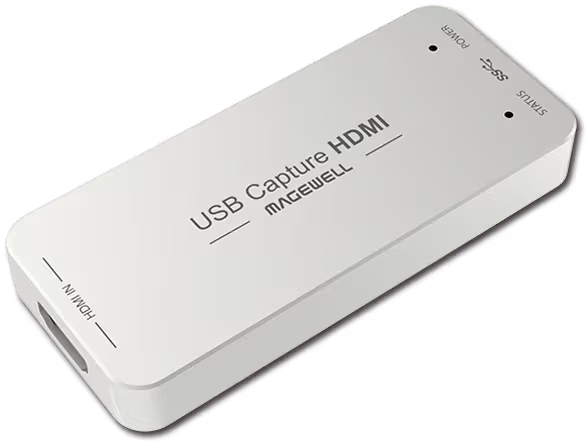
Connect the camera’s HDMI output to the Magewell USB Capture device, and the device to a USB 3.0 port on the computer. Open Microsoft Teams, go to Settings → Devices, and under Camera select the USB Capture device. It appears in the list like a webcam, and there is no driver to install.
A camcorder, DSLR or mirrorless camera has a larger sensor and a better lens than a webcam, so it gives a cleaner picture, particularly in poor light. Capture devices are also used in meeting rooms to bring a PTZ camera, which often has an HDMI output, into Teams for hybrid meetings. Teams decides the resolution it sends to other participants, so a 1080p capture device is all a call needs.
Magewell USB Capture devices install without drivers and take their power from the USB port. That makes them practical in organisations where IT policy restricts the installation of drivers and software. Microsoft Teams is on Magewell’s list of compatible software for these devices.
A typical meeting room setup: PTZ camera with HDMI output → USB Capture HDMI Gen 2 → room PC running Teams. If the room camera has an SDI output, the USB Capture SDI Gen 2 does the same job for SDI at up to 1080p60. If the room display should show the same source, the USB Capture HDMI Plus adds an HDMI loop-through output.
Teams shows a black screen: Check that the source is sending video. If the source is a set-top box, streaming device or a console, it may be sending HDCP-protected content, which cannot be captured. Cameras do not normally use HDCP.
Image appears mirrored: Teams shows you a mirrored preview of your own camera. Other participants see the picture the right way round. To change your own view, look for the Mirror my video option in Teams’ video settings.
No marketing noise. Just new product launches, firmware updates, and the occasional guide.
No spam. Unsubscribe any time. Your email is never shared.
Enjoying your visit? Quick rating of your browsing experience so far:
Anything specific? (optional)