Capture · Record · Stream · Encode · DecodeCapture · Record · Stream · Encode · Decode
To send NDI® between two subnets of the same network, point every NDI device at one NDI Discovery Server. By default, NDI devices find each other with mDNS, a local announcement that normally stays inside its own subnet, so an encoder in one subnet and a decoder in another never see each other. A Discovery Server gives them a fixed address at which to register and look each other up. The subnets must still be routed to each other, so that the video itself can travel once the devices have found each other.
Network administrators split networks into subnets for good reasons: to improve performance, to simplify management or to make better use of IPv4 addresses. This article shows two ways to set up Magewell Pro Convert encoders and decoders for such a network: with NDI’s Discovery Server software running on a computer, or with the Discovery Service built into Pro Convert units themselves.
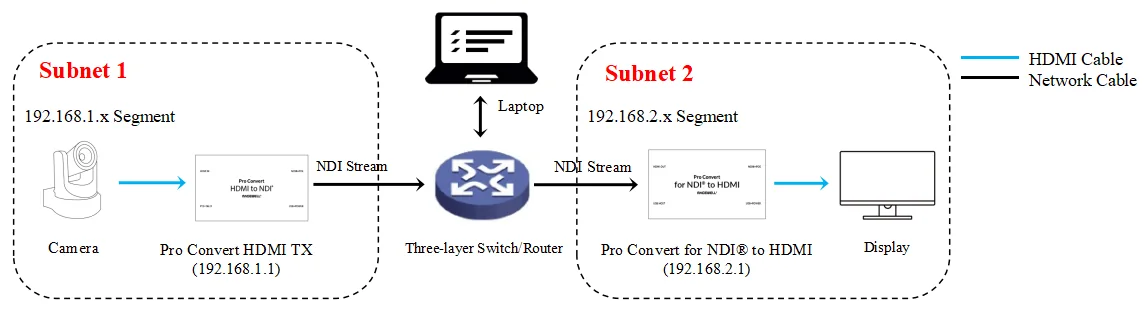
For this example NDI workflow, the Pro Convert encoder and Pro Convert decoder are in different subnets of the same network and use IP addresses 192.168.1.1 and 192.168.2.1, respectively. The content flow is outlined in the device connection diagram below.
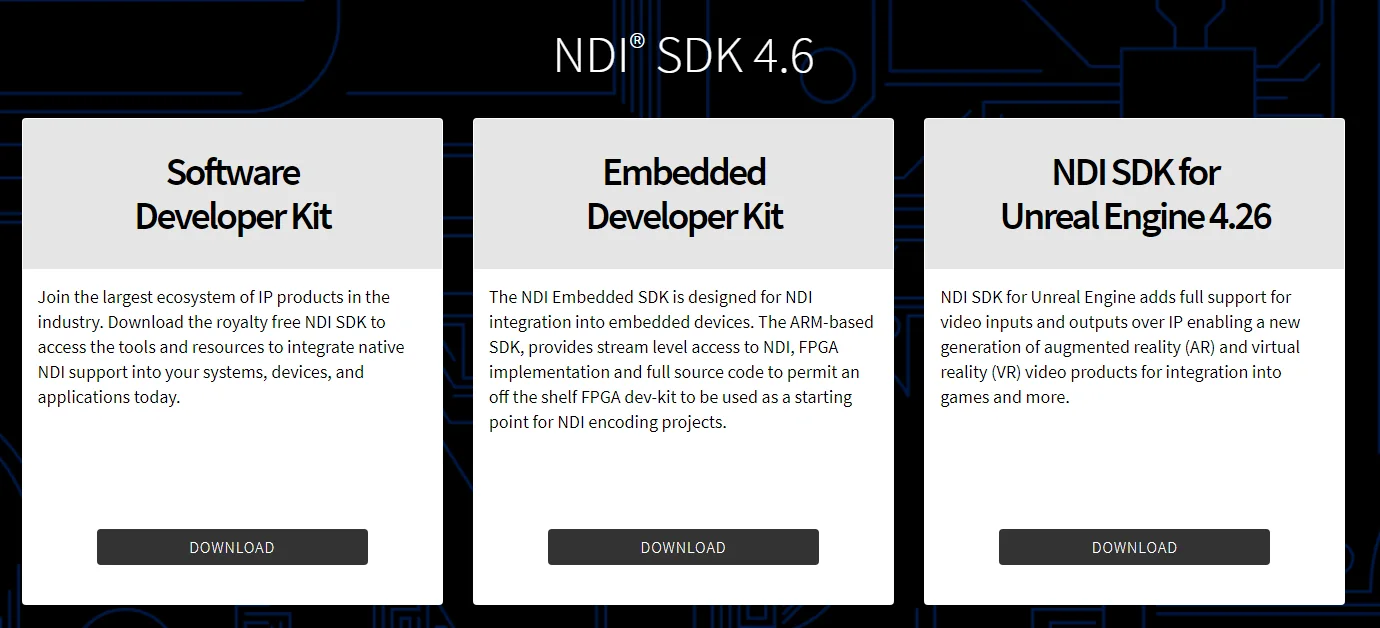
1. Download the NDI Discovery Server software from NDI’s official website. When this tutorial was prepared it was supplied as a utility within NDI SDK 4.6.
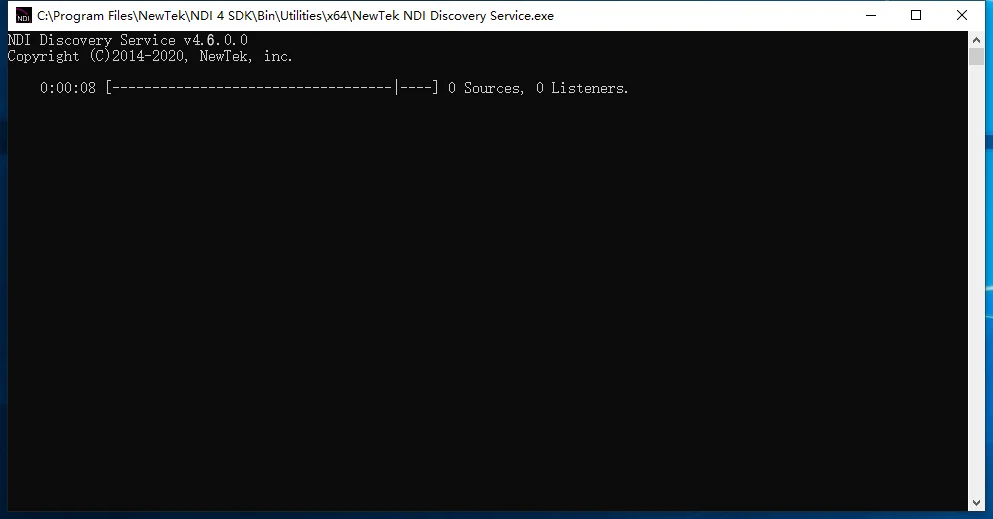
2. Install it on a computer that both subnets can reach. In the SDK used here, the NDI Discovery Service utility is in the Utilities subfolder of the installation directory. Double-click it to run it and open its status window, as shown in the figure below. The computer has to stay switched on with the service running, because devices can only find each other while it is available.
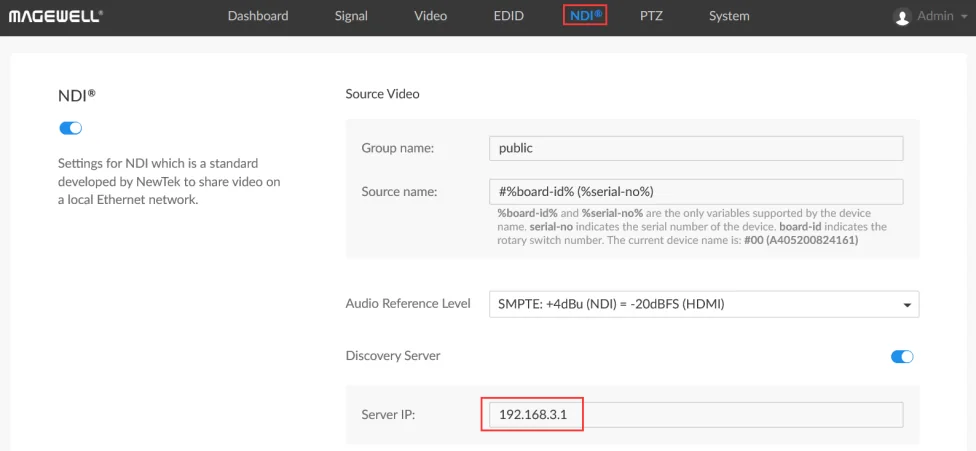
3. Log into the Web GUI of the Pro Convert encoder and click the "NDI ® " tab. Turn on the "Discovery Server" switch, and in the "Server IP" field, enter the IP address of the computer where you installed the NDI Discovery Service software. [In this example, we use 192.168.3.1, but this computer could instead be in the same subnet as the encoder or decoder]. Click the "Apply" button at the bottom of this tab (you may need to scroll down to see it).
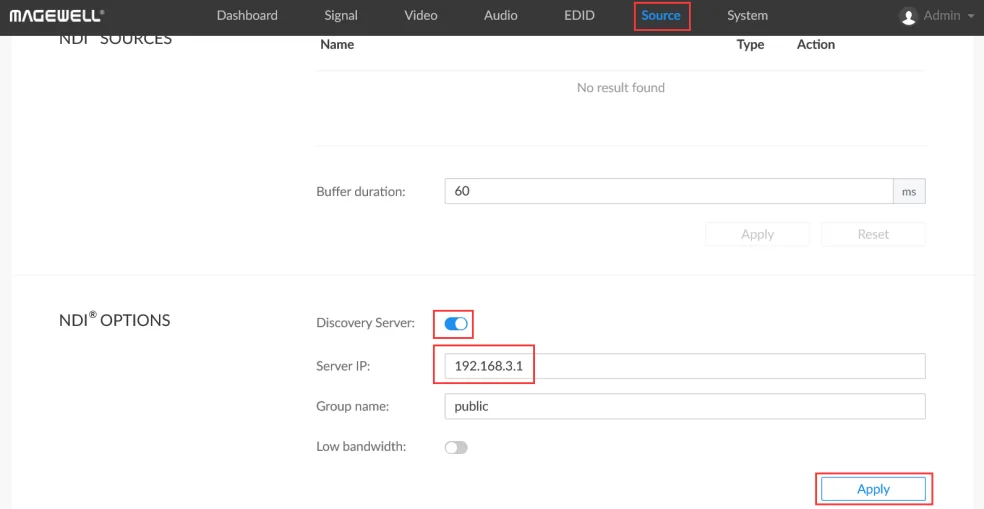
4. Log into the Web GUI of the Pro Convert decoder and click the "Source" tab. In the "NDI ® OPTIONS" section, turn on the "Discovery Server" switch. In the "Server IP" field, enter the IP address of the computer where you installed the NDI Discovery Service software (the same IP address you entered in Step 3 above). Click "Apply". The encoder and decoder can now find each other through the Discovery Server.
Magewell Pro Convert encoders ( Firmware V1.1.170 and above) and decoders ( Firmware V1.1.652 and above) offer a built-in NDI Discovery Service, so one of the Magewell units can act as the server and no computer has to be left running.
1. If the Magewell encoder is to be used as the NDI Discovery Server, log into the Web GUI of the encoder, and click the "NDI ® " tab. Turn on the "Discovery Server" switch, and in the "Server IP" field, enter the encoder's own IP address (192.168.1.1 in our example). Click the "Apply" button at the bottom of this tab (you may need to scroll down to see it). Then log into the Web GUI of the Magewell decoder, turn on the "Discovery Server" switch, and set the "Server IP" to the encoder's IP address (again, 192.168.1.1 in this example) and click "Apply".
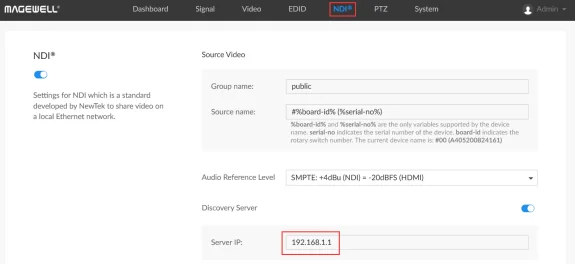
2. If the Magewell decoder is to be used as the NDI Discovery Server, follow Step 1 above, but set the "Server IP" in both the encoder and the decoder to the decoder's IP address (192.168.2.1 in this example).
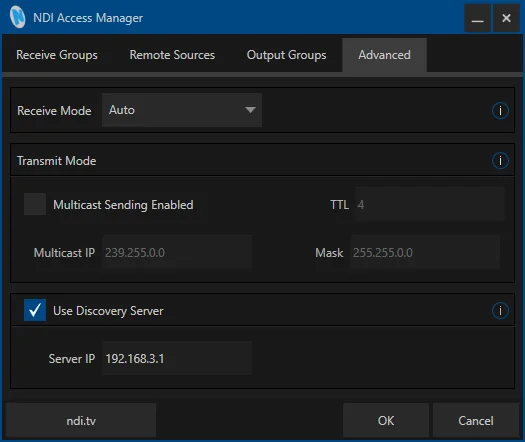
Software on a computer needs the same setting. Many production applications can send and receive NDI streams, including vMix, OBS Studio with an NDI plug-in and Magewell Bridge for NDI®. To use them across subnets, run NDI Access Manager on that computer. On the "Advanced" tab, tick "Use Discovery Server" and enter the IP address of the Discovery Server in the "Server IP" field. If that same computer is also to act as the Discovery Server, it must be running the NDI Discovery Service utility described in Solution 1 as well.
ForeFront Imaging is the authorised UK distributor for Magewell. We stock the full range and can help you spec the right solution.
Browse Products Talk to UsNo marketing noise. Just new product launches, firmware updates, and the occasional guide.
No spam. Unsubscribe any time. Your email is never shared.
Enjoying your visit? Quick rating of your browsing experience so far:
Anything specific? (optional)