Capture · Record · Stream · Encode · DecodeCapture · Record · Stream · Encode · Decode
vMix can receive an SRT stream from a Magewell Ultra Encode encoder and send its programme output by SRT to a Magewell Pro Convert decoder. That gives you a remote production link over an ordinary network: the camera and encoder at one site, vMix at another, and a decoder feeding a display wherever the finished programme is needed. This article gives the settings for each direction, with either end starting the connection.
We have covered the same workflow with OBS Studio separately. The steps below use vMix. Menu names are those shown in the screenshots, and may differ slightly in other software and firmware versions.
The diagram below shows how the devices connect and which way the video travels.
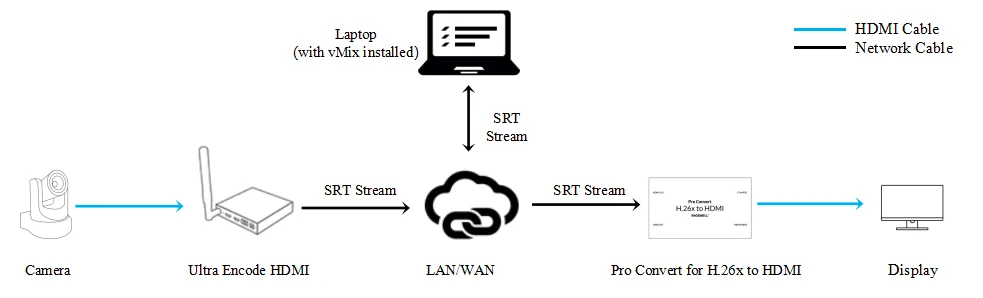
In an SRT connection, one end is the Caller, which starts the session, and the other is the Listener, which waits for the Caller to connect. The Ultra Encode supports both SRT Caller and SRT Listener, and so does vMix, so each part below gives both arrangements. The practical difference is which end starts the stream: the Magewell device or vMix. As a rule, make the Listener the end that is easier to reach from outside, because the Caller needs the Listener’s address and an open port to connect to.
Part 1: Magewell encoder sending SRT streams to vMix
Solution 1: Encoder as Listener, vMix as Caller
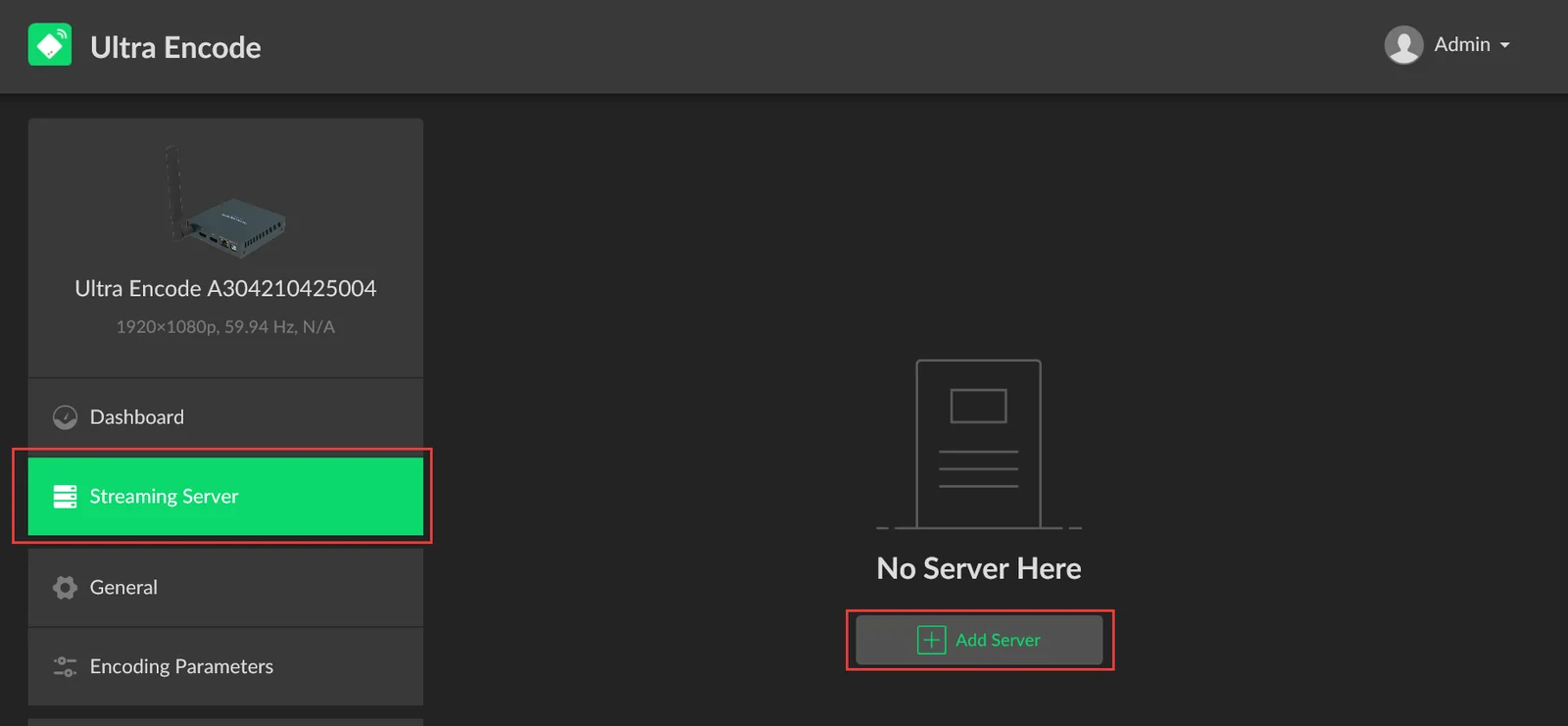
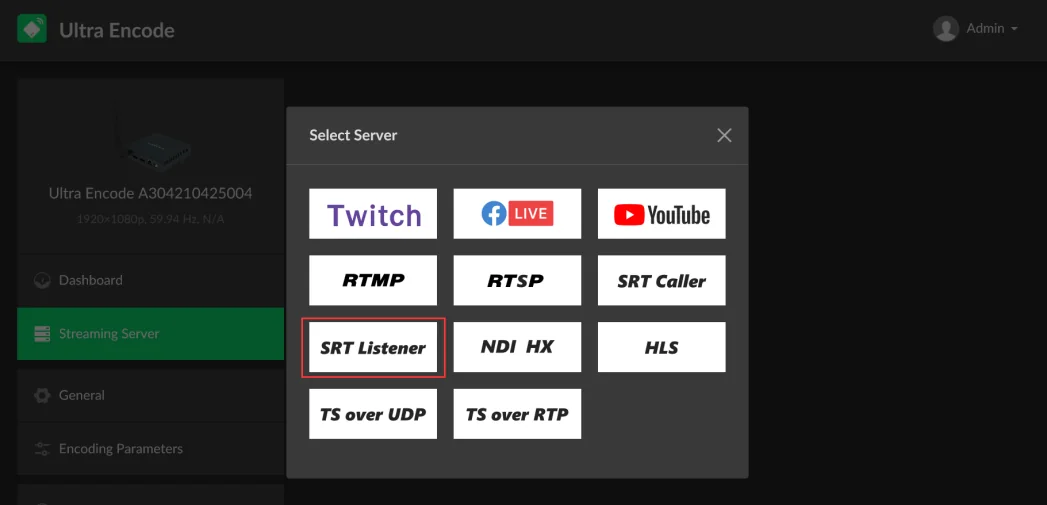
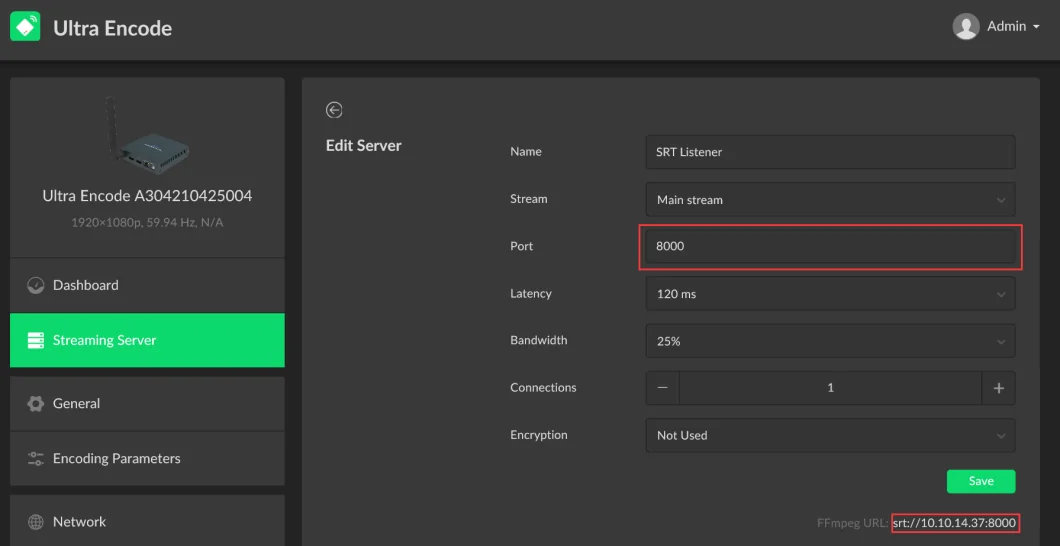
1. Log into the Web GUI of the Ultra Encode device, click "Streaming Server" in the menu on the left, then click "Add Server". Select "SRT Listener".
2. Enter the port number in the pop-up page (8000 in our example) and click "Save". The SRT address for the stream appears in the lower right corner of the page (srt://10.10.14.37:8000 in our example). The encoder starts streaming as soon as an SRT Caller connects.
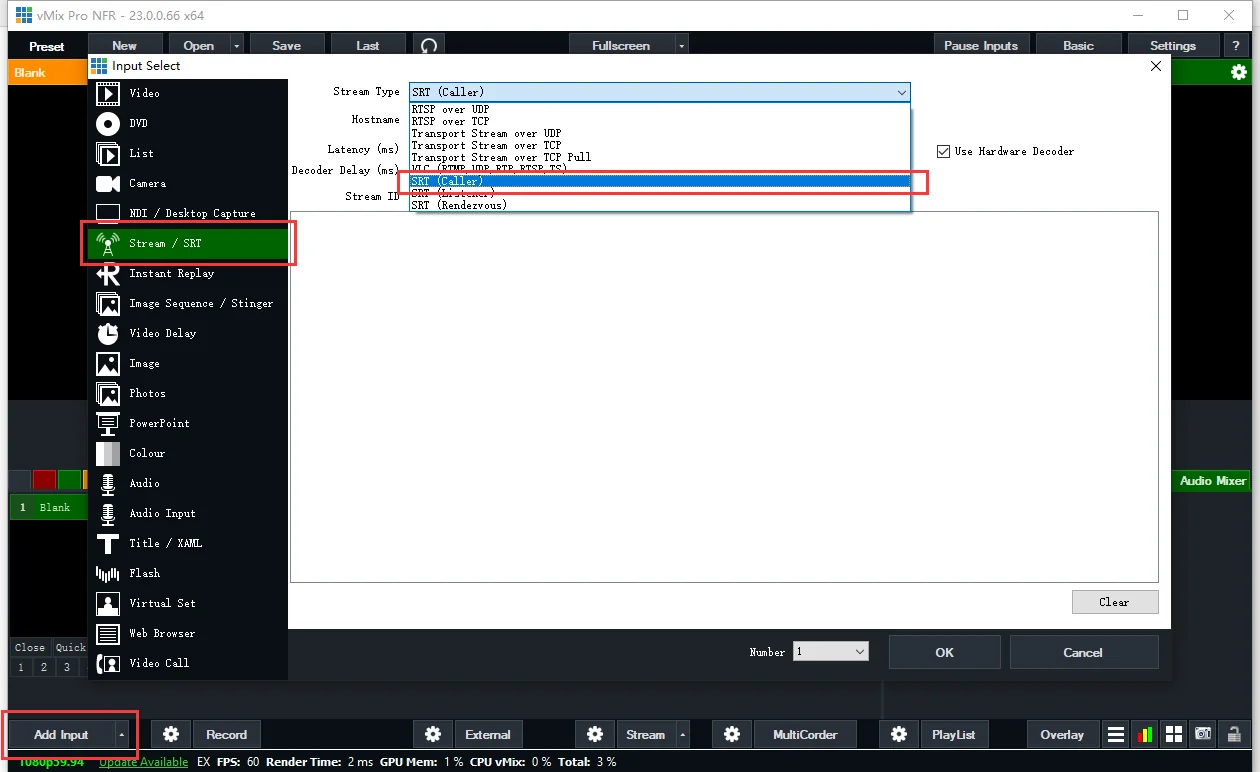
3. In the vMix software, click "Add Input" in the lower left corner. Select "Stream/SRT" in the left menu on the pop-up "Input Select" settings page, and select “SRT (Caller)” in the "Stream Type" drop-down menu list.
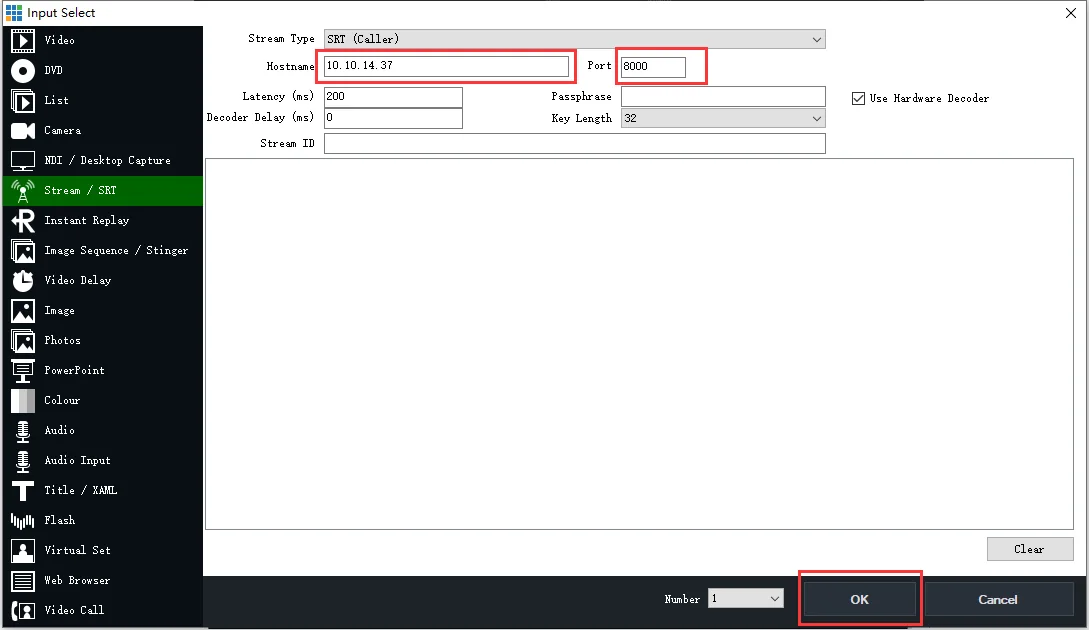
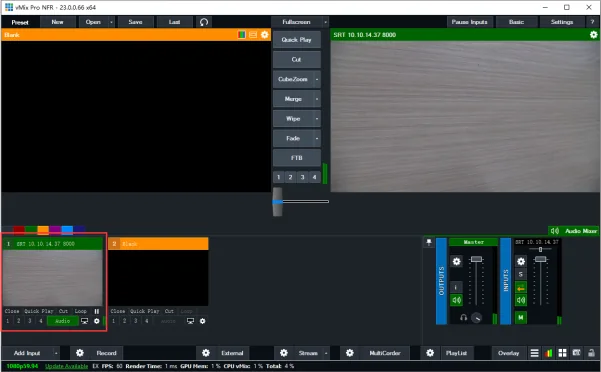
4. Fill in the IP address of the Magewell encoder in the "Hostname" field (10.10.14.37 in our example) and the port number (8000 in our example) in the "Port" field. Click "OK". vMix starts the SRT session and the encoder’s picture appears as an input.
Solution 2: Encoder as Caller, vMix as Listener
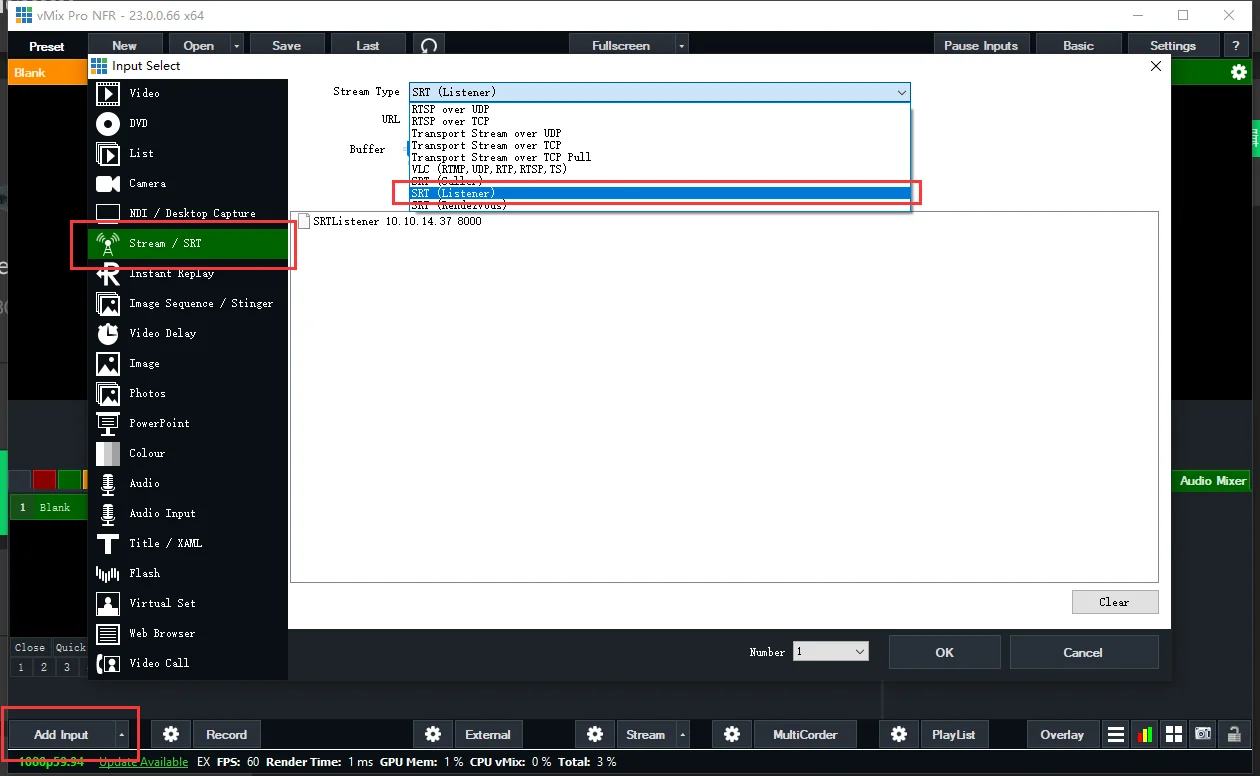
1. In the vMix software, click "Add Input" in the lower left corner. Select "Stream/SRT" in the left menu on the pop-up "Input Select" settings page, and select “SRT (Listener)” in the "Stream Type" drop-down menu list.
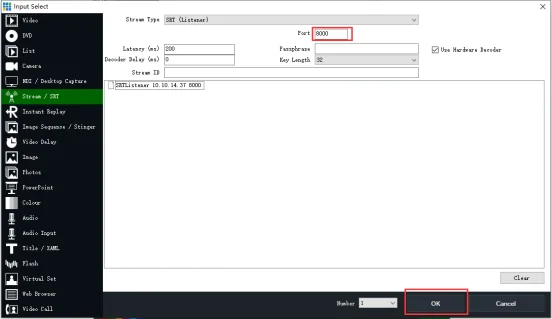
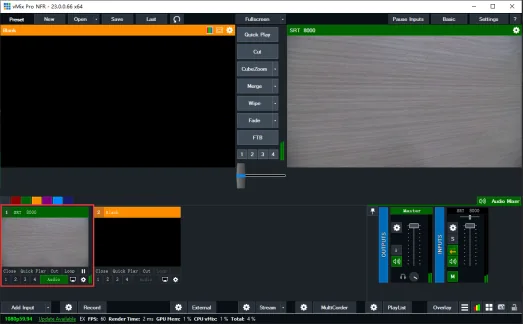
2. Fill in the port number in the "Port" field (8000 in our example). Click "OK". vMix now waits for the Ultra Encode to start the SRT session.
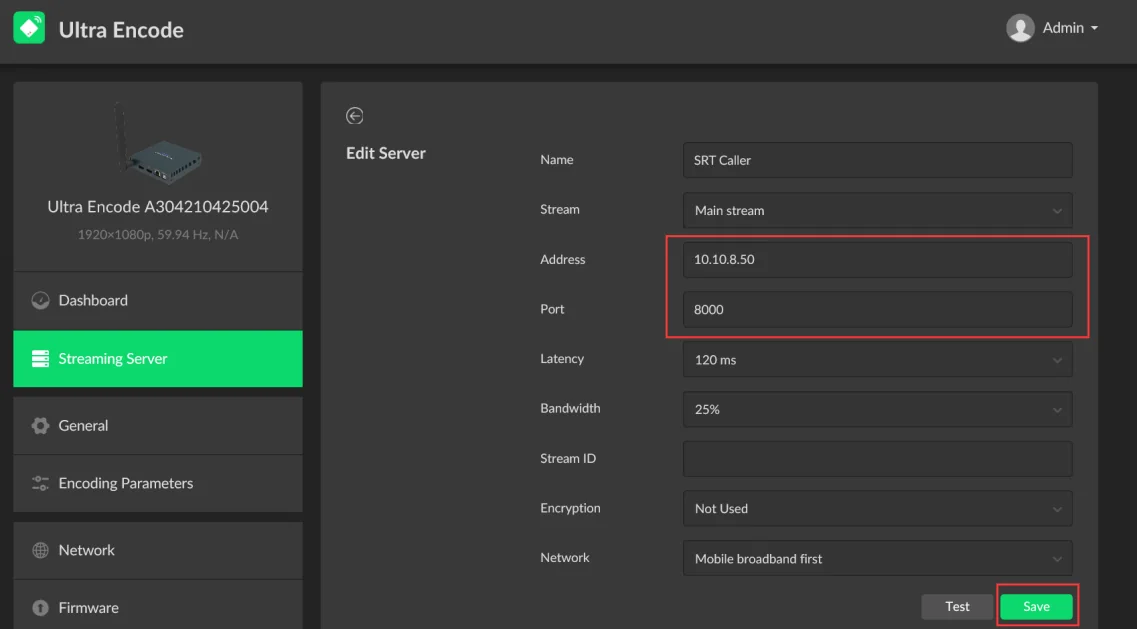
3. Log into the Web GUI of the Ultra Encode device, click "Streaming Server" in the menu on the left, then click "Add Server". Select "SRT Caller".
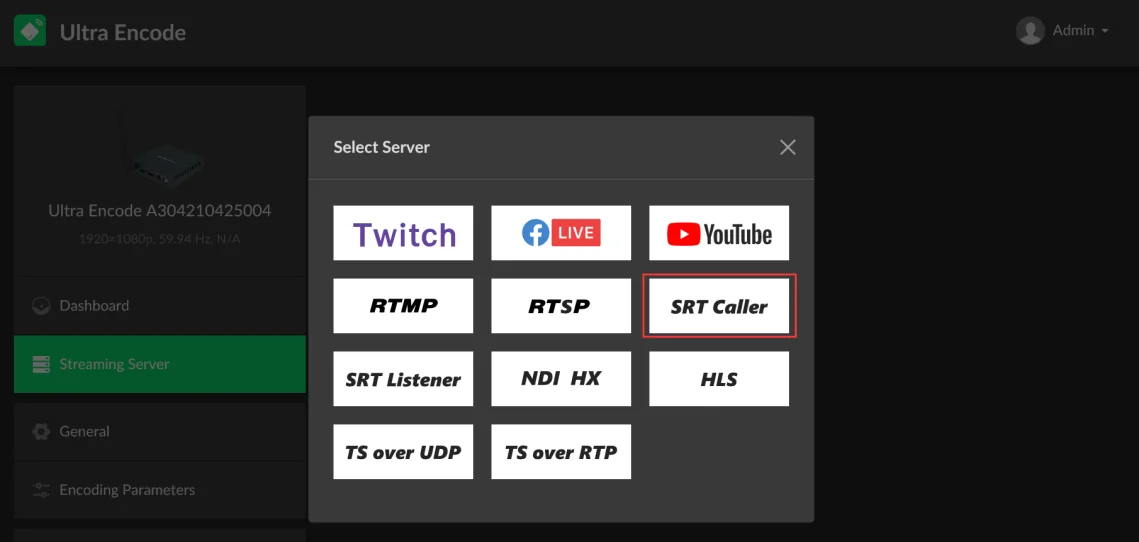
4. In the Address field, enter the IP address of the laptop with vMix installed (10.10.8.50 in our example). Enter the Port number (8000 in our example), and click "Save". The encoder connects to vMix, which is the SRT Listener here, and starts streaming.
Part 2: Magewell decoder receiving SRT streams from vMix
Solution 1: vMix as Listener, Decoder as Caller
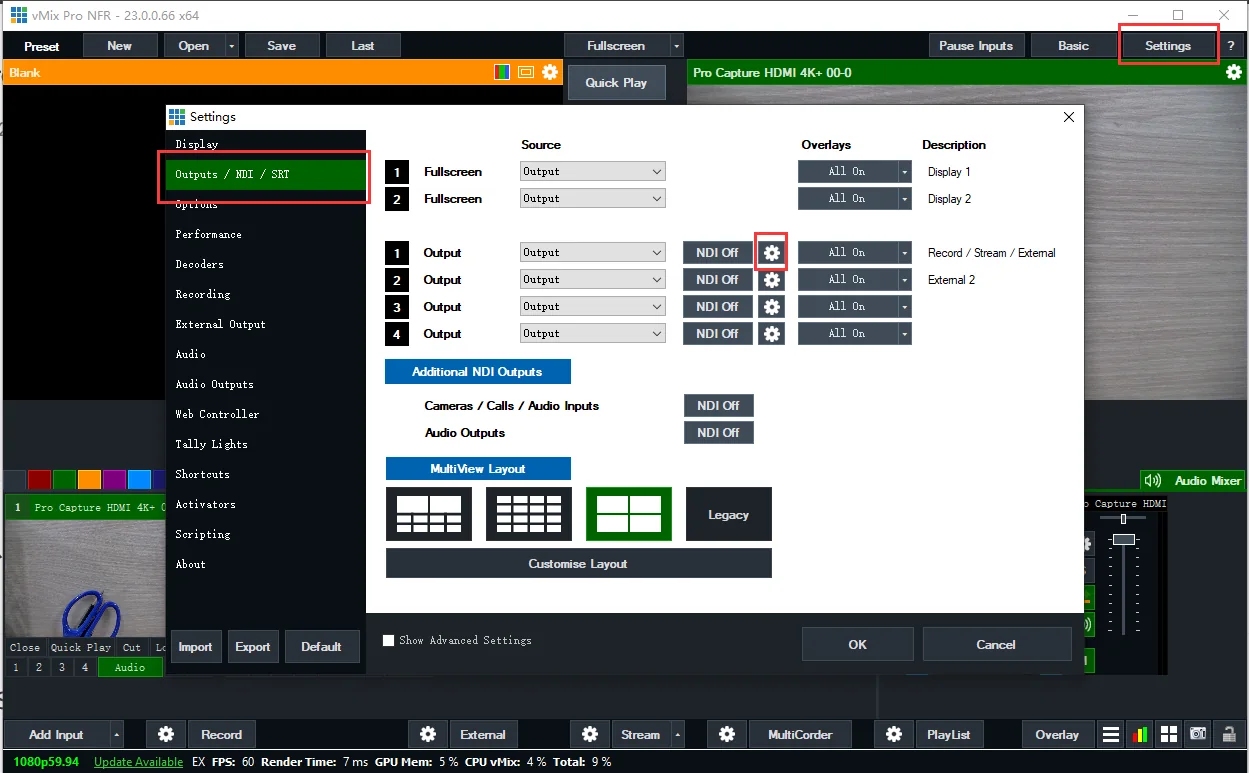
1. In the vMix software, click "Settings" in the upper right corner of the interface, then select "Outputs/NDI/SRT" in the left menu on the pop-up “Settings” page. You will see controls for four vMix output channels. Click the gear icon to the right of the first output channel.
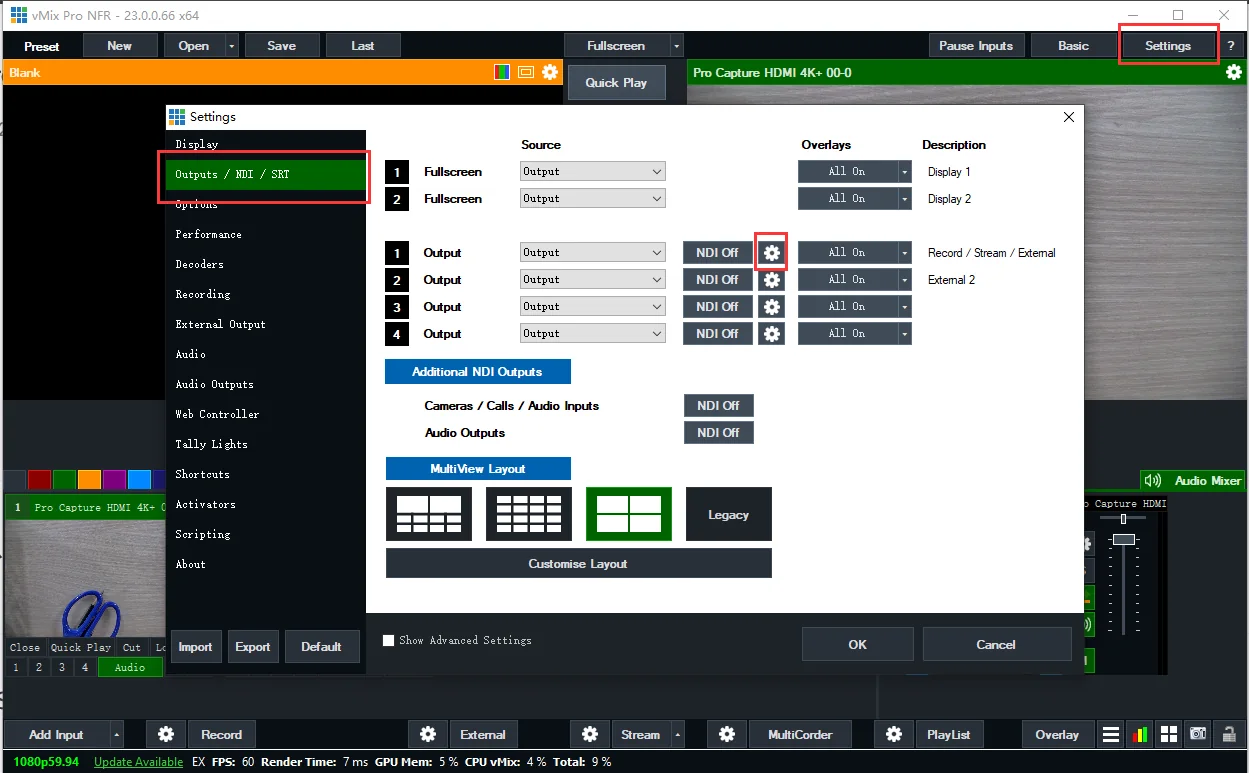
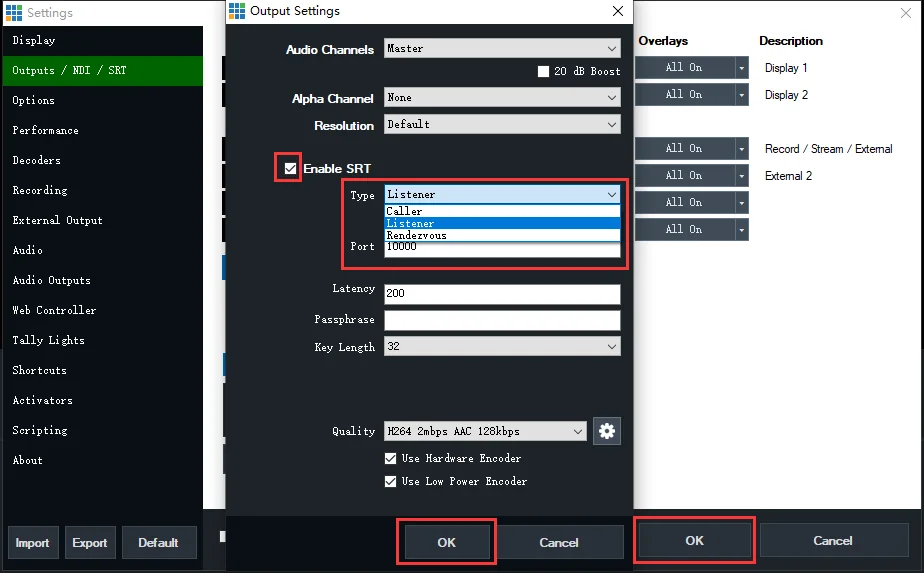
2. In the pop-up page, check "Enable SRT", select "Listener" in the "Type" drop-down menu, and fill in the port number in the "Port" field (10000 in our example). Click "OK" on this panel, then "OK" on the resulting window.
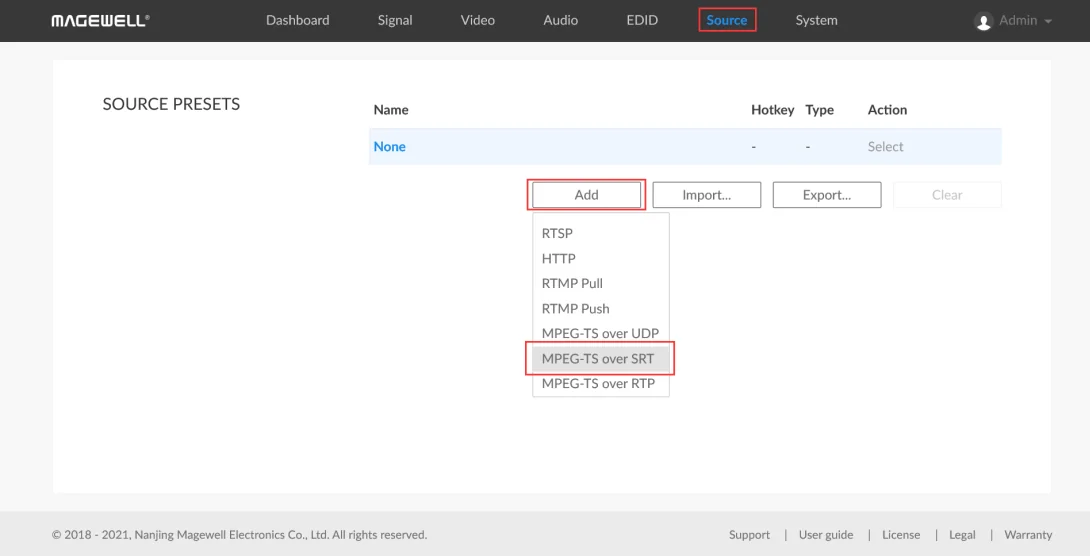
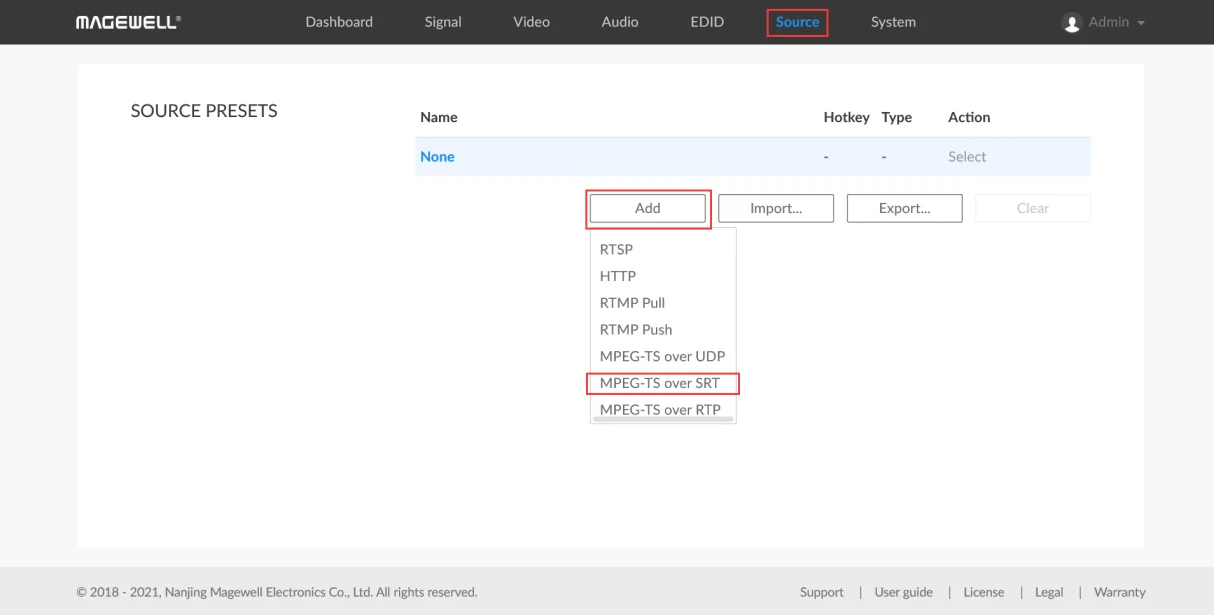
3. Log into the Web GUI of the Pro Convert decoder and click the "Source" tab. In the "SOURCE PRESETS" section, click "Add" and select "MPEG-TS over SRT".
4. In the pop-up page, select "Caller" for the Mode. In the Address field, fill in the IP address of the computer where vMix is installed (10.10.8.50 in our example). Enter the Port number (10000 in our example), and click “OK”.
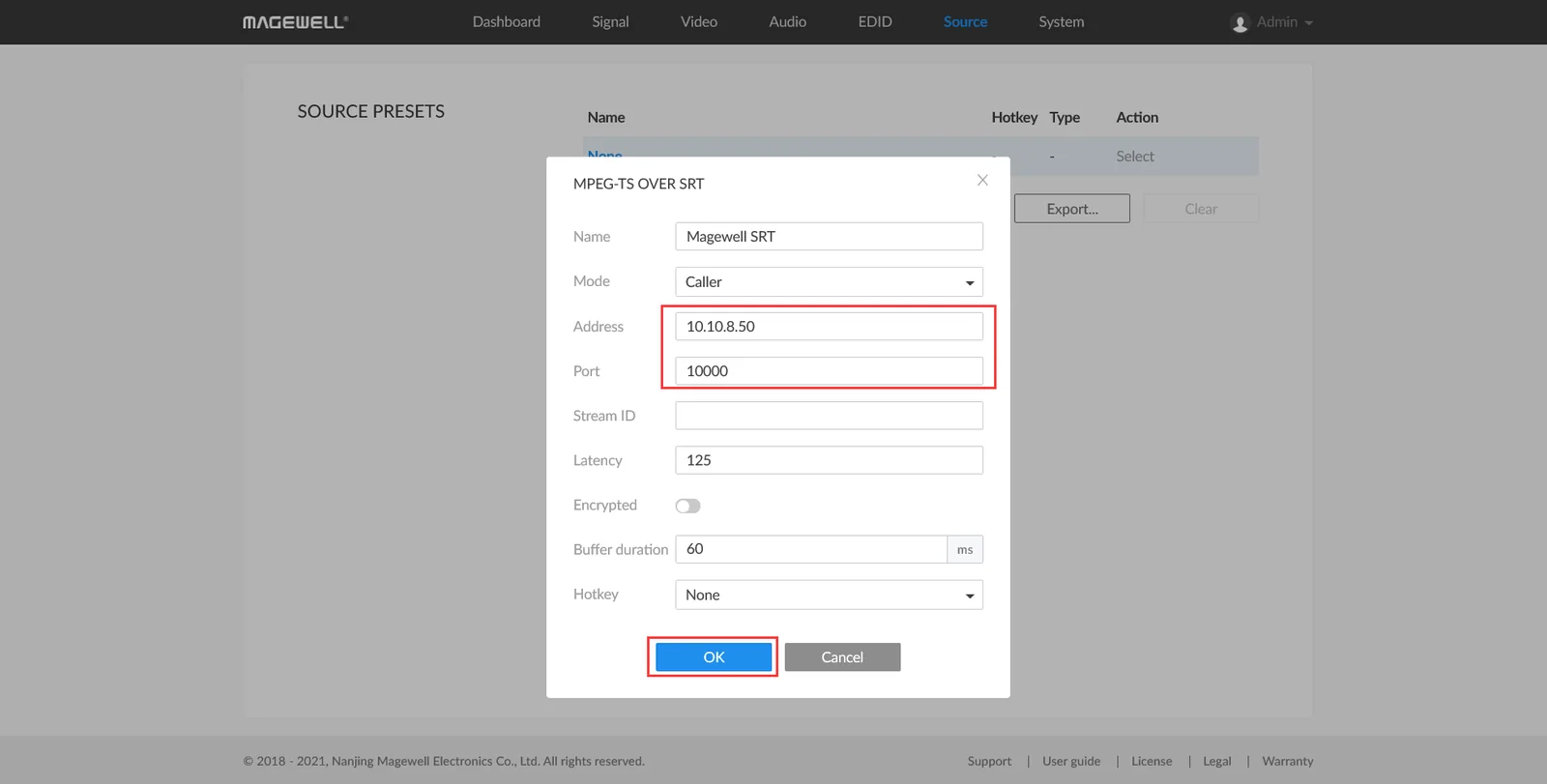
5. The settings you just added will now be displayed in the “SOURCE PRESETS” list. Click "Select" next to the new SRT stream. The decoder starts the SRT session and shows the vMix output on its HDMI display.
Solution 2: vMix as Caller, Decoder as Listener
1. Log into the Web GUI of the Pro Convert decoder. Enter the "Source" tab. In the "SOURCE PRESETS" section, click "Add" and select "MPEG-TS over SRT".
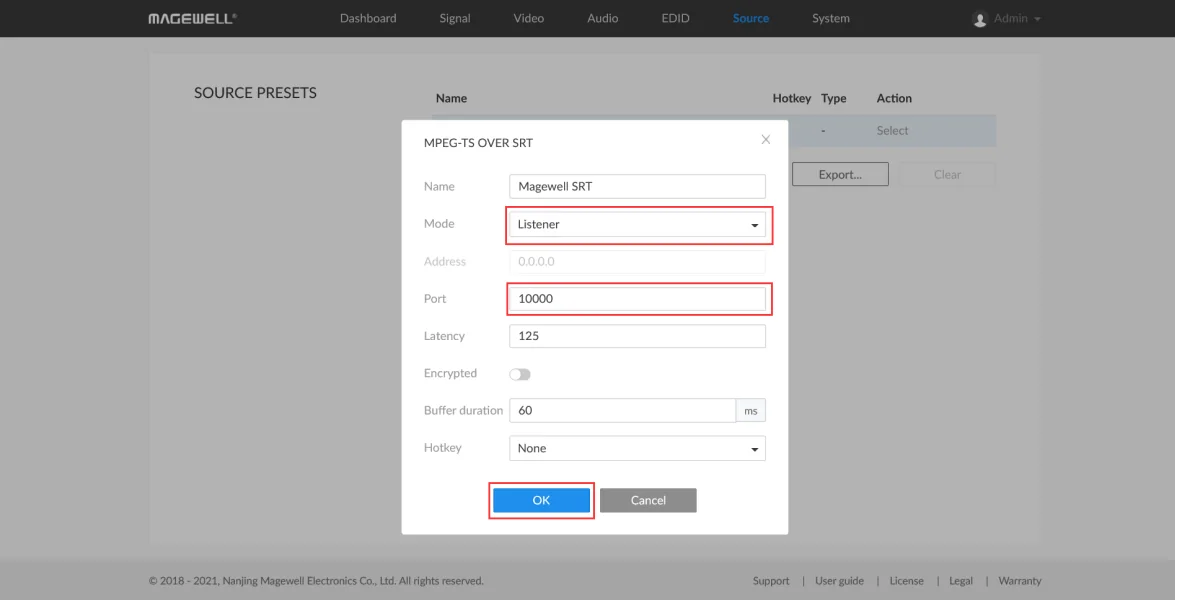
2. In the pop-up page, select "Listener" for the mode. Fill in the port number (10000 in this example), and click "OK".
3. The settings you just added will now be displayed in the SOURCE PRESETS” list. Click "Select". The decoder now waits for vMix to start the SRT session.
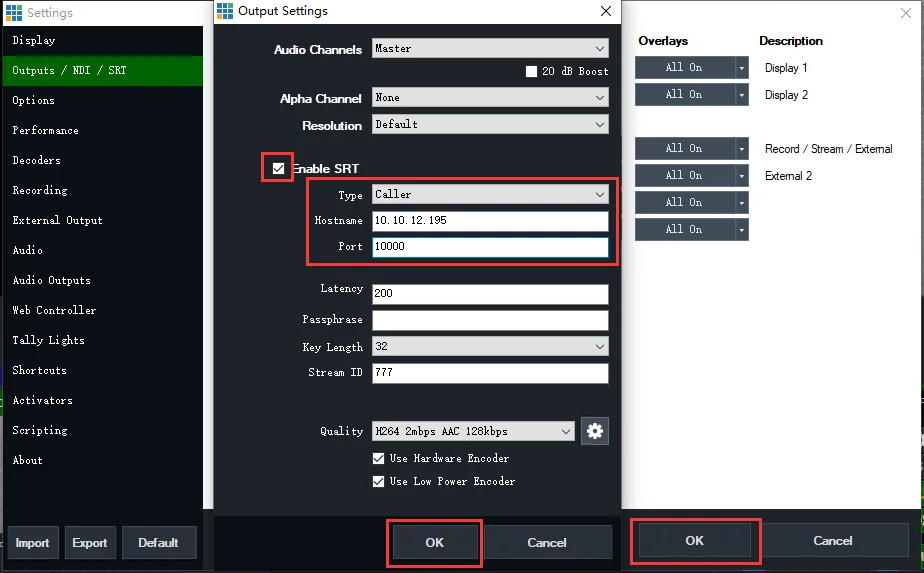
4. In the vMix software, click "Settings" in the upper right corner of the interface, then select "Outputs/NDI/SRT" in the left menu on the pop-up “Settings” page. You will see controls for four vMix output channels. Click the gear icon to the right of the first output channel.
5. In the pop-up page, check "Enable SRT", select "Caller" in the "Type" drop-down menu, fill in the IP address of the decoder in the "Hostname" field (10.10.12.195 in our example), and fill in the port number in the "Port" field (10000 in our example). Click "OK" on this panel, then "OK" on the resulting window.
ForeFront Imaging is the authorised UK distributor for Magewell. We stock the full range and can help you spec the right solution.
Browse Products Talk to UsNo marketing noise. Just new product launches, firmware updates, and the occasional guide.
No spam. Unsubscribe any time. Your email is never shared.
Enjoying your visit? Quick rating of your browsing experience so far:
Anything specific? (optional)