Capture · Record · Stream · Encode · DecodeCapture · Record · Stream · Encode · Decode
You can use OBS Studio as the production stage between a Magewell encoder and decoder: an Ultra Encode sends the camera to OBS as an SRT stream, you add graphics or mix in other sources, and OBS sends the finished programme over SRT to a Pro Convert decoder at the destination. SRT (Secure Reliable Transport) is designed to deliver video reliably and with low delay over unpredictable networks such as the public internet. If you only need a direct link with no production in between, see how to send SRT streams directly from an Ultra Encode to a Pro Convert decoder.
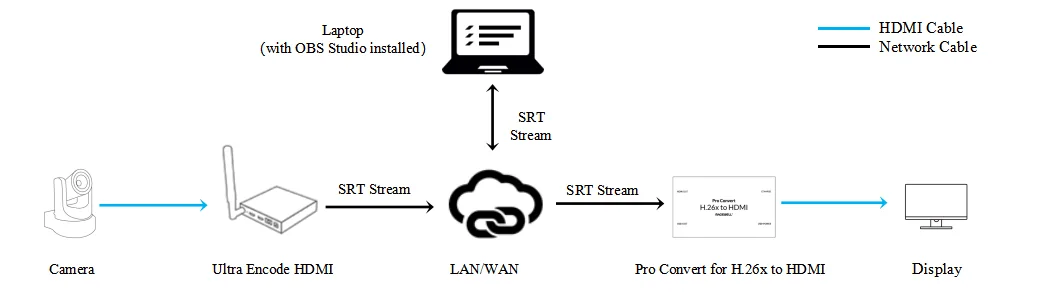
This guide covers both halves of the workflow: sending an SRT stream from the Ultra Encode into OBS, and receiving the SRT output of OBS on a Pro Convert decoder. The camera and encoder can be at one site and the OBS operator at another, so the person mixing the programme does not have to travel to the venue.
The connection diagram below shows the signal path from camera to encoder, through OBS, to the decoder and display.
Part 1: Magewell encoder sending SRT streams to OBS
1. In SRT workflows, one endpoint acts as the Caller, which starts the SRT session, and the other as the Listener, which waits for the Caller to connect. OBS Studio works in Caller mode by default, so in this example we configure the encoder as the SRT Listener.
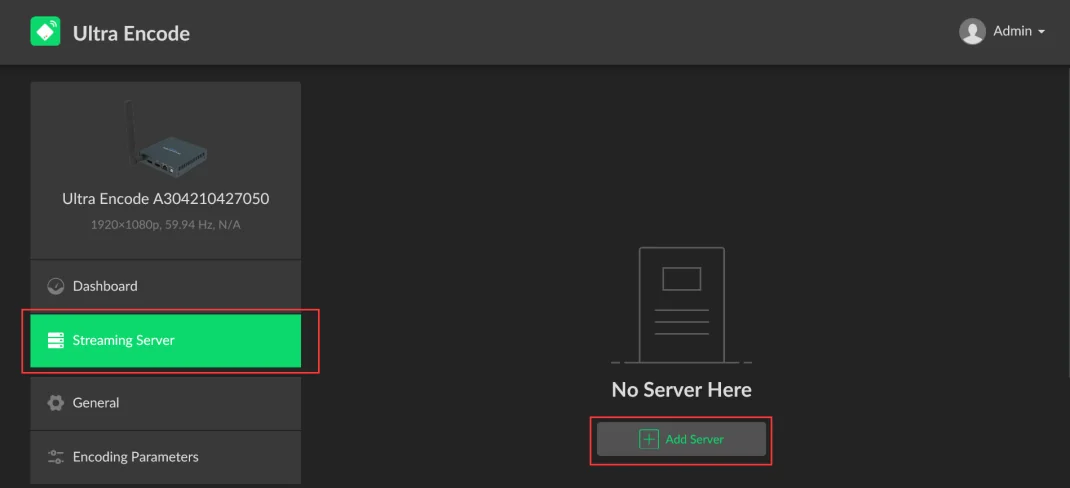
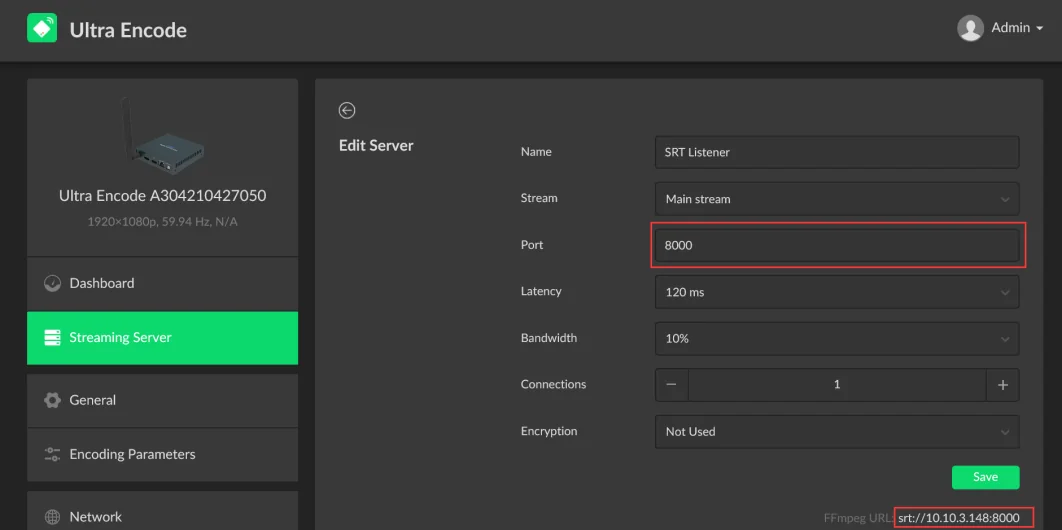
2. Log into the Web GUI of the Ultra Encode device, click "Streaming Server" in the menu on the left, then click "Add Server". Select "SRT Listener".
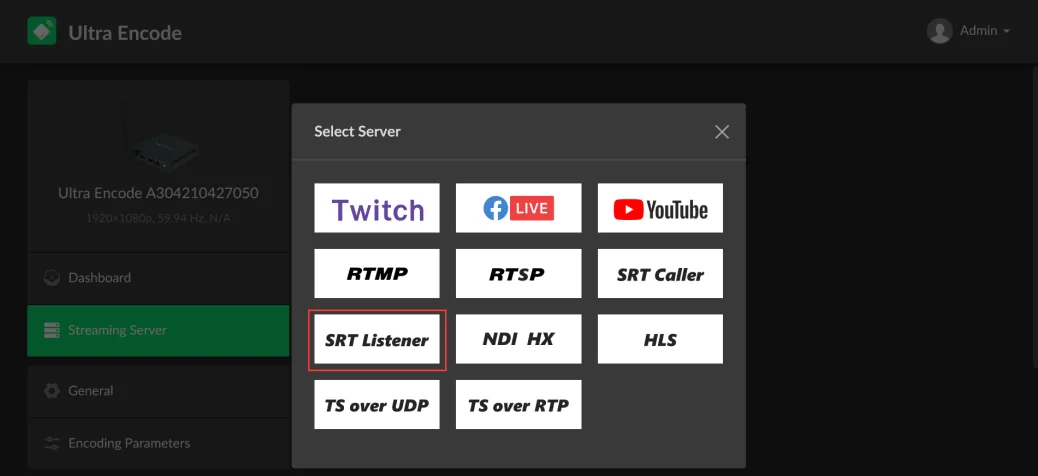
3. Fill in the port number in the pop-up page (8000 in our example) and click "Save". The SRT decoding address will pop up in the lower right corner of the page (srt://10.10.3.148:8000 in our example). The encoder will begin streaming once a connection is initiated by an SRT Caller.
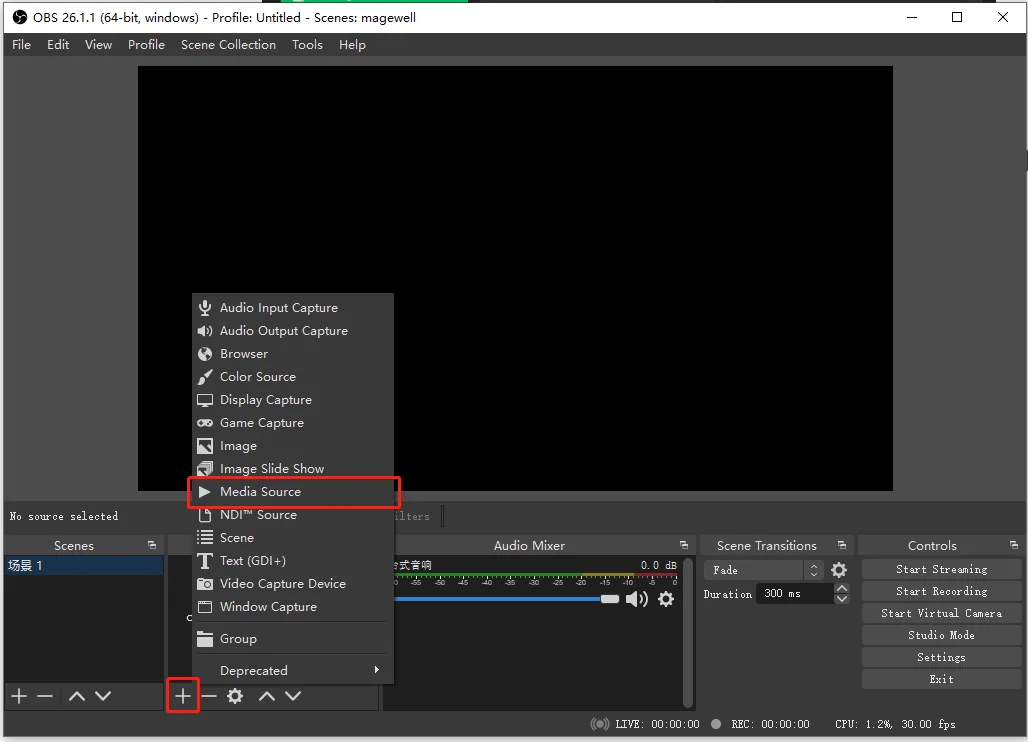
4. In the OBS software, click "+" in the "Sources" column and select "Media Source" in the pop-up list.
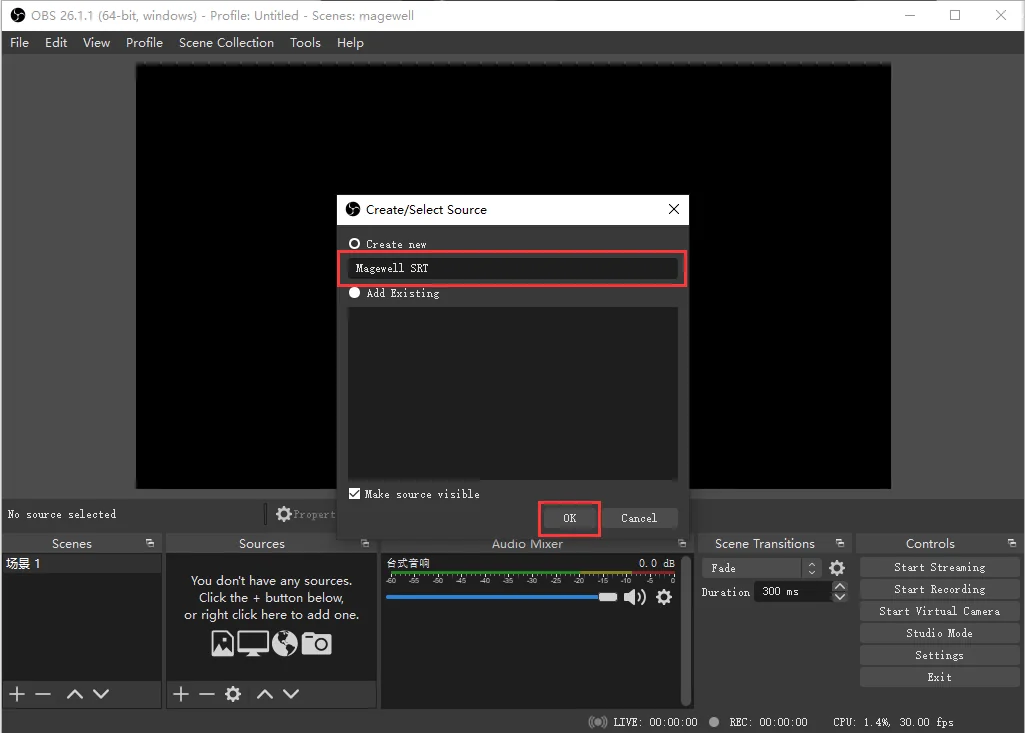
5. In the pop-up “Create/Select Source” panel, leave “Create New” selected. Give the new source a name (“Magewell SRT” in the example below), then click "OK".
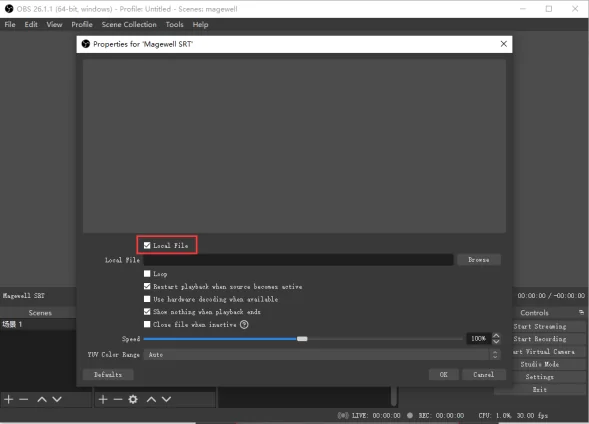
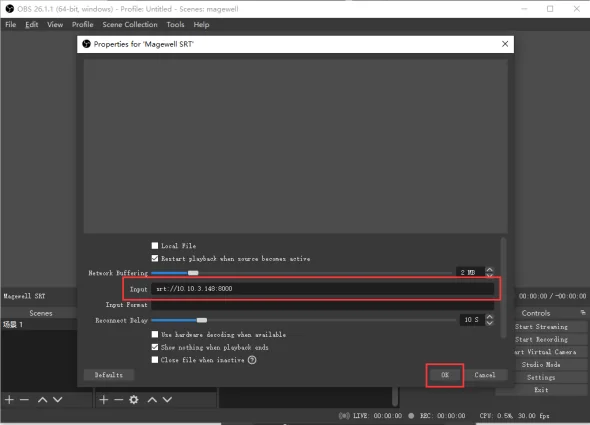
6. In the pop-up Properties page, turn off the check box in front of "Local File" to cancel it, and fill in the SRT decoding URL in the format srt://<encoder IP>:<SRT listening port> in the "input" column (as shown in our example, srt://10.10.3.148:8000). Click "OK" to initiate the SRT session and begin decoding the SRT stream sent from the encoder.
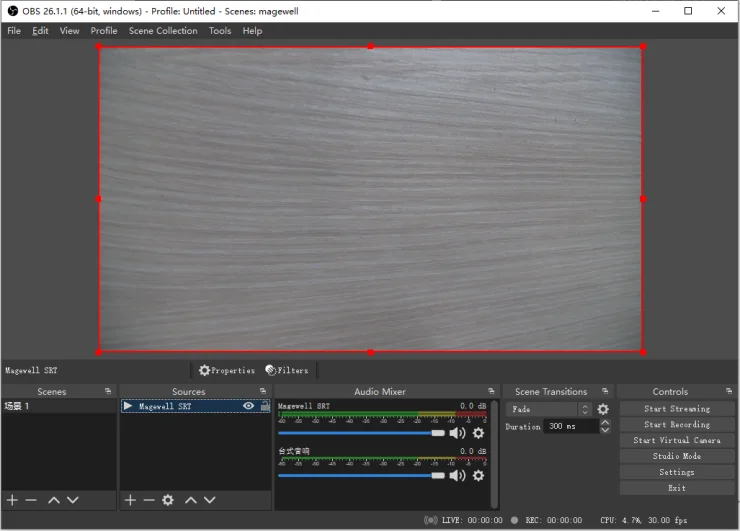
7. The SRT stream from the Ultra Encode now appears as an input source in OBS, ready to be mixed with graphics and other sources.
Part 2: Magewell decoder receiving SRT streams from OBS
1. To send the OBS output to a decoder over SRT, we leave OBS as the SRT Caller and configure the decoder as the SRT Listener.
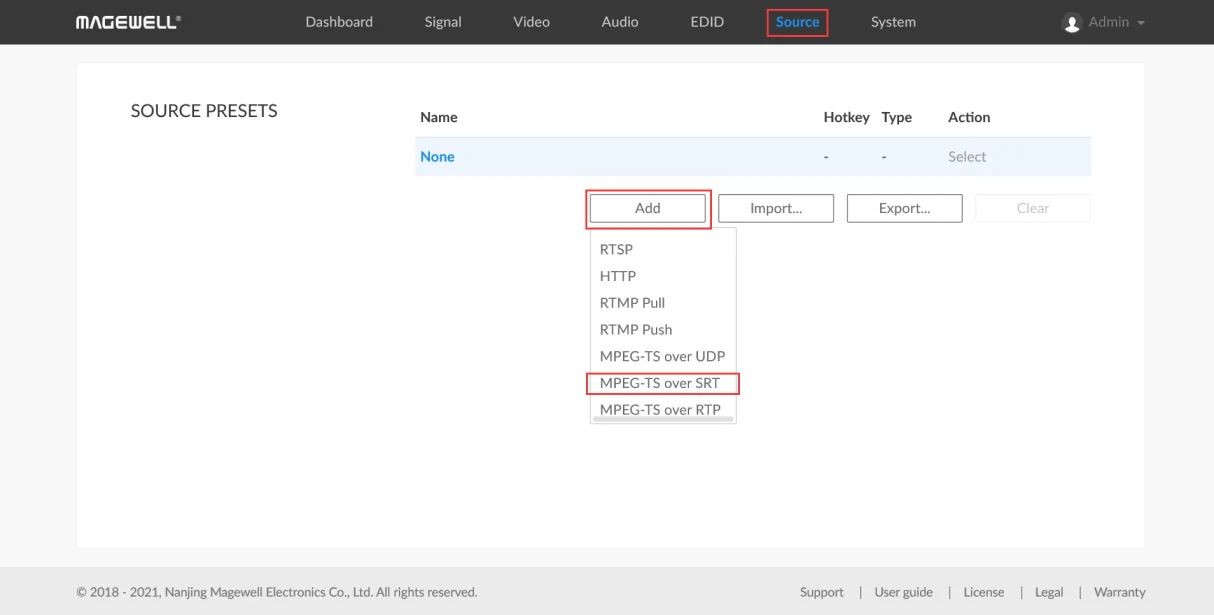
2. Log into the Web GUI of the Pro Convert decoder. Enter the "Source" tab. In the "SOURCE PRESETS" section, click "Add" and select "MPEG-TS over SRT".
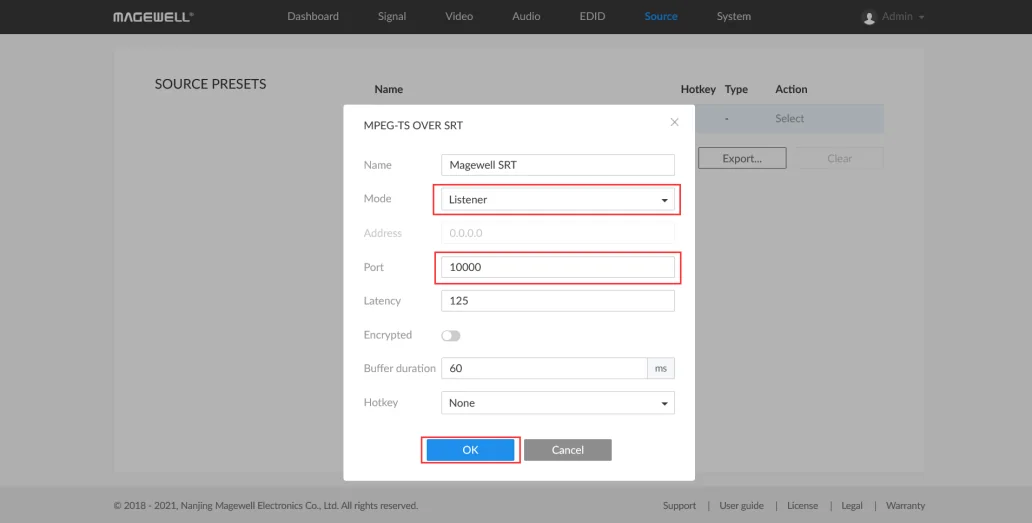
3. In the pop-up page, select "Listener" for the mode. Fill in the port number (10000 in this example), and click "OK".
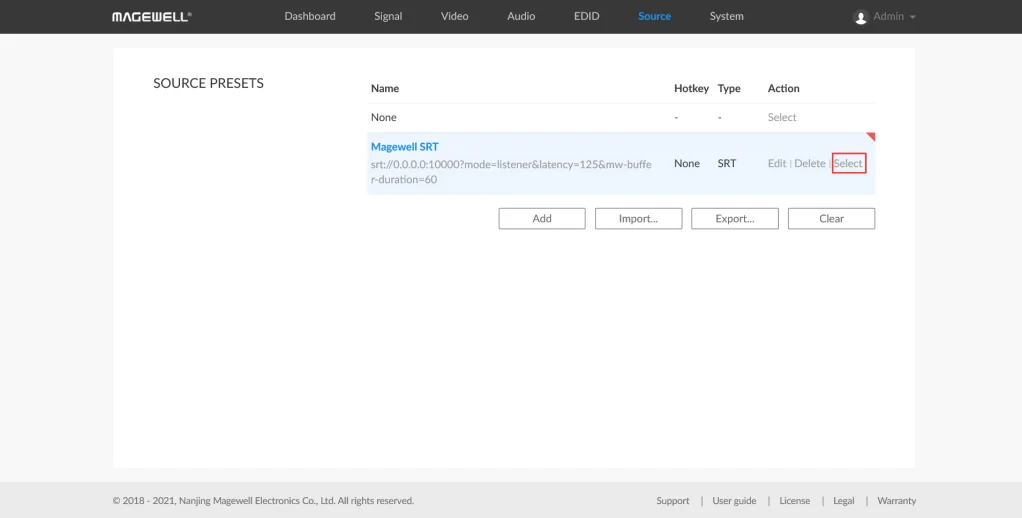
4. The settings you just added will now be displayed in the “SOURCE PRESETS” list. Click "Select", and the decoder will begin waiting for OBS to initiate an SRT streaming session.
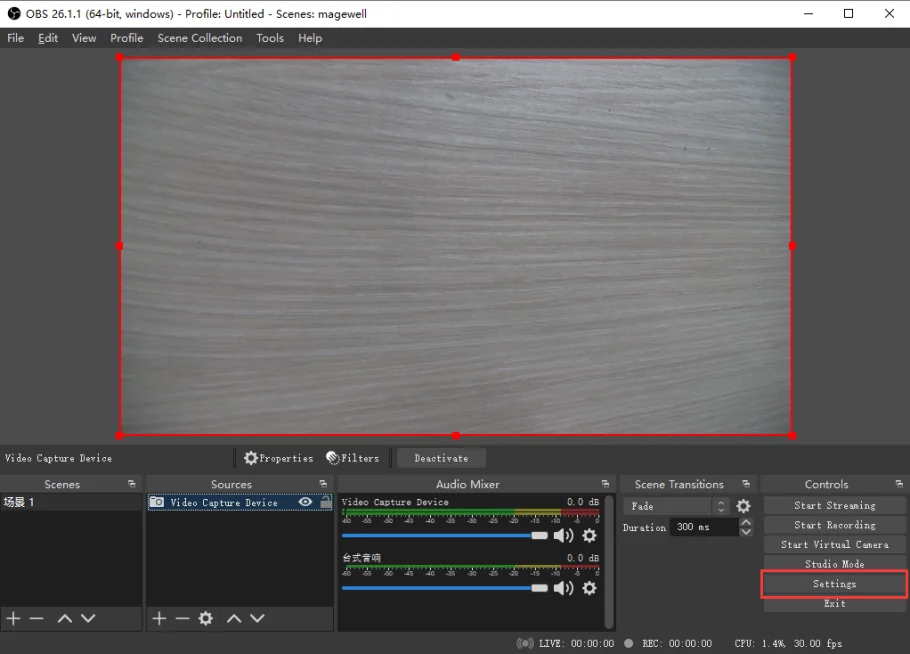
5. Click “Settings” in the OBS software interface.
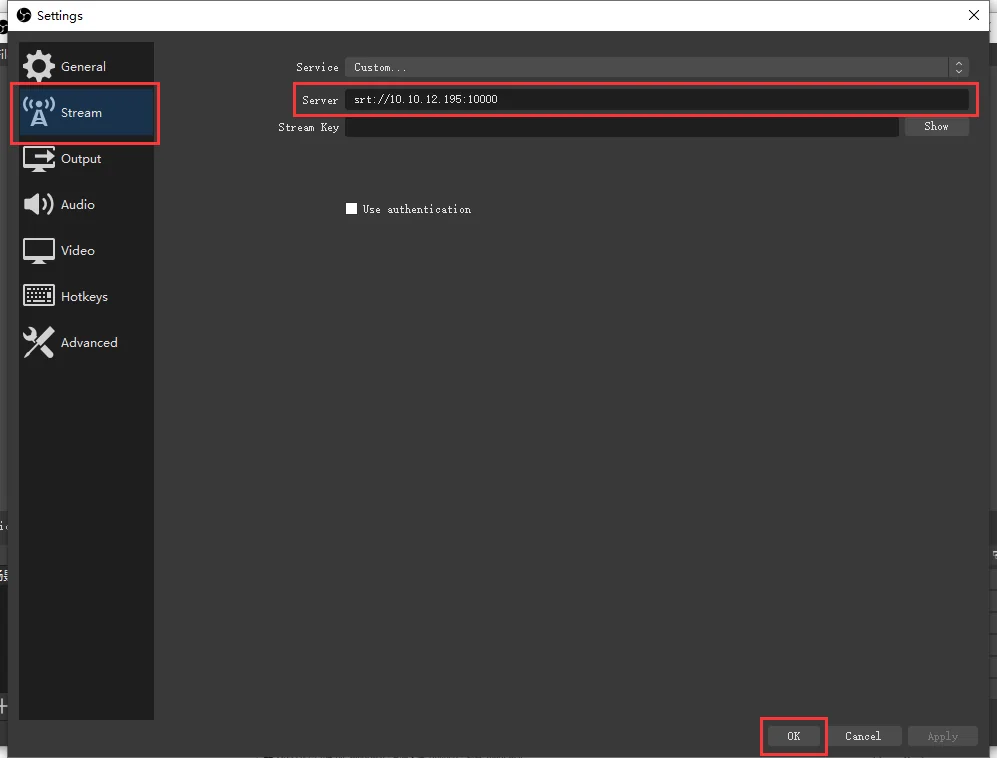
6. In the pop-up “Settings” page, select the "Stream" tab, and fill in the SRT streaming URL in the format srt://<decoder IP address>:<SRT listening port> in the "Server" column (as shown in our example srt://10.10.12.195:10000). Then click "OK".
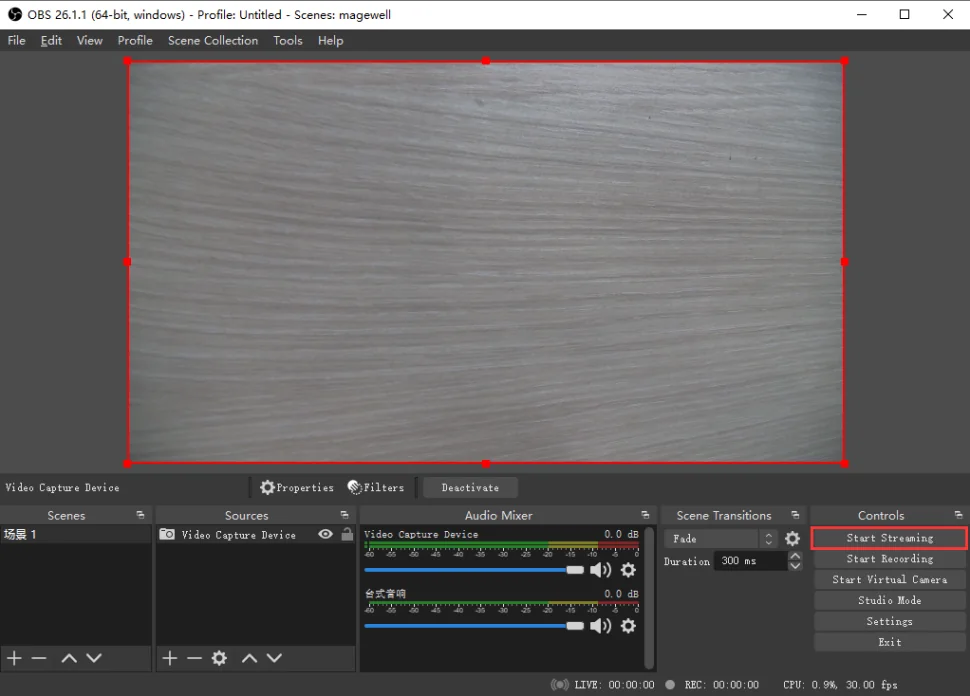
7. Click "Start Streaming" to begin sending the OBS output as an SRT stream.
ForeFront Imaging is the authorised UK distributor for Magewell. We stock the full range and can help you choose the right encoder and decoder for remote production.
Browse Products Talk to UsNo marketing noise. Just new product launches, firmware updates, and the occasional guide.
No spam. Unsubscribe any time. Your email is never shared.
Enjoying your visit? Quick rating of your browsing experience so far:
Anything specific? (optional)