Capture · Record · Stream · Encode · DecodeCapture · Record · Stream · Encode · Decode
A Magewell Pro Convert decoder can receive an RTMP stream directly from an encoder, so you can link two points with RTMP without building or renting an RTMP server. You add an "RTMP Push" source on the decoder, then point the encoder at the address the decoder gives you. This article shows the settings for a hardware encoder and for encoding software.
RTMP (Real-Time Messaging Protocol) carries video, audio and data over the Internet between encoders, servers and decoders. It remains one of the most widely used protocols for sending a live stream to a platform.
RTMP is not normally used point to point between an encoder and a viewer. The encoder usually sends its stream to an RTMP server run by someone else, such as a content delivery network (CDN) or a platform like YouTube Live or Facebook Live. Viewers then watch through that service, with a software player or a hardware decoder.
You can run your own RTMP server instead of using a third-party service, but you then have to build, configure and maintain it. Setting one up with tools such as Nginx or Wowza takes some server and streaming knowledge, which is a lot to ask when all you want is to get a picture from one room or site to another.
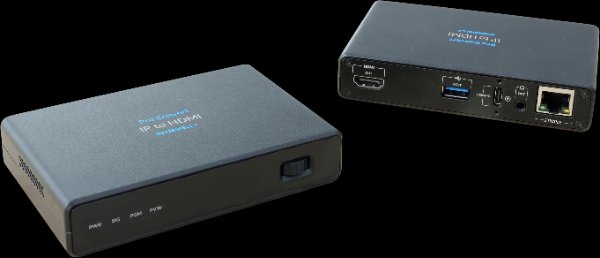
The decoder’s RTMP Push source does the job of that server for a single link. The encoder pushes its stream to the decoder’s own address and the decoder shows it on its output, so there is nothing else to install or host. The equipment used in the examples is listed below.
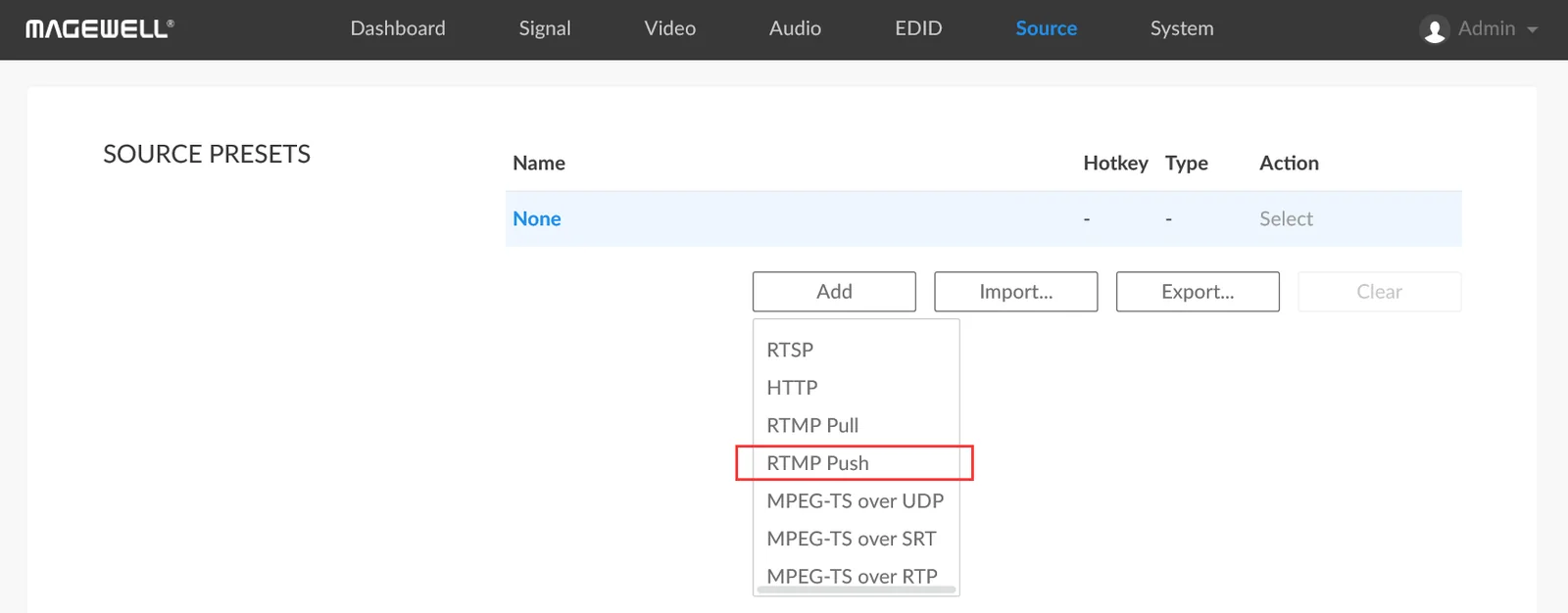
1. Log into the Web GUI of the Pro Convert decoder and click the "Source" tab. In the "SOURCE PRESETS" section, click "Add" and select "RTMP Push".
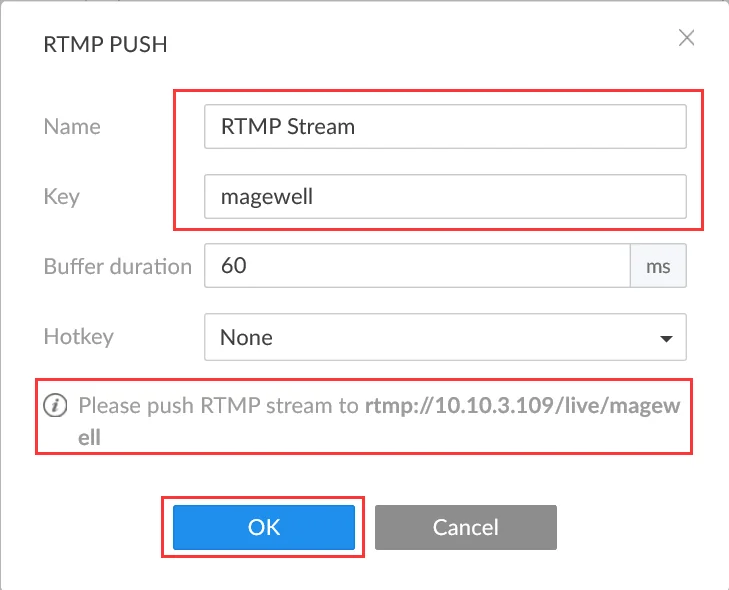
2. Fill in the Name and Key in the pop-up page. In this example, the Name is "RTMP Stream" and the Key is "Magewell". The address to send to is shown at the bottom of the panel, in the form "Please push RTMP stream to rtmp://10.10.3.109/live/magewell", where 10.10.3.109 is the decoder's own IP address. Use the address and key exactly as they appear there when you set up the encoder. If you are sending the RTMP stream over the Internet, the decoder must be reachable on a public IP address, with port mapping set up on the router in front of it. Click "OK" to confirm the settings.
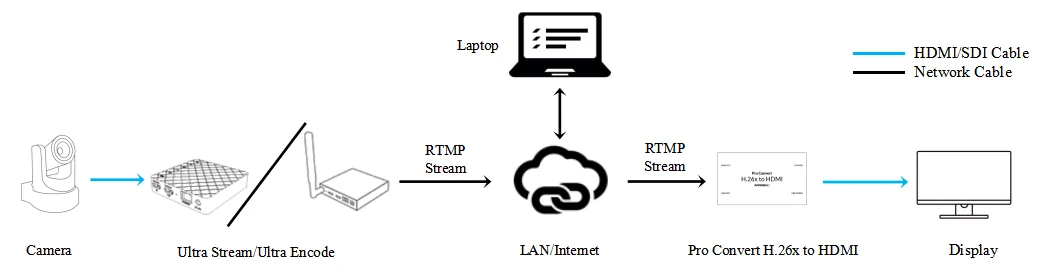
A Magewell Ultra Stream or Ultra Encode encoder can create the RTMP stream and send it to the Pro Convert decoder. The diagram below shows the connections. The laptop is used only to configure and manage the devices. All encoding and decoding is done by the Ultra Stream or Ultra Encode and the Pro Convert, so the link keeps running when the laptop is disconnected.
1. Log into the Web GUI of the encoder. Click "Streaming Server" in the menu on the left, then click "Add Server" and select "RTMP".
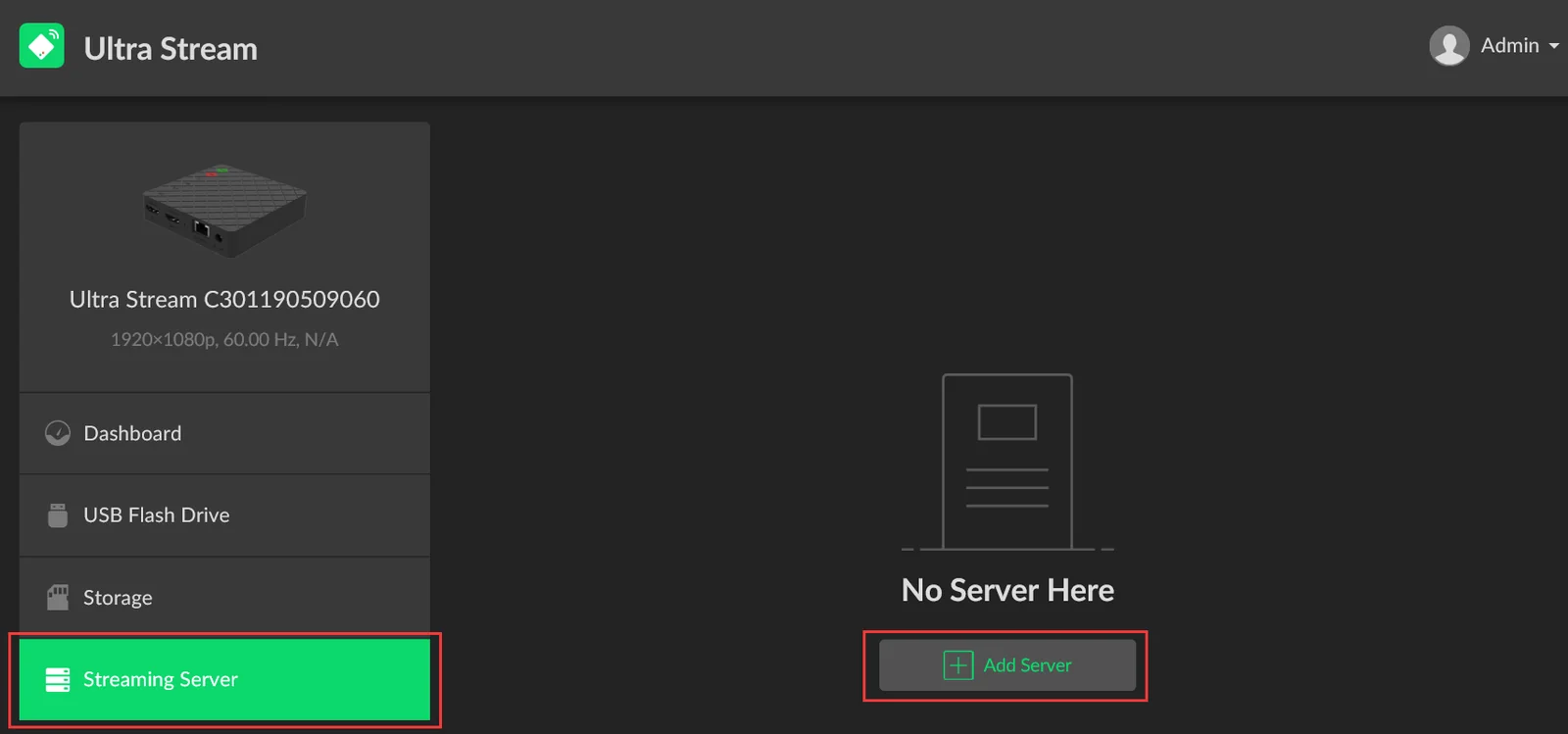
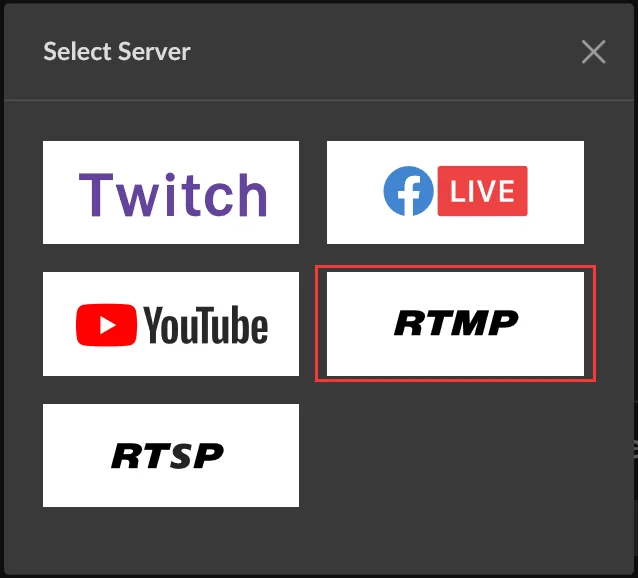
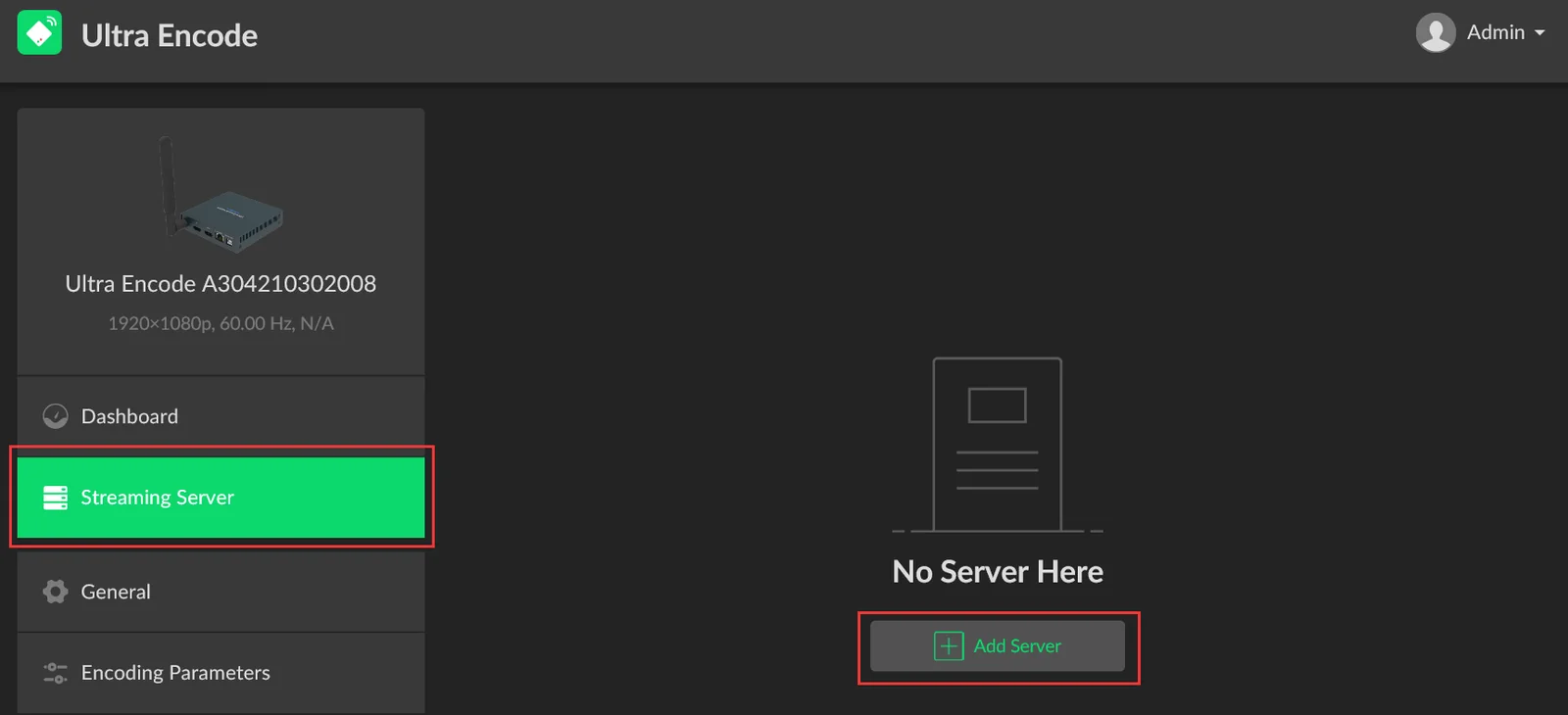
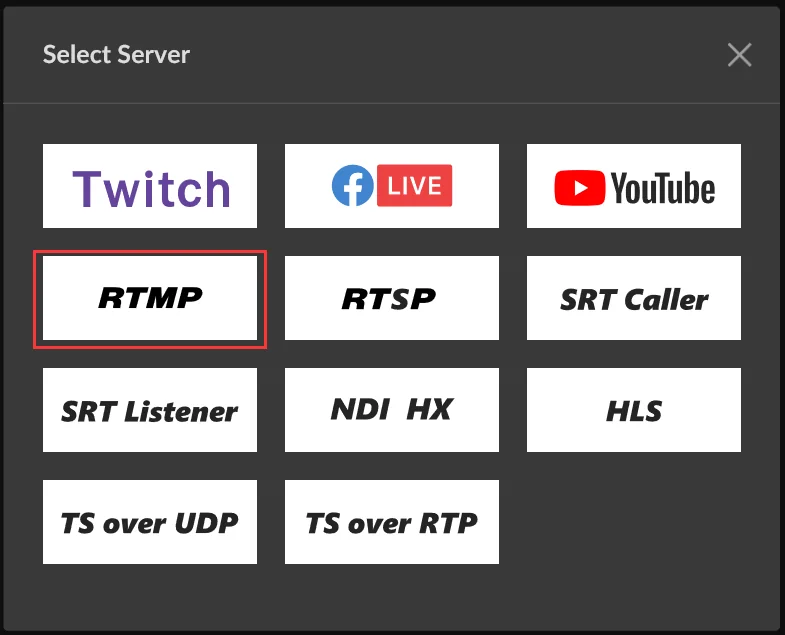
2. Fill in the RTMP "URL" in the pop-up page in the format rtmp://<decoder IP address>/live (10.10.3.109/live in our example) and enter the "Stream Key" ("magewell" in our example). Click "Save".
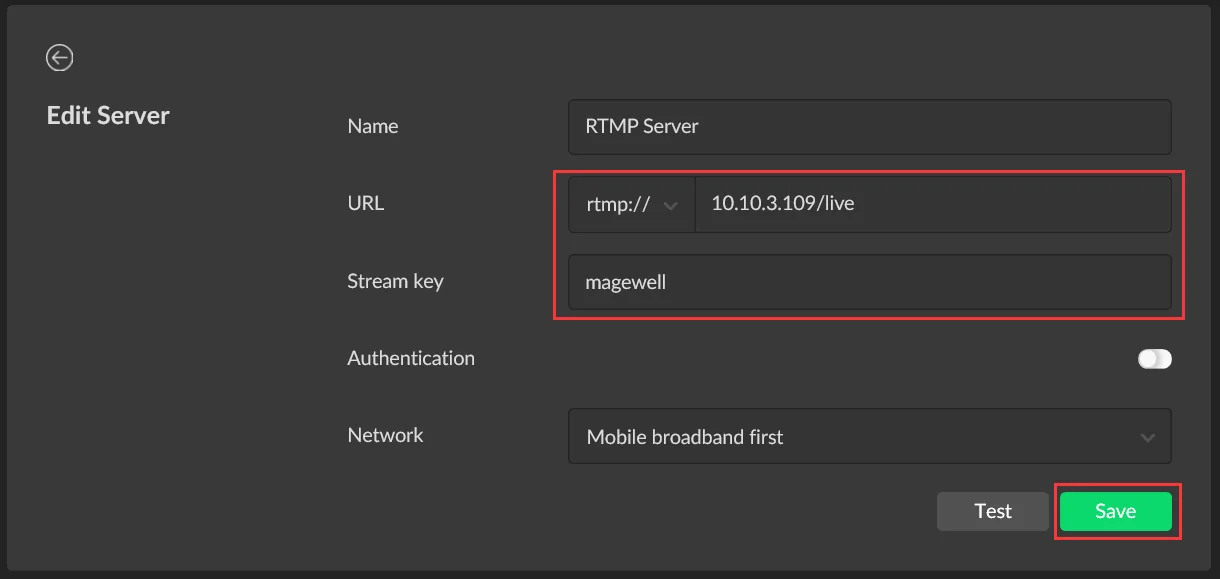
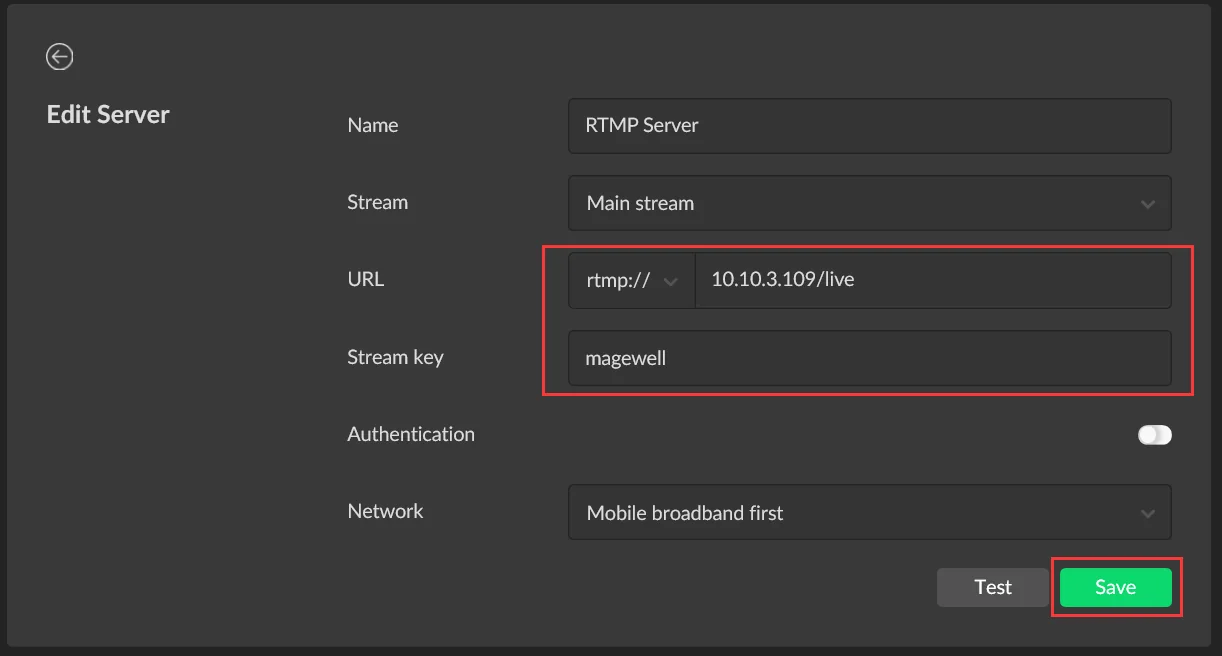
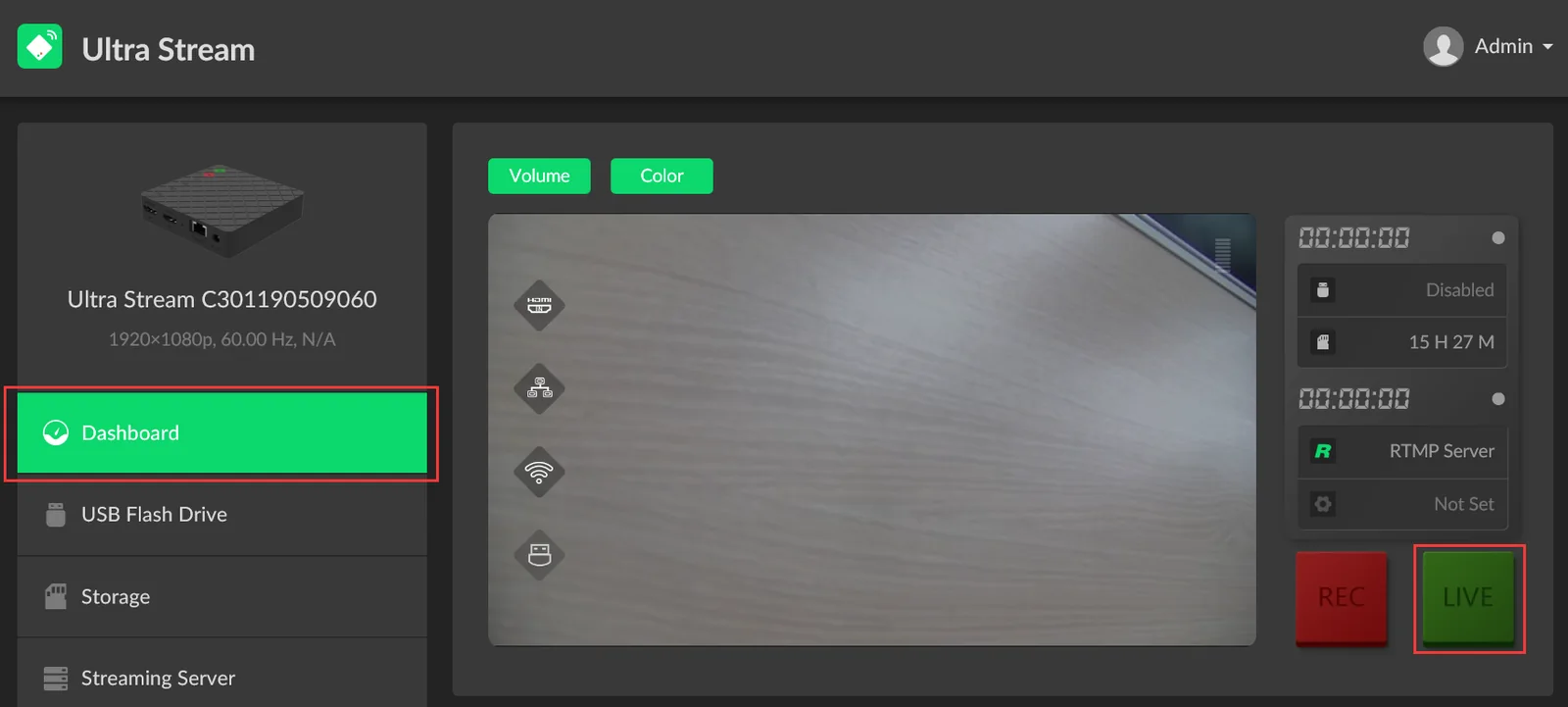
3. If you are using an Ultra Stream encoder, return to the "Dashboard" tab, and click "LIVE" to start streaming. With Ultra Encode, you can begin streaming without returning to the dashboard tab. The RTMP stream now goes directly to the decoder, with no server in between.
Encoding software can create and send the RTMP stream instead of a hardware encoder. This example uses Magewell’s Capture Express software, a Magewell USB Capture device to bring the camera signal into the computer, and a Pro Convert decoder. The diagram below shows the connections.
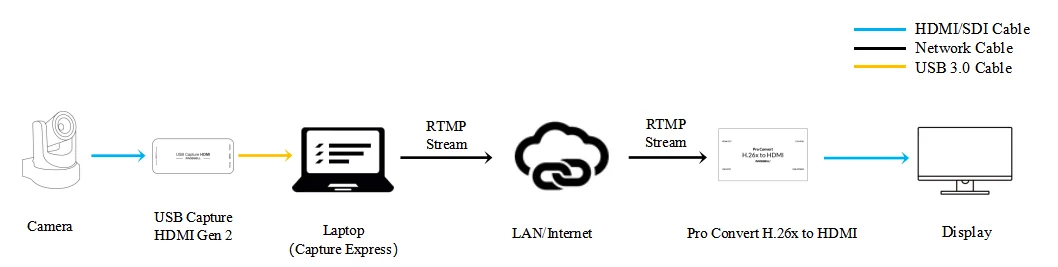
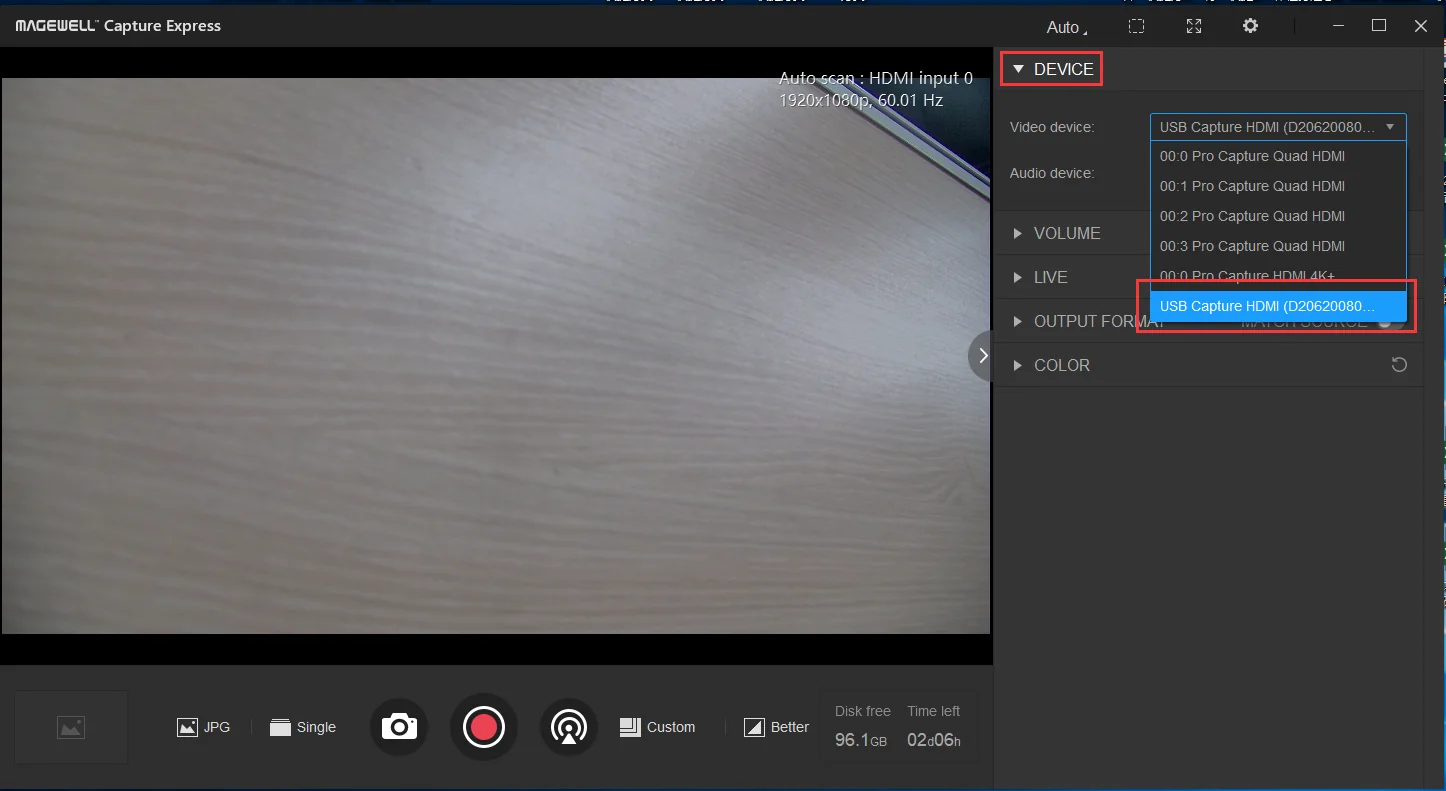
1. Open the Capture Express software and go to the "DEVICE" tab. Under the "Video device" field, select the appropriate video capture device (USB Capture HDMI Gen 2 in our example). You will see a preview of the video source.
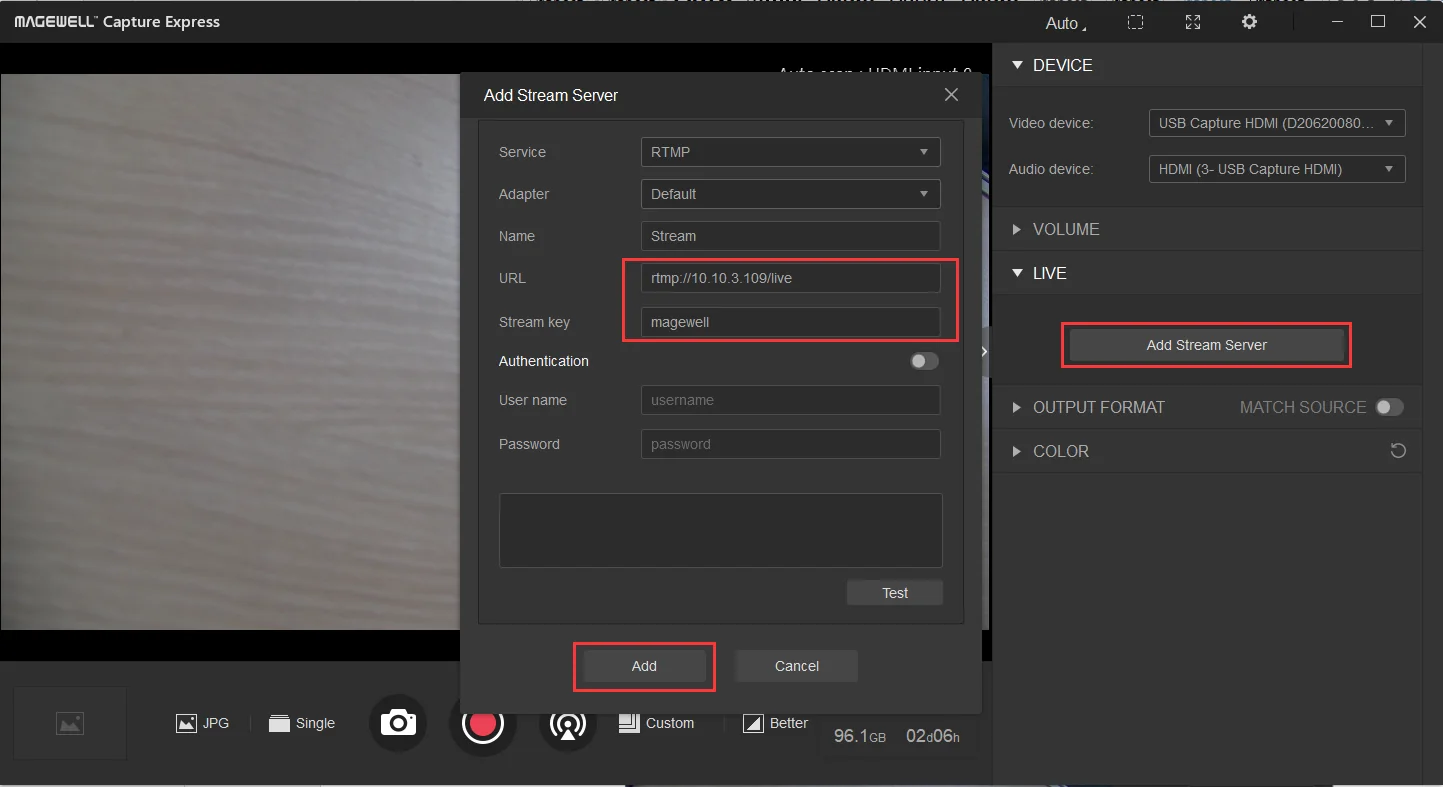
2. Go to "LIVE" tab, then click "Add Stream Server." Fill in the URL (10.10.3.109/live in our example) and Stream Key ("magewell" in our example) as shown in the following figure, and click "Add".
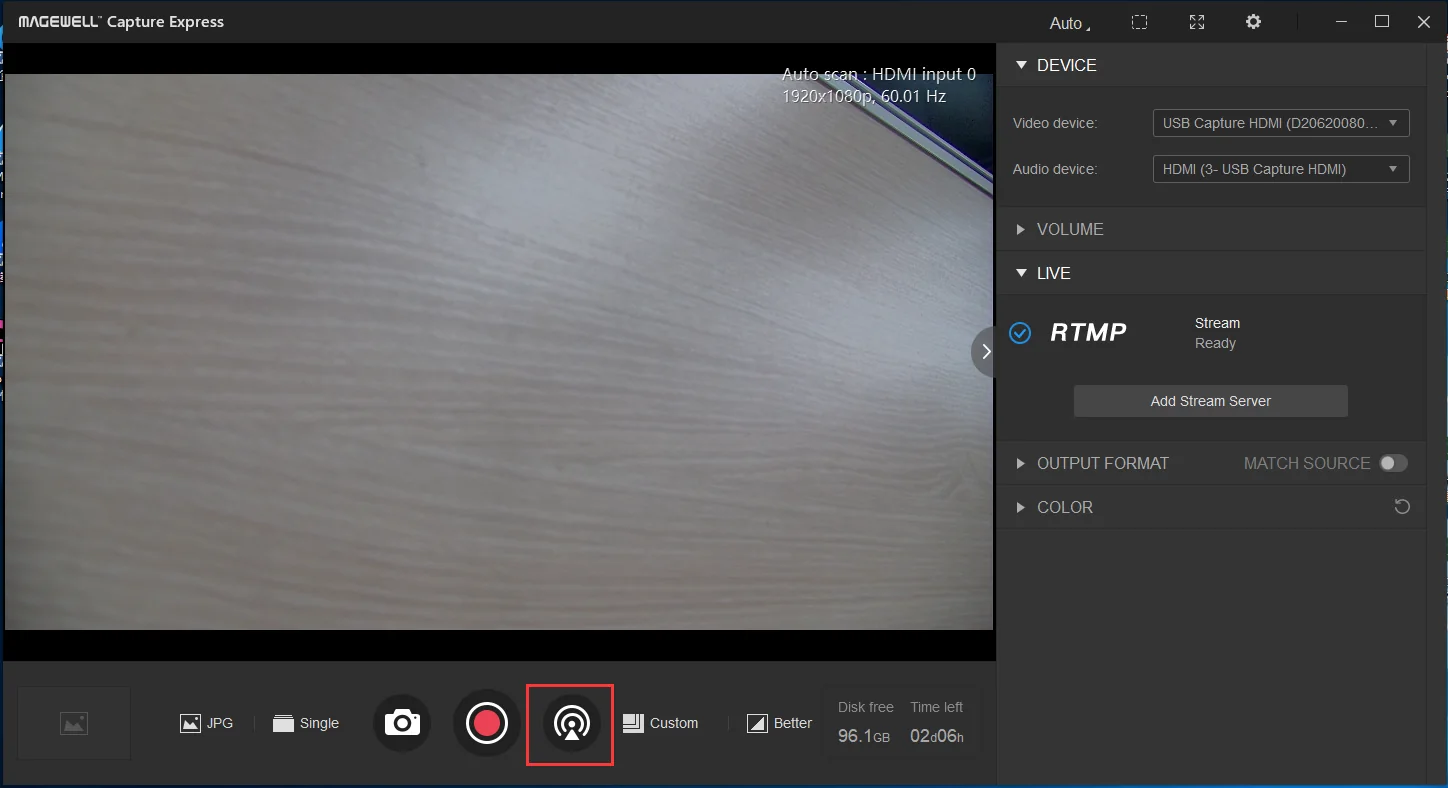
3. Return to the main page and click the streaming icon. The RTMP stream now goes directly to the decoder, with no server in between.
ForeFront Imaging is the authorised UK distributor for Magewell. We stock the full range and can help you spec the right solution.
Browse Products Talk to UsNo marketing noise. Just new product launches, firmware updates, and the occasional guide.
No spam. Unsubscribe any time. Your email is never shared.
Enjoying your visit? Quick rating of your browsing experience so far:
Anything specific? (optional)