Capture · Record · Stream · Encode · DecodeCapture · Record · Stream · Encode · Decode
To send video between two sites over the public internet with Magewell hardware, put an Ultra Encode encoder at the source and a Pro Convert decoder at the destination, and set one as the SRT Listener and the other as the SRT Caller. This guide gives the settings for both arrangements. SRT (Secure Reliable Transport) is designed to deliver video reliably and with low delay over unpredictable networks, which is why it is widely used for links between venues, studios and remote sites.
The encoder takes HDMI from the camera and sends it as an SRT stream; the decoder receives that stream and puts it on an HDMI display. Because both ends are standalone devices, neither site needs a PC once the link is set up. The connection diagram below shows the signal path.
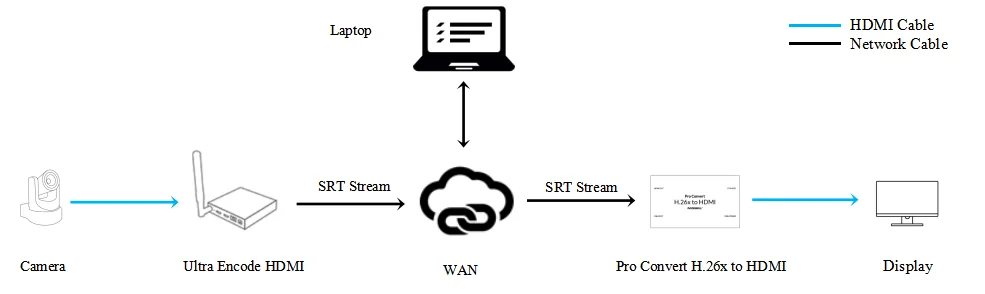
SRT relies on two-way communication between the source (encoder) and the destination (decoder) to cope with public networks. To set this up, the two devices perform a handshake in which one acts as the Caller, which starts the SRT session, and the other as the Listener, which waits for a Caller to connect. The SRT Alliance's SRT Deployment Guide describes this in detail.
The direction of the video does not decide which device is the Caller. Either end can take the role, but the Caller must know the public IP address and port number of the Listener. In practice, make the Listener whichever site has a fixed public address and a firewall you can open, and let the other site call out to it. Both arrangements are set out below.
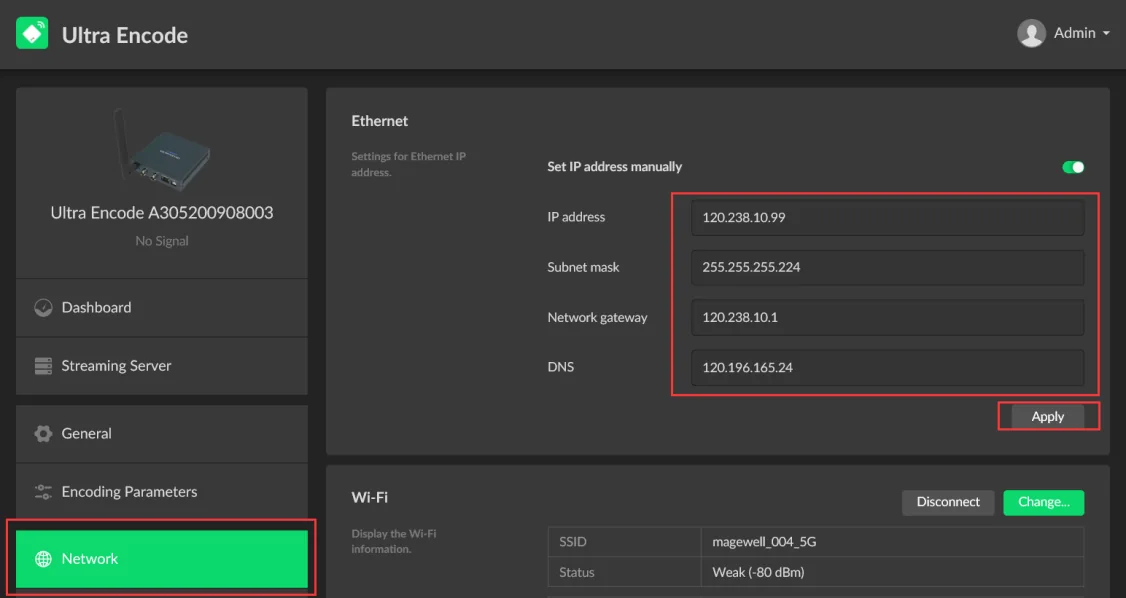
1. Log into the Web GUI of the Ultra Encode device and go to the "Network" tab. In the "Ethernet" section, turn on the "Set IP address manually" switch, and fill in the IP address, Subnet mask, and other information. (Note that since this device will be the Listener, the IP address must be a fixed/static IP address accessible on the public network.) Click "Apply".
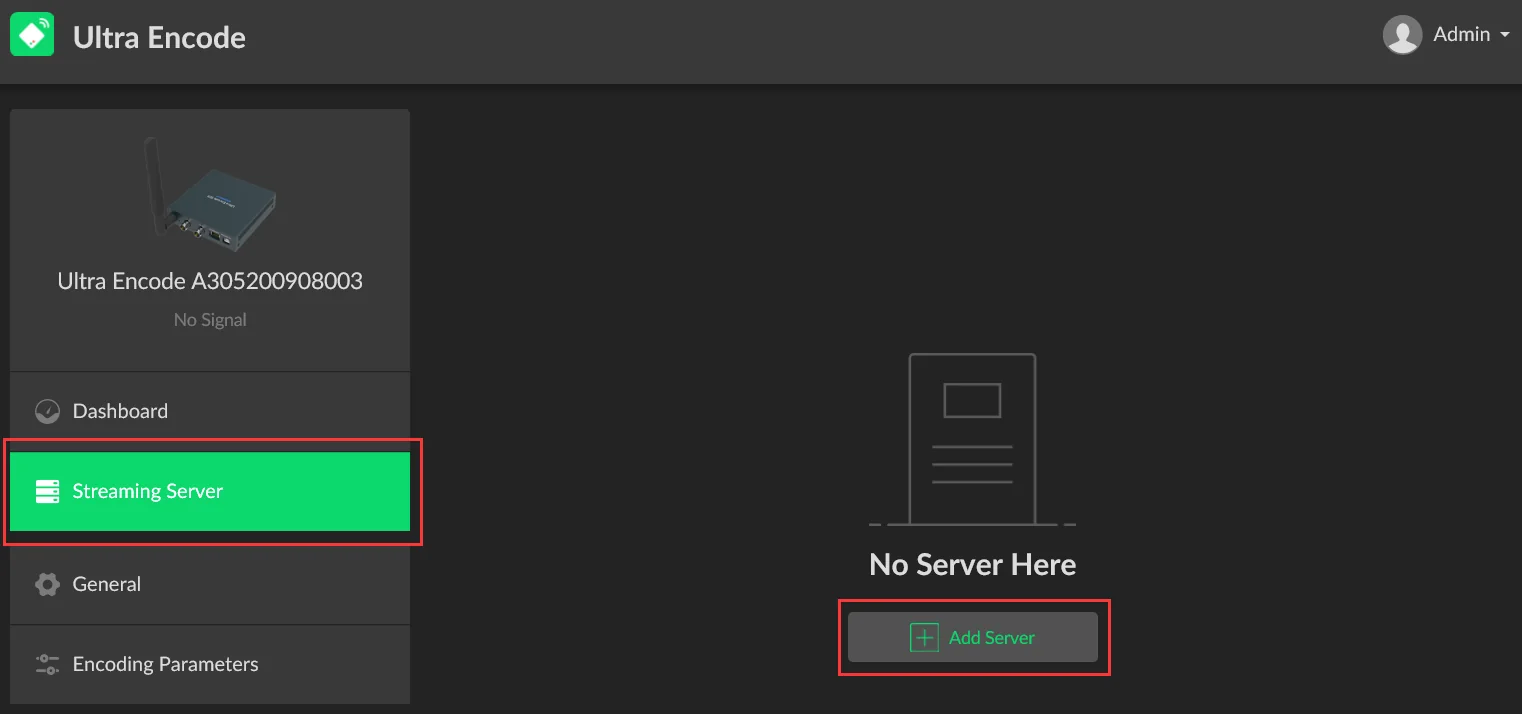
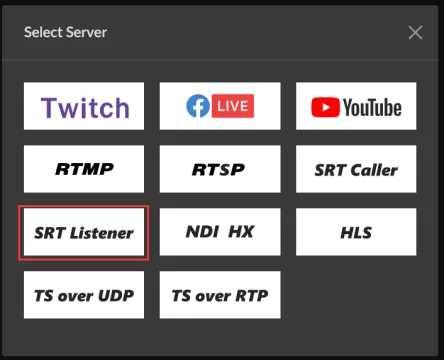
2. Click "Streaming Server" in the menu on the left, then click "Add Server". Select "SRT Listener".
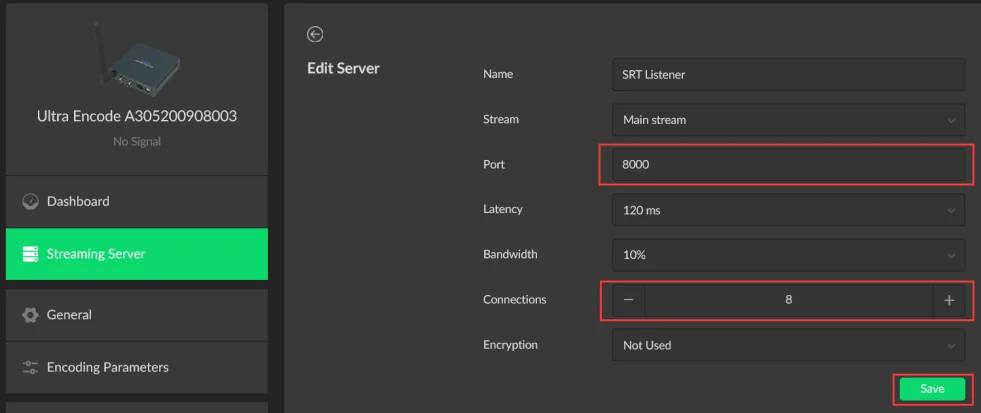
3. Fill in the port number in the pop-up page (8000 in our example), select the number of connections you want to allow, and click "Save". The encoder will begin streaming once a connection is initiated by an SRT Caller.
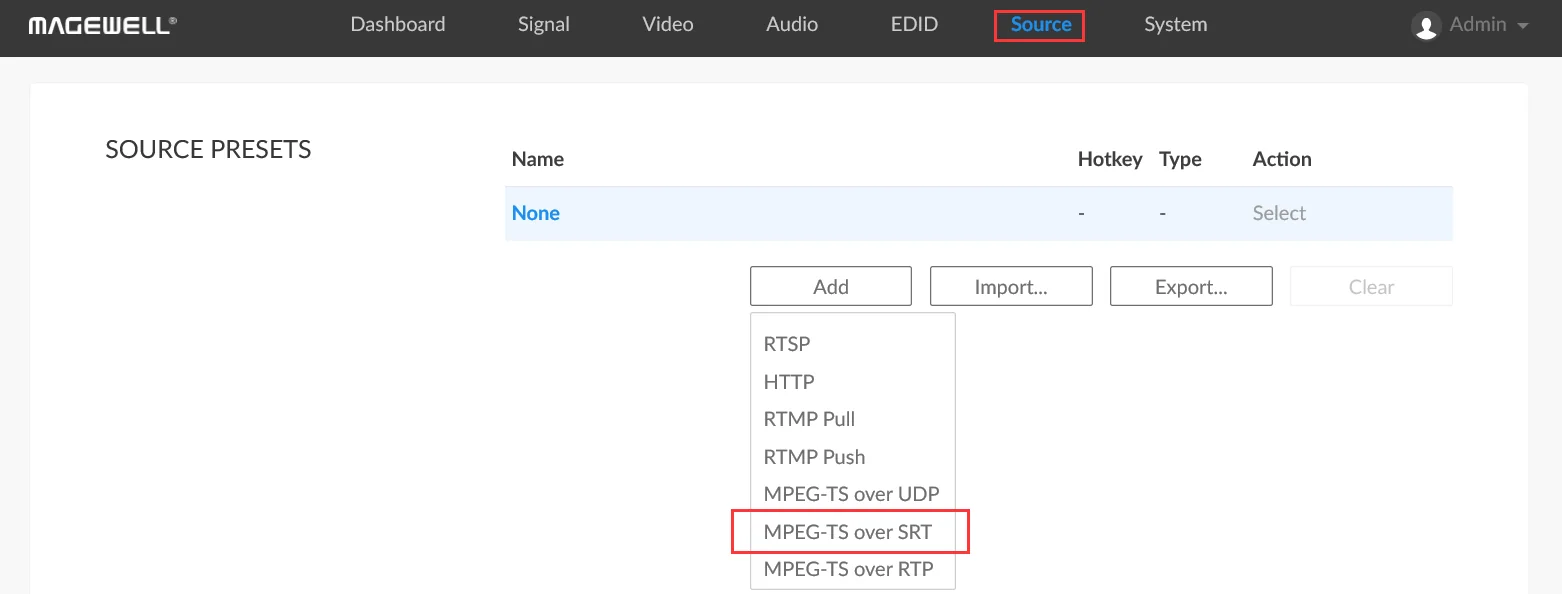
1. Log into the Web GUI of the Pro Convert decoder and click the "Source" tab. In the "SOURCE PRESETS" section, click "Add" and select "MPEG-TS over SRT".
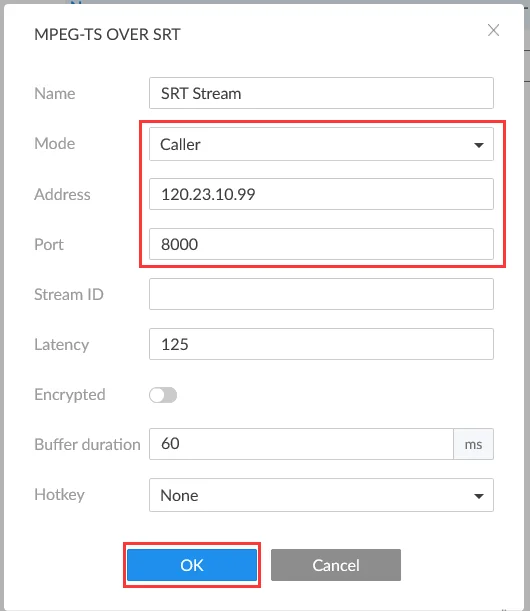
2. On the pop-up page, select "Caller" for the mode. In the Address field, enter the public IP address of the encoder. Enter the Port number (consistent with the port number set in the encoder), and click "OK".
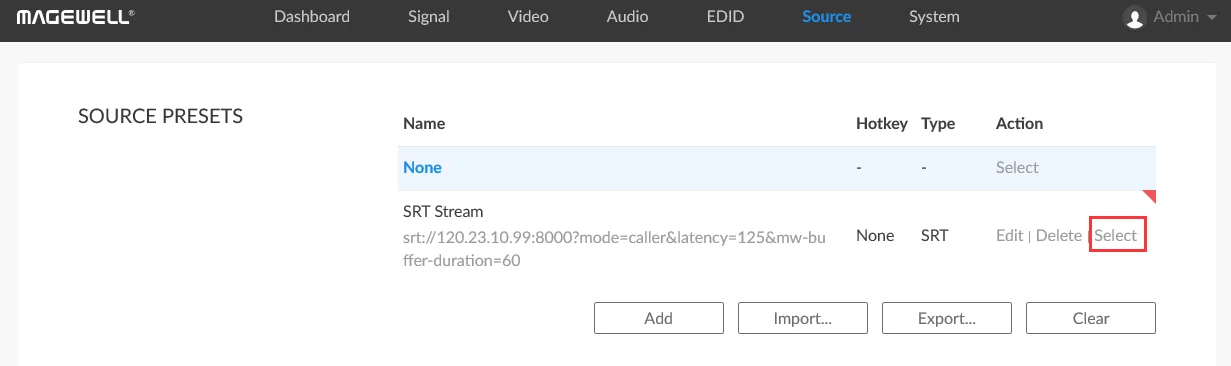
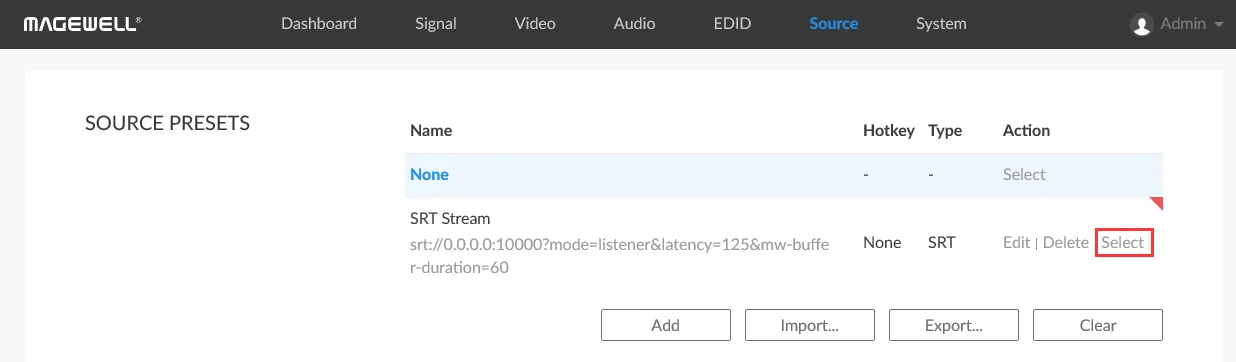
3. The settings you just added will now be displayed in the “SOURCE PRESETS” list. Click "Select" to decode the SRT streams sent from the encoder.
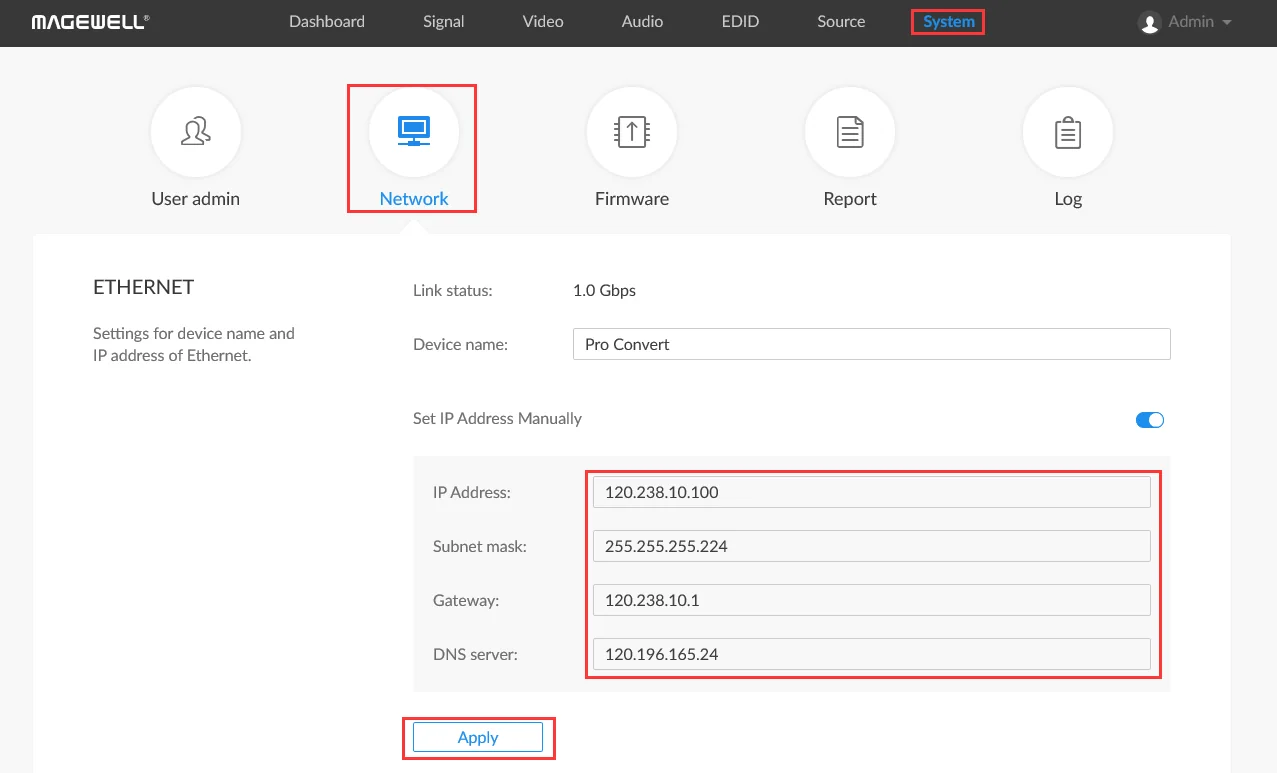
1. Log into the Web GUI of the Pro Convert decoder. Click the “System” tab in the top menu, then click the “Network” icon. Turn on the "Set IP Address Manually" switch, then fill in the IP address, Subnet mask, and other information. (Note that since this device will be the Listener, the IP address must be a fixed/static IP address accessible on the public network.) Click "Apply".
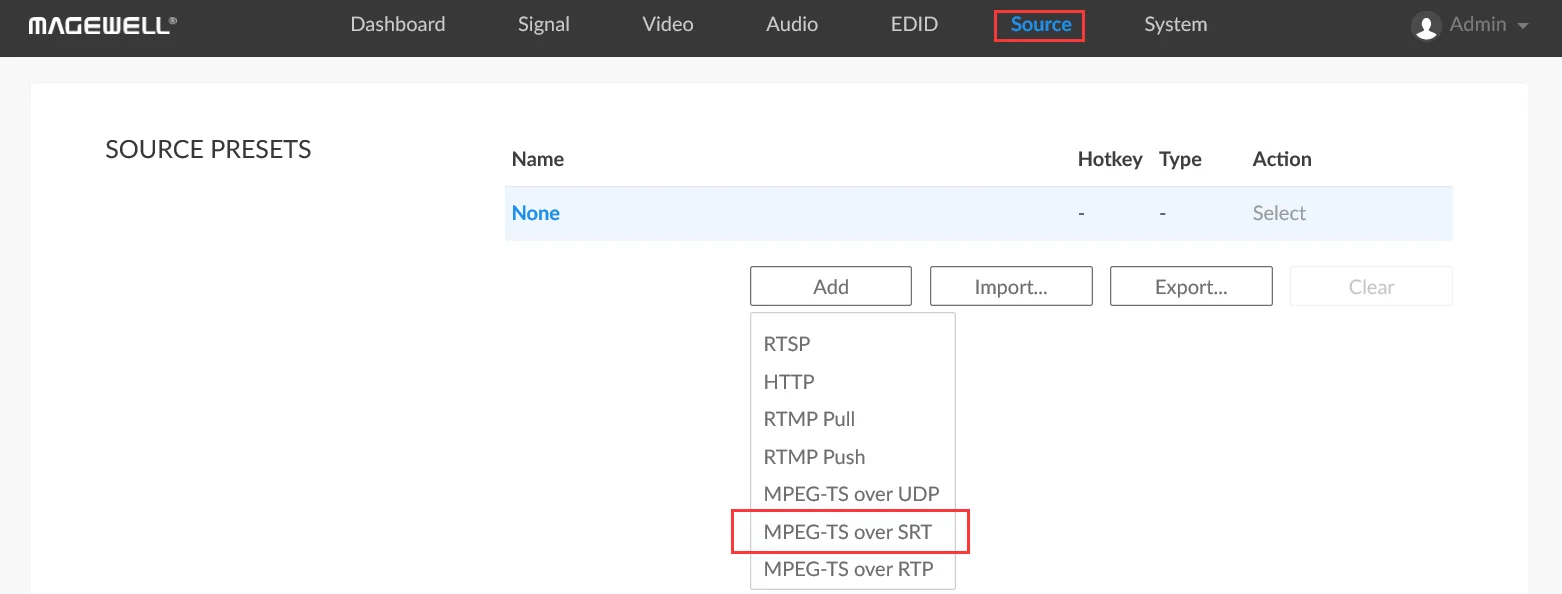
2. Enter the "Source" tab. In the "SOURCE PRESETS" section, click "Add" and select "MPEG-TS over SRT".
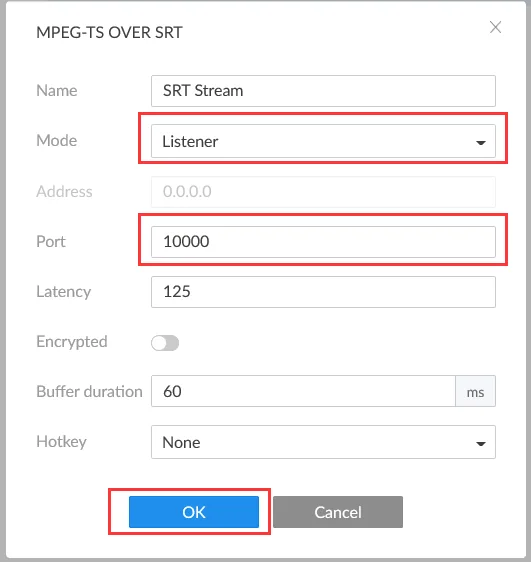
3. On the pop-up page, select "Listener" for the mode, fill in the port number (10000 in this example), and click "OK".
4. The settings you just added will now be displayed in the “SOURCE PRESETS” list. Click "Select", and the decoder will begin waiting for the encoder to initiate an SRT streaming session.
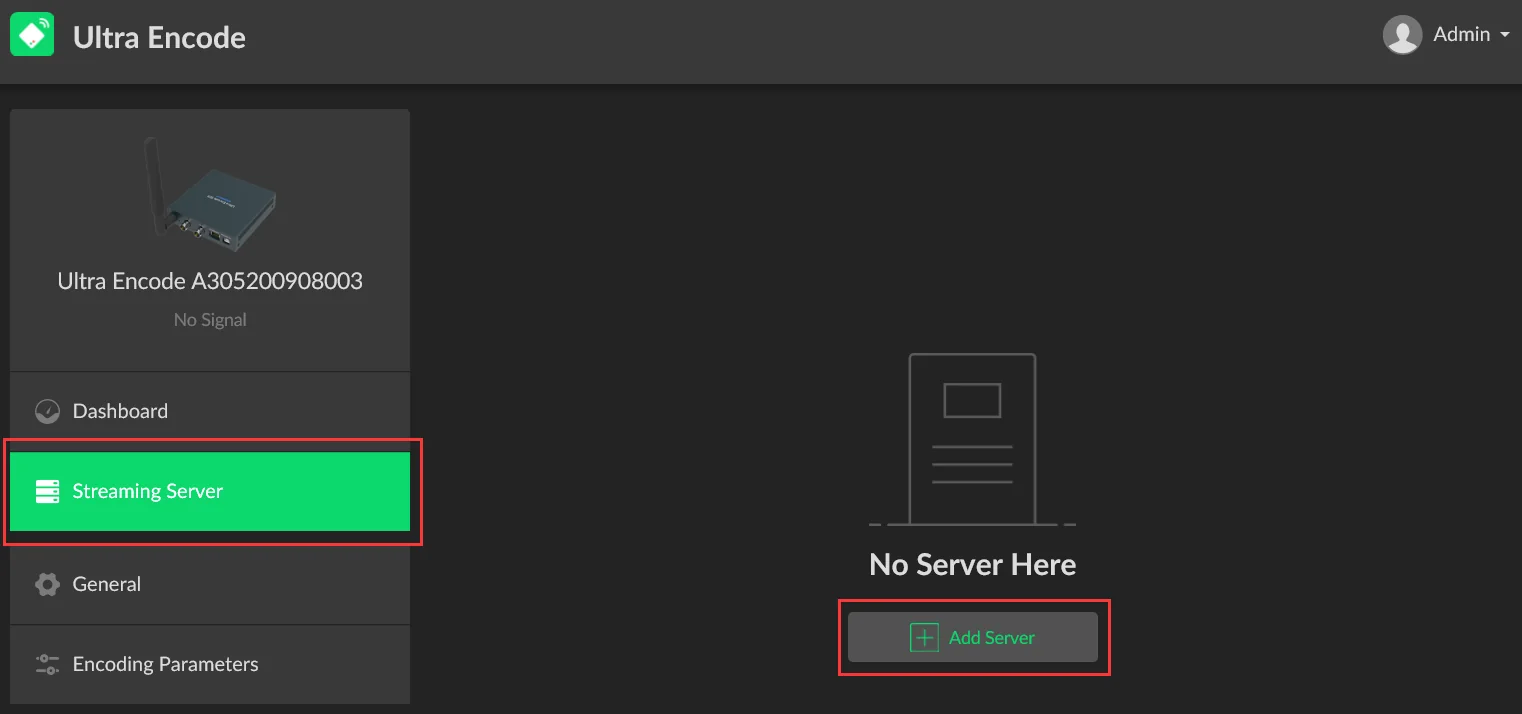
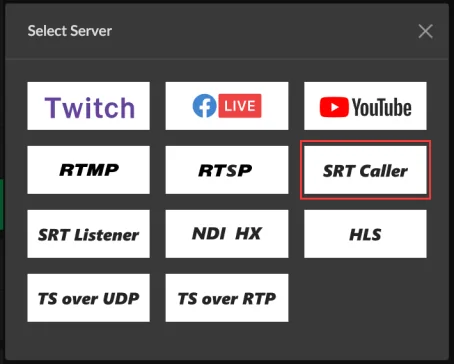
1. Log into the Web GUI of the Ultra Encode device. Select "Streaming Server" in the menu on the left, click "Add Server", and then select "SRT Caller".
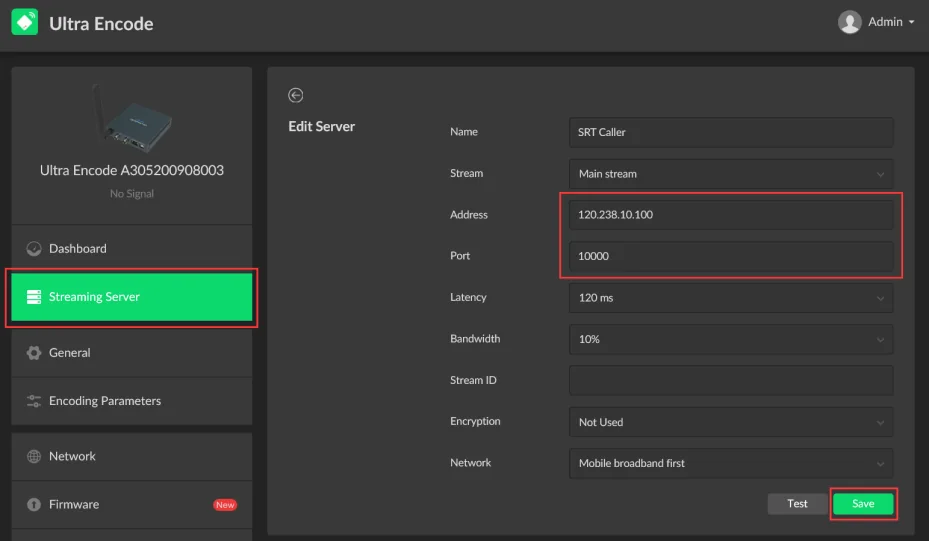
2. On the pop-up page, in the Address field, enter the public IP address of the decoder. Enter the port number (consistent with the port number set in the decoder), and click "Save". The encoder will initiate a connection with the SRT Listener (decoder) and begin streaming.
ForeFront Imaging is the authorised UK distributor for Magewell. We stock the full range and can help you choose the right encoder and decoder for your link.
Browse Products Talk to UsNo marketing noise. Just new product launches, firmware updates, and the occasional guide.
No spam. Unsubscribe any time. Your email is never shared.
Enjoying your visit? Quick rating of your browsing experience so far:
Anything specific? (optional)