Authorised UK Magewell Distributor
🎓 Education  |  📡 Broadcast  |  🏥 Healthcare  |  ⛪ Houses of Worship  |  🏛️ Government
In Stock  ·  Same-day despatch  ·  UK-based support
ResourcesSoftwareBlog & ArticlesCase StudiesKnowledge BaseLiterature✍️ Submit a Case Study
← Back to Knowledge Base
🚀 Getting Started

Setting Up OBS Studio with Magewell USB Capture
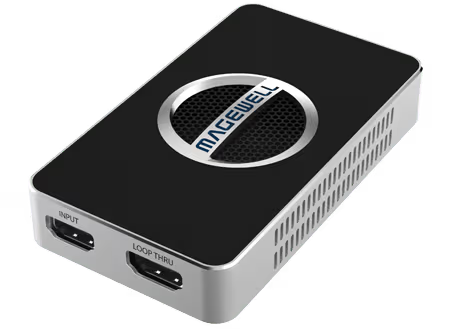
Magewell Setting Up OBS Studio with Magewell USB Capture — hdmi 4k plus

Adding the Capture Source

In OBS, click the + button in the Sources panel and select Video Capture Device. Name it and click OK. In the properties window, select your Magewell device from the Device dropdown.

Resolution and Frame Rate

Set Resolution to Custom and enter your source resolution (1920x1080 for 1080p sources, 3840x2160 for 4K sources). Set FPS to match your source — typically 30 or 60.

For 4K sources using the USB Capture HDMI 4K Plus or 4K Pro, set Custom resolution to 3840x2160 and FPS to 60. Enable Use Buffering and set buffer to 400ms to smooth any USB bandwidth fluctuations.

Video Format

Set Video Format to NV12 or YUY2. These are the most compatible formats with OBS encoding pipelines.

OBS Canvas Settings

In Settings → Video, set Base Canvas Resolution to match your capture source. For streaming, set Output Scaled Resolution to 1920x1080 for efficient encoding.

Still need help?
Our UK-based technical team are available Monday to Friday 9am–5pm.
Contact Support+44 (0)116 277 5730

Related Guides

Stay Updated

New products and Magewell updates

No marketing noise. Just new product launches, firmware updates, and the occasional guide.

No spam. Unsubscribe any time. Your email is never shared.

Frequently Asked Questions

In OBS Studio, click the + button in the Sources panel, select Video Capture Device, name the source, then select your Magewell device from the Device dropdown. For USB Capture cards no driver is needed — they appear automatically.

Match the output resolution and frame rate of your source device. For 1080p60 content, set OBS to 1920x1080 at 60fps. For 4K sources, set 3840x2160 at your target frame rate. Use the Magewell device's native format if possible to avoid unnecessary rescaling.

Audio sync offset can be adjusted per-source in OBS. Right-click your Magewell source, select Properties, and adjust the Audio Sync Offset. Typical values range from 0 to 200ms depending on your system. See our audio sync guide for a full walkthrough.

In OBS, click + in the Sources panel and select Video Capture Device. In Properties, select your Magewell device from the Device dropdown, set resolution and frame rate to match your source, and click OK. On Windows, install the Magewell driver first for full resolution and EDID control.

Use NVENC (NVIDIA) or QuickSync (Intel) hardware encoding rather than software x264 to reduce CPU load. Set canvas and output resolution to match your capture resolution. Under Advanced Audio, set Sync Offset to 0ms initially and adjust if needed.

OBS preview adds rendering overhead and is not a reliable indicator of stream latency. If preview appears sluggish, check OBS is using hardware rendering (Settings → Advanced → Renderer: Direct3D 11). High preview lag with smooth recording usually indicates a GPU performance issue, not a capture card issue.

Yes. OBS supports multiple capture sources. Add multiple Magewell devices as separate scene sources, switch between them, or use together in a multi-camera layout. The limit is your PC's processing capability and USB bandwidth.