Capture · Record · Stream · Encode · DecodeCapture · Record · Stream · Encode · Decode
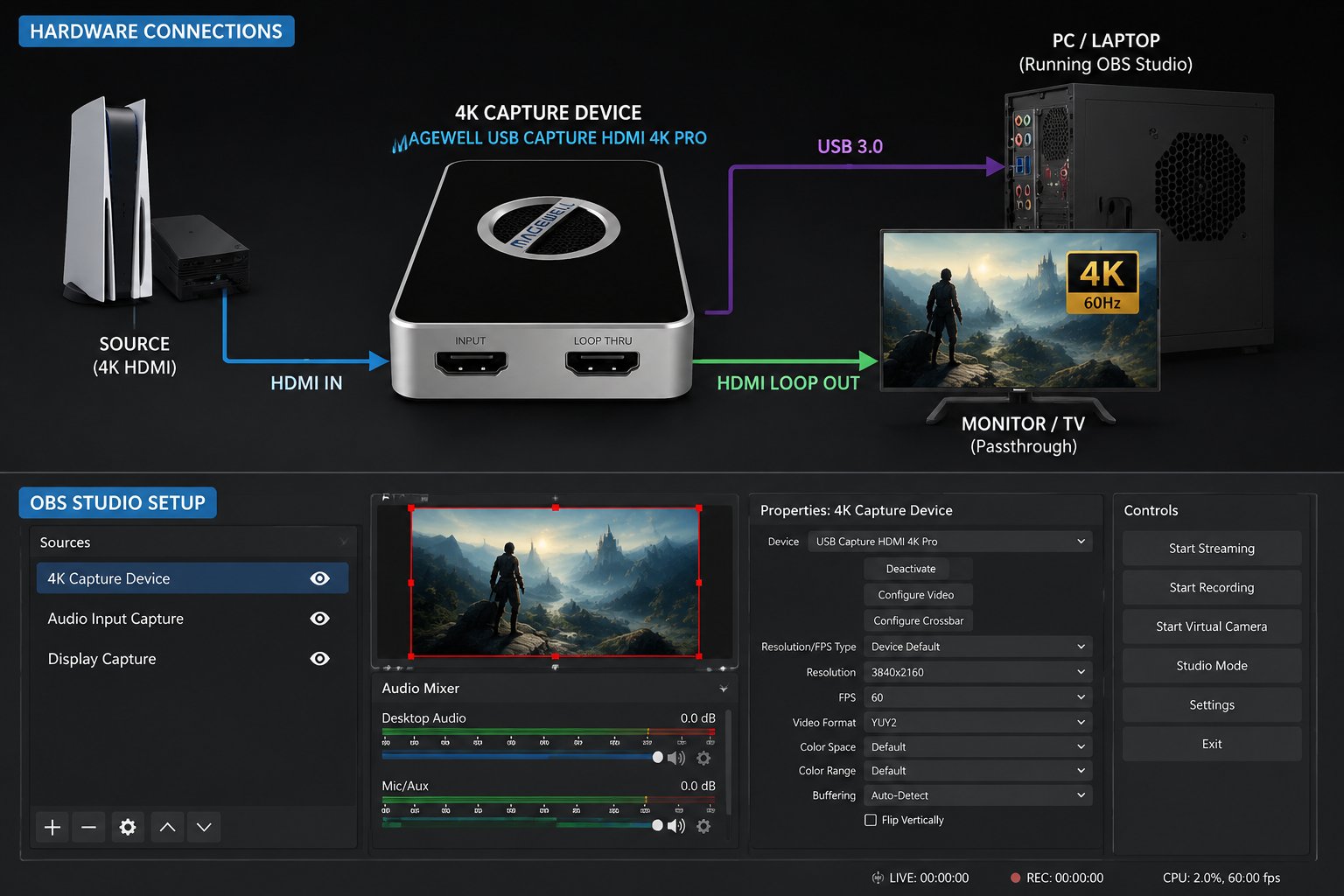
First match the capture device to the frame rate you need. For 4K capture at 60 fps over USB, choose the USB Capture HDMI 4K Pro. It uses USB 3.2 Gen 2x2 (up to 20 Gbps), so connect it to a computer port that supports that speed. The USB Capture HDMI 4K Plus captures 4K at up to 30 fps over ordinary USB 3.0 and passes 4K at 60 fps to a monitor on its loop-through, which suits 4K30 production or a 1080p60 stream from a 4K source. For a permanent workstation, the Pro Capture HDMI 4K Plus PCIe card captures 4K at 60 fps. For the USB 3.0 model, use a genuine USB 3.0 port, usually blue or marked SS (SuperSpeed).
Magewell USB Capture devices install without a driver on Windows, macOS, Linux and Chrome OS. Plug in the device and your HDMI source, then open OBS Studio and add a Video Capture Device source. The Magewell device appears in the Device drop-down list. If it does not, try a different USB port, connect directly to the computer instead of through a hub, or restart OBS Studio.
In the Video Capture Device properties, set Resolution/FPS Type to Custom and choose 3840x2160. Set FPS to 60 with the 4K Pro, or to 30 with the 4K Plus, which captures 4K at up to 30 fps. For Video Format, NV12 is a good choice where it is offered. Leave everything else at its default.
Go to Settings → Video and set Base (Canvas) Resolution to 3840x2160. Set Output (Scaled) Resolution to 1920x1080 for streaming or 3840x2160 for local recording. Set FPS to match the capture source, 60 or 30.
In Settings → Output, switch Output Mode to Advanced and select a hardware encoder if your graphics card offers one, such as NVIDIA NVENC. A hardware encoder takes most of the 4K encoding work off the processor, which software (x264) encoding would load heavily at this resolution.
OBS Studio works in Rec. 709 by default, which matches most HDMI sources in standard dynamic range. If the colours look washed out, go to Settings → Advanced and check that Color Format is NV12 and Color Space is Rec. 709. Then check the Color Range setting in the capture source's properties, because a mismatch between full and limited range is a common cause of a washed-out picture.
Dropped frames: Often a USB bandwidth problem. Uncompressed 4K is a lot of data, so plug the capture device directly into the computer and avoid sharing the same USB controller with other high-speed devices. On Windows you can see the controllers in Device Manager under Universal Serial Bus controllers.
Black screen: Sources protected by HDCP copy protection cannot be captured. Camera and vision mixer outputs are normally unprotected. Games consoles and media players often have HDCP switched on; some consoles let you turn it off in their settings for gameplay.
High CPU usage: Switch to a hardware encoder in OBS Studio. If you are already using one and the load is still high, lower the output resolution or frame rate, or choose a faster encoder preset.
No marketing noise. Just new product launches, firmware updates, and the occasional guide.
No spam. Unsubscribe any time. Your email is never shared.
Enjoying your visit? Quick rating of your browsing experience so far:
Anything specific? (optional)