Capture · Record · Stream · Encode · DecodeCapture · Record · Stream · Encode · Decode
If the monitor on your capture device's loop-through output shows no picture, or the wrong resolution, turn on SmartEDID. With it enabled, the Magewell device tells the source to send a signal that both the capture device and the monitor can accept. Loop-through matters in many live streaming setups because it lets a computer capture the source while the same signal carries on to a display. In game streaming, for example, the console feeds the capture device and is looped through to the player's monitor.
The problem arises when the monitor and the capture device have different limits. A source reads the EDID (Extended Display Identification Data) of whatever it is plugged into to decide what resolution, frame rate and colour format to send. If a capture device with a 4K input sits in front of a monitor that only accepts 1080p, the source may send a signal the monitor cannot show.
SmartEDID deals with this. The Magewell unit compares its own input capabilities with those of the device on its loop-through output, and sends the source an EDID that suits both. The capture device and the looped-through display then receive a signal each can use, with no splitter or EDID emulator to add.
This guide explains how to use SmartEDID on Windows, using game streaming as the example. The equipment used:
1. Connect the devices for video capture and loop-through as shown in the diagram below:
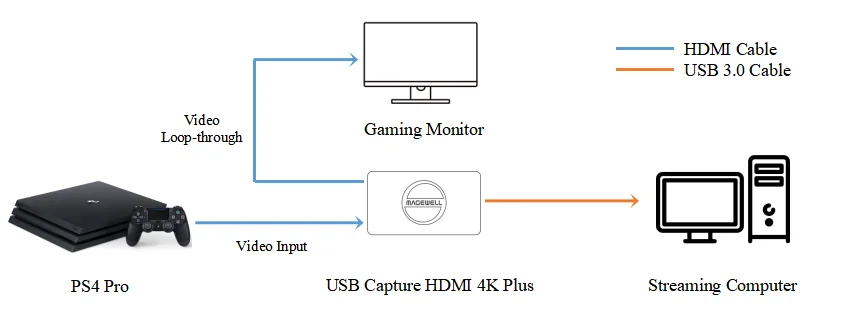
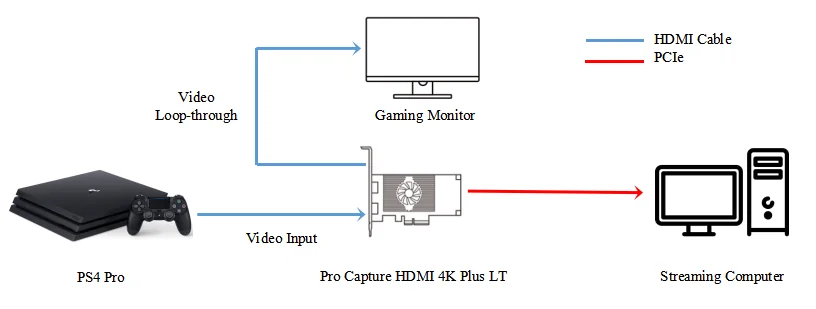
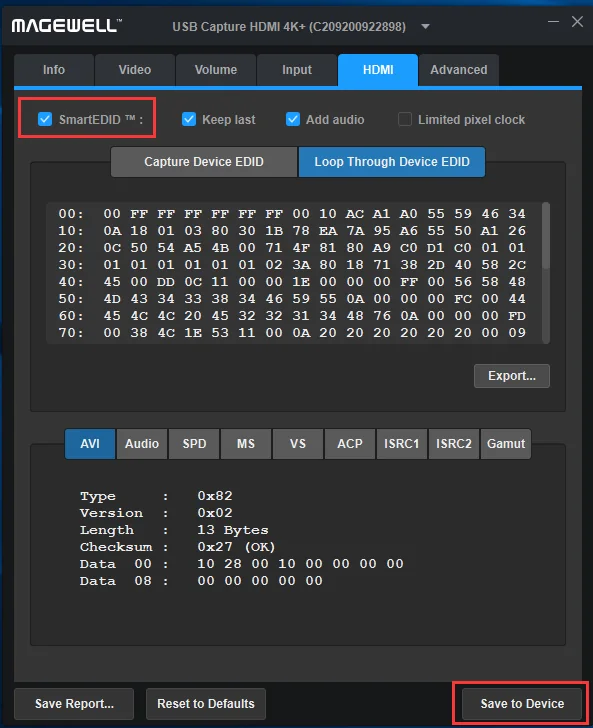
2. For Magewell USB Capture devices, open the Magewell USB Capture Utility V3 software. In the "HDMI" tab, tick "SmartEDID" to enable the function, then click "Save to Device". The capture device will send the source the EDID of the device with the lowest input capability, which here is the monitor. The console will then output 1080p60, a signal that both the capture device and the monitor can handle.
If "SmartEDID" is not ticked, the function is off and the capture device sends its own EDID to the source. In this example the console will then output 4Kp60. The capture device can accept that signal (the USB Capture HDMI 4K Plus captures 4K at up to 30 fps), but the 1080p monitor will not be able to display the picture. Leave SmartEDID off only when every device on the loop-through can accept what the capture device can.
3. For Magewell Pro Capture PCI Express cards on Windows, SmartEDID is set in the Windows Registry. Run "regedit" to open the Registry Editor and go to the "Computer\HKEY_LOCAL_MACHINE\SYSTEM\CurrentControlSet\Services\ProCapture" folder. Inside it, open the entry for your capture card (if the system has several card models there may be several entries), then select the folder for the board number and channel number of your card, shown as "Board X, Channel X". Take care when editing the Registry, and change only the value described here.
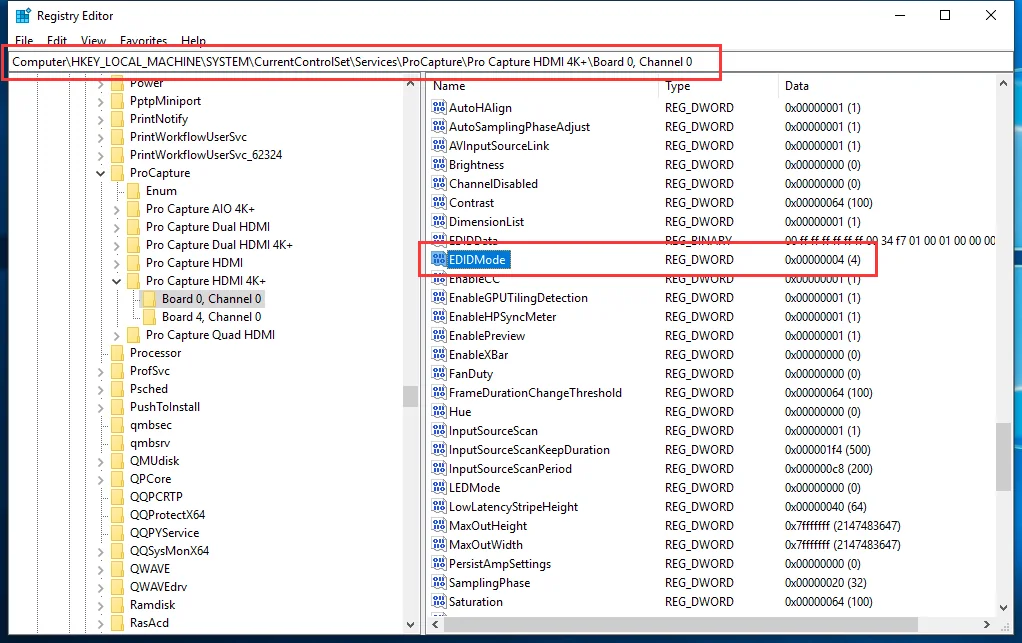
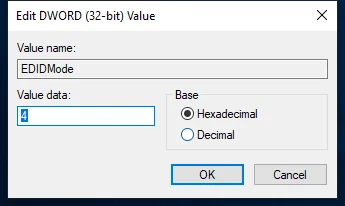
Double-click the "EDIDMode" item, select "Hexadecimal", and enter 1 or 4 in "Value data". 1 disables SmartEDID and 4 enables it.
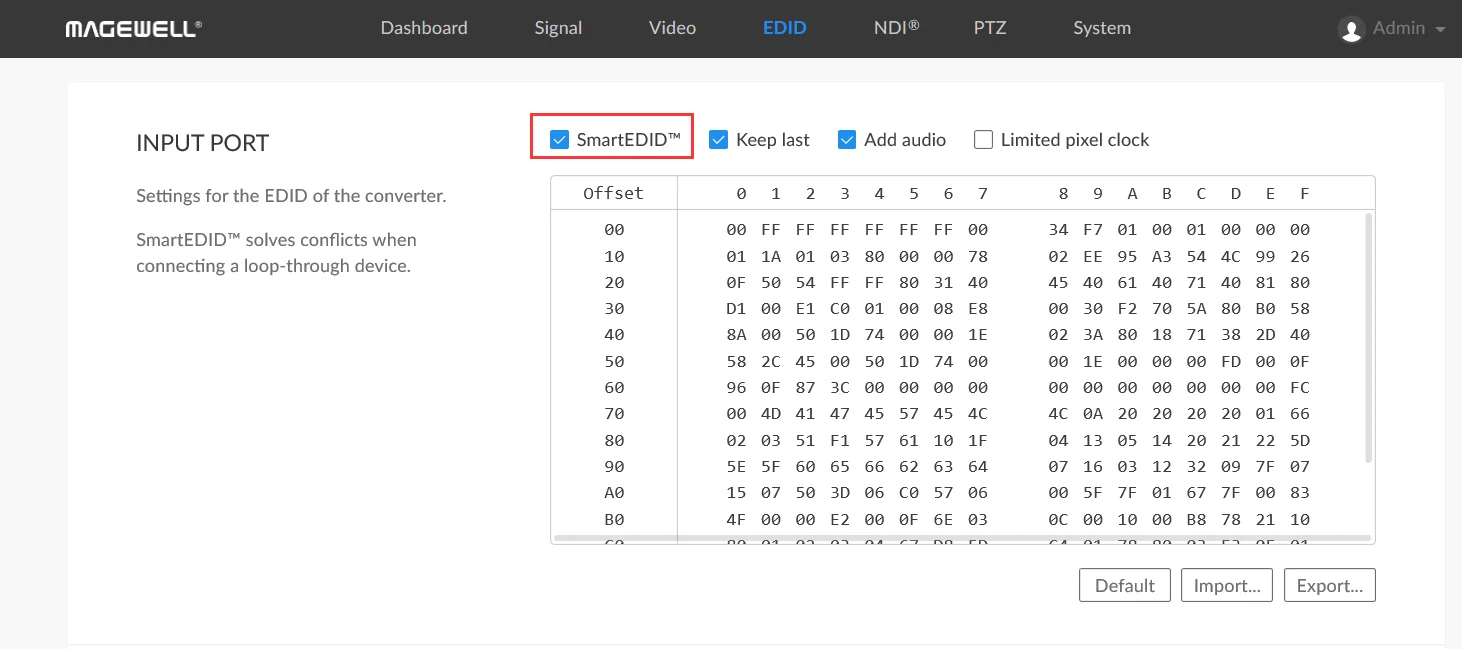
The Magewell Pro Convert HDMI Plus and Pro Convert HDMI 4K Plus NDI® encoders also support SmartEDID, which helps when a local screen is fed from their HDMI loop-through. Log into the encoder's Web GUI and click the "EDID" tab. In the "Input Port" column, tick or untick "SmartEDID" to turn the function on or off.
If you have difficulty with SmartEDID, or need instructions for turning it on or off under Linux or macOS, contact Magewell technical support at support@magewell.net, or ask us and we will help.
ForeFront Imaging is the authorised UK distributor for Magewell. We stock the full range and can help you choose the right capture device for your setup.
Browse Products Talk to UsNo marketing noise. Just new product launches, firmware updates, and the occasional guide.
No spam. Unsubscribe any time. Your email is never shared.
Enjoying your visit? Quick rating of your browsing experience so far:
Anything specific? (optional)