Capture · Record · Stream · Encode · DecodeCapture · Record · Stream · Encode · Decode
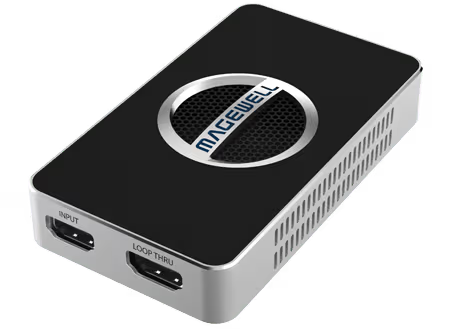
A Magewell USB Capture device installs without a driver, so setup takes three steps: add it as a Video Capture Device, match the resolution and frame rate to your source, and set the canvas. Connect the device to a USB 3.0 port and plug in your HDMI or SDI source first. Then, in OBS, click the + button in the Sources panel and select Video Capture Device. Name it and click OK. In the properties window, select your Magewell device from the Device dropdown.
Set Resolution/FPS Type to Custom and choose your source resolution, for example 1920x1080 for a 1080p source. Set FPS to match your source, typically 25, 30, 50 or 60. Matching the source avoids needless scaling and frame rate conversion.
For 4K, the settings depend on the model. The USB Capture HDMI 4K Plus captures 3840x2160 at up to 30 fps, so set 3840x2160 and 30 (or 25) FPS, or choose 1920x1080 at 60 when smooth motion matters more than resolution. Its HDMI loop-through still passes 4K at 60 fps to your monitor. The USB Capture HDMI 4K Pro captures 3840x2160 at up to 60 fps, so set 3840x2160 and 60 FPS. The HD models, such as the USB Capture HDMI Gen 2 and HDMI Plus, capture up to 2048 pixels wide, so use 1920x1080 with those.
Set Video Format to YUY2 or NV12, whichever your device lists. Both are uncompressed formats that OBS handles directly. If you are unsure, leave the setting on its default.
In Settings → Video, set Base (Canvas) Resolution to match your capture source. For streaming, set Output (Scaled) Resolution to 1920x1080 unless your platform and upload speed call for something else. Set the frame rate here to match the source as well.
No marketing noise. Just new product launches, firmware updates, and the occasional guide.
No spam. Unsubscribe any time. Your email is never shared.
In OBS Studio, click the + button in the Sources panel, select Video Capture Device, name the source, then select your Magewell device from the Device dropdown. USB Capture devices install without a driver, so the device is listed as soon as it is connected.
Match the output resolution and frame rate of your source device. For 1080p60 content, set OBS to 1920x1080 at 60 fps. For 4K, check what your model captures: the USB Capture HDMI 4K Plus captures 3840x2160 at up to 30 fps, and the USB Capture HDMI 4K Pro at up to 60 fps. Matching the source avoids unnecessary rescaling.
Audio and video can take different times to pass through a PC, and OBS lets you correct this for each source. Open Advanced Audio Properties from the Audio Mixer and adjust the Sync Offset for the Magewell source. Start at 0 ms, record a short clap test, and change the offset in small steps until sound and picture line up.
In OBS, click + in the Sources panel and select Video Capture Device. In Properties, select your Magewell device from the Device dropdown, set resolution and frame rate to match your source, and click OK. A USB Capture device needs no driver on Windows, macOS or Linux. A Pro Capture PCIe card is added in the same way once the card is installed in the PC and recognised by the operating system.
If your PC has a hardware encoder, such as NVENC on an NVIDIA graphics card or Quick Sync on an Intel processor, choosing it in place of software x264 reduces CPU load. Set the canvas resolution to match your capture resolution. In Advanced Audio Properties, leave Sync Offset at 0 ms to begin with and adjust only if needed.
First check whether the recording or stream is smooth. If it is, the capture device is delivering frames correctly and the problem lies in drawing the preview, which depends on your graphics hardware. Check that the resolution and frame rate in the source properties match your source, close other programs that use the graphics card, and connect the device to a USB 3.0 port, not a USB 2.0 port or an unpowered hub.
Yes. OBS supports multiple capture sources. Add each Magewell device as its own Video Capture Device source, then switch between them or combine them in a multi-camera layout. The limit is your PC's processing power and USB bandwidth, so connect each device to its own USB 3.0 port. For several inputs in a desktop PC, a multi-channel Pro Capture card such as the Pro Capture Quad HDMI avoids the USB limit.
Enjoying your visit? Quick rating of your browsing experience so far:
Anything specific? (optional)